Clipboard History in Windows 10 is one of the best features of Windows 11. Invoked by the Win+V buttons, it allows you to paste items that you have copied. In future Builds of Windows 10, the clipboard history will be made more robust by adding GIF support, Emoji support, etc. One of Clipboard’s History problems was there was no option for pasting as plain text in the destination. In Future Windows builds, Microsoft is adding “Paste as Plain Text” as an option in the clipboard history menu. Earlier, one had to paste items in Notepad or similar software to remove the copied text formatting.
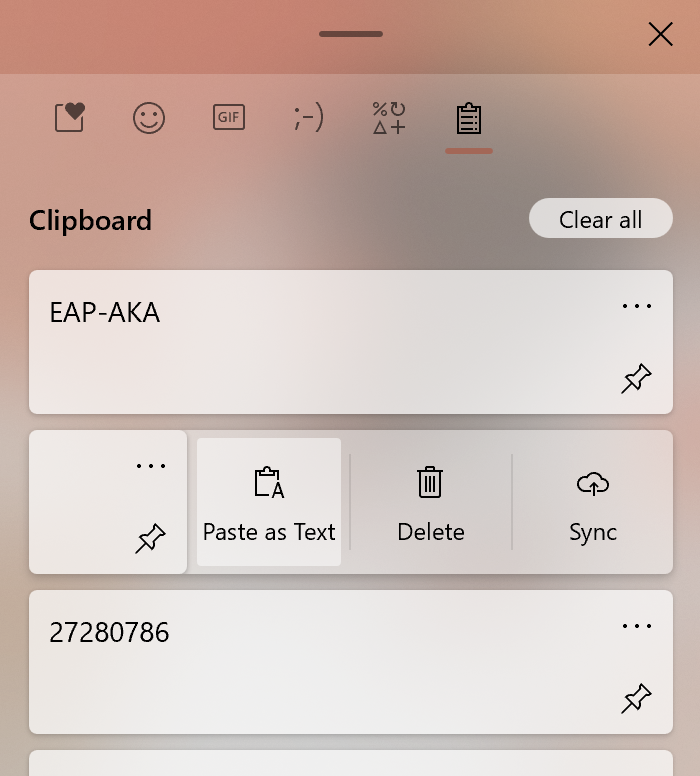
Initially available with Build 21318, clicking the three dots beside any item would show an option to paste as plain text without formatting, matching the destination’s formatting. Detailed steps:
How to Paste as Plain Text using the Clipboard in Windows
To paste a copied item as Plain text in Windows 10 using Clipboard History, see the steps below:
- Copy an item you want to paste without formatting.
- Press Win+V to open the Clipboard History.
- Click the three dots beside the item you wish to paste.
- Select Paste as text.
Remember that this feature is currently in the Dev Channel of Insider Builds at the time of this writing, so it is not available for stable releases. Although Dev Channel Builds aren’t tied to the specific release, this feature is expected to land with Windows 10 21H2 update, scheduled for later 2021.
Do you like this feature in Cloud Clipboard? Let us know in the comments.



