Table of Contents
This article will help you disable Copilot in Office 365, also known as Microsoft 365. Microsoft Copilot is an AI suite that is added to all of its subscriptions, including Family and Personal subscriptions. Microsoft has been pushing it a lot lately with its services. They have integrated AI into their cloud service, Azure, and Windows using Microsoft Copilot, and now it’s the turn for 365.
Copilot Background
Microsoft 365 Copilot is an AI-powered assistant integrated into its applications for personal use. It enhances productivity by assisting with tasks in Microsoft Word, Excel, PowerPoint, Outlook, and other Microsoft applications. Additionally, Copilot uses advanced AI to assist with document creation, data analysis, and email drafting, making it easier for individual users to complete tasks and improve their skills. This tool aims to streamline everyday activities and provide intelligent support within the familiar Microsoft 365 environment. However, some people remain skeptical about AI and would like it removed – this is where this article can help you.
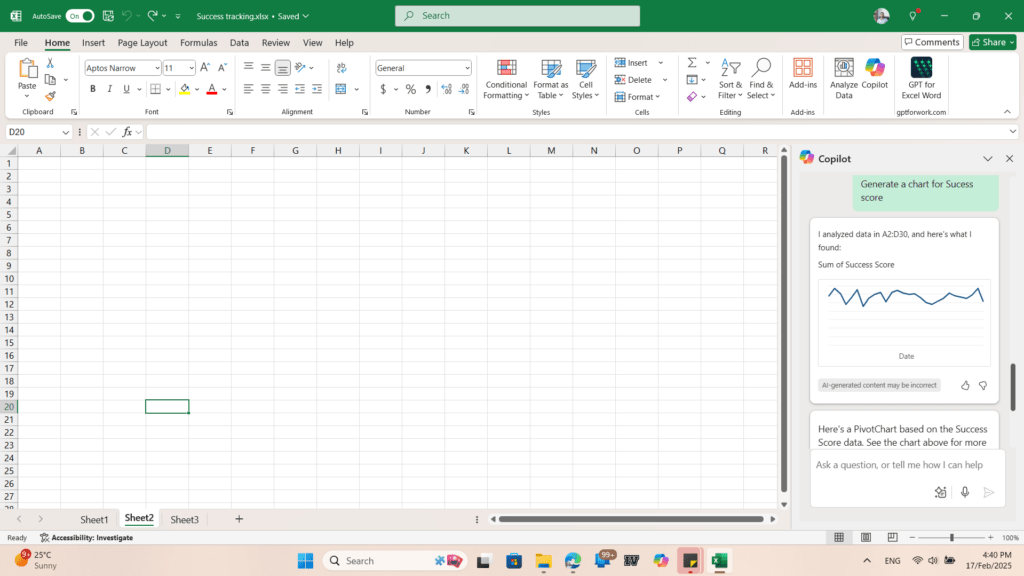
Disable Copilot in Office 365 Personal or Family subscription
Fortunately, Microsoft allows you to remove Copilot if you don’t want it. The steps for it are straightforward.
- Please open the Office app on which you want to disable the feature, such as Microsoft Word.
- Next, from the top, click File > Options.
- Concurrently, select the Copilot submenu.
- Uncheck the box labeled “Enable Copilot.”
- Restart your Microsoft Office App.
- The Copilot menu item should be gone.
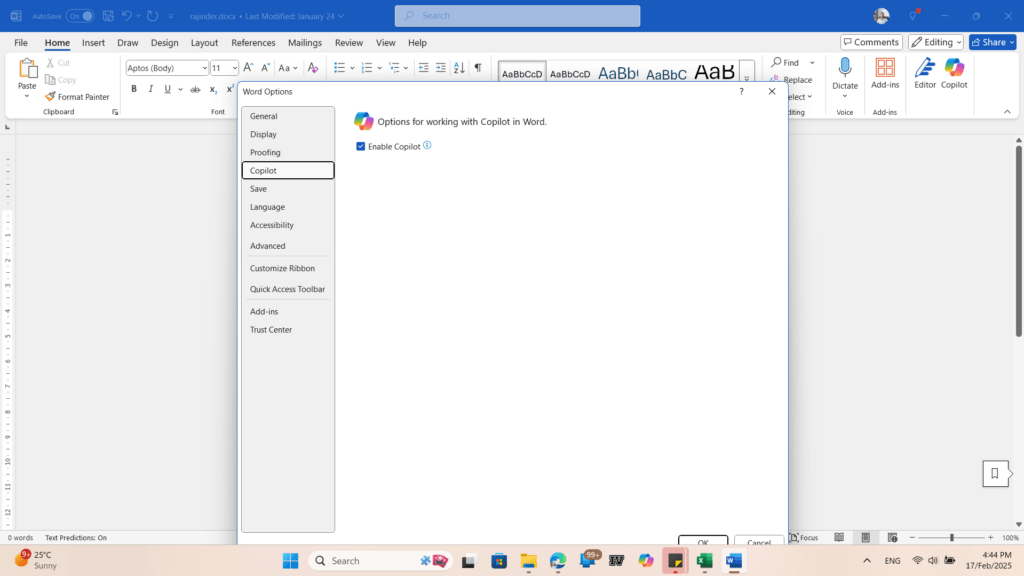
Lastly, to remove Copilot in Office 365, you must repeat the steps for each Office App you use.
To cancel Copilot from your subscription, see below:
Courtesy and further reading:
How to turn off Copilot in Microsoft 365 Family and Personal subscriptions – Microsoft Support
How to use the Old Copilot version – Your Windows Guide
To summarise, this article will guide you on how to turn off Copilot in Microsoft 365 Office Apps.