This article covers some excellent shortcuts, also known as shortcut key, to access the Snipping Tool and its details, as seen in the Windows 11 version 24H2 release.
Table of Contents
What is the Snipping Tool?
The Snipping Tool is an Inbuilt app in Windows, which allows you to take a snapshot of the entire screen or a specific portion. Furthermore, you can, after the snapshot, annotate it using shapes, text, and other features, with many additions made over the past year. Additionally, the Snipping Tool also features a screen recording option, allowing you to record a specific part of the screen. Moreover, the previous update added support for reading text and serving as an OCR.
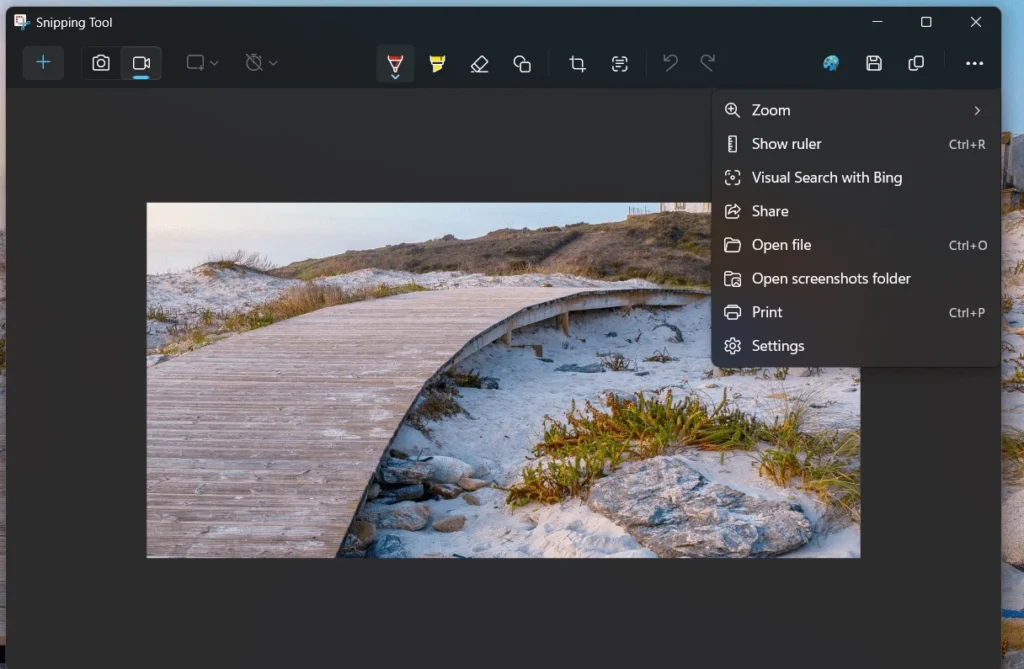
Snipping Tool Shortcut Key for easier access to its features
There are a wide variety of Snipping Tool shortcut key (or keys) also, can be termed as hotkey for snipping tool, that you can use to access the available features quickly. Some of them are below:
Quickly open Snipping Tool
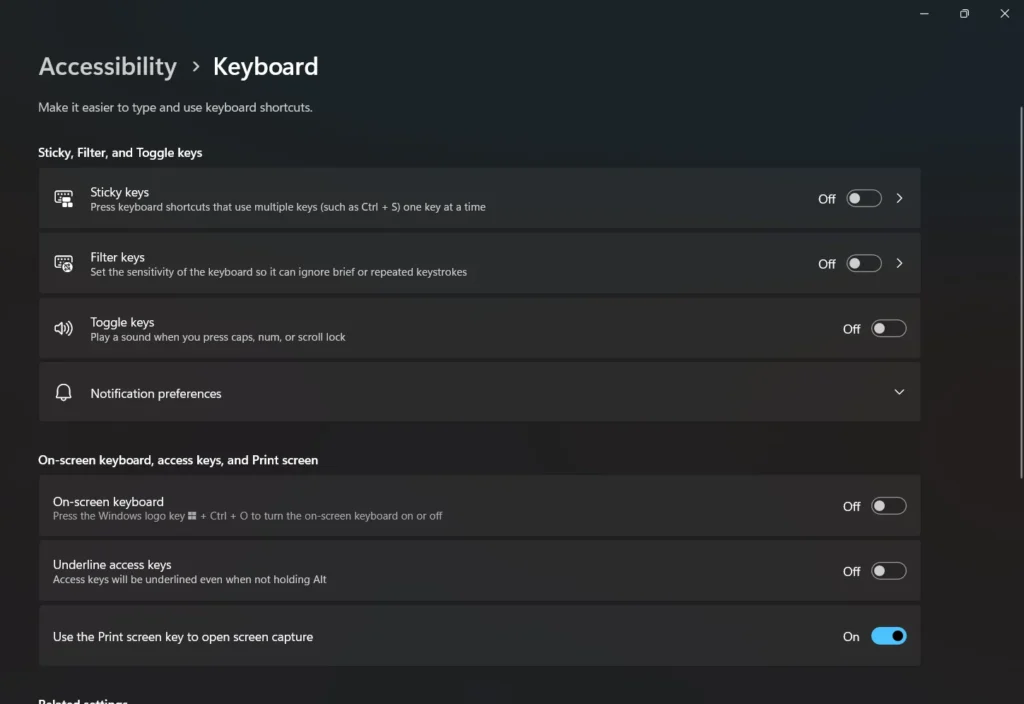
Although the Screen Snip option can be opened widely using the Win+Shift+S key shortcut, a Windows option exists that allows you to configure the PrtScn key to open the Snipping Tool, thereby serving as a Snipping tool shortcut key. For that, see the steps below:
- Open the Settings App using Windows key + I.
- Go to Accessibility> Keyboard.
- Enable “Use PrtScn key to open the Screen Capture” option using the Slider.
Screen Recording Shortcut for Snipping Tool
To screen record using the Snipping Tool, press the Windows key + Shift + R. With the Screen recording shortcut, you can use the following menu options:
Pencil icon✏️: Allows you to see the HEX color value of a Pixel by hovering on it.
Text Extractor: Serves as an OCR to extract screen text—more in this YouTube short.
Screen Snip for Snipping tool uses
The Windows key + Shift + S hotkey for snipping tool also has some built-in features.
- Switch between Snip and Video mode.
- Choose the Snipping Mode: This is helpful if you want a full-screen snip, a Rectangular Snip, a free-form snip, or a Window snip. This setting persists in future snips as well.
- Color Picker and Extract Text, which we have previously discussed.
Miscellaneous features
The Snipping Tool offers several useful miscellaneous features, which are discussed below in this article.
GIF export in Snipping Tool
A cool new upcoming feature in Snipping Tool would allow your Video recordings less than 8 seconds in size to be exported as GIF:
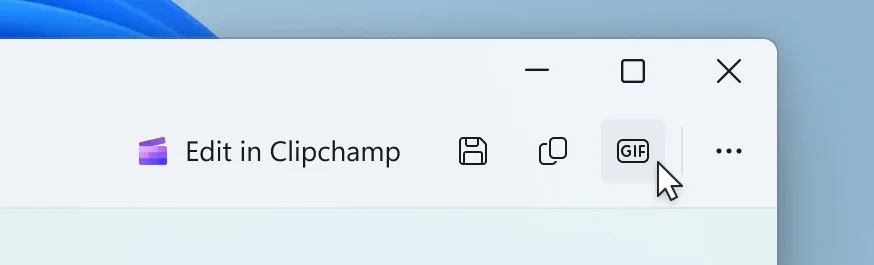
You can also choose the quality of the GIF created by the Snipping Tool later on.
Perfect Screenshot (Copilot+ PC exclusive)
Perfect Screenshot is a new feature in Snipping Tool that enables you to accurately capture content on your screen without needing to crop or resize it after capturing it on your Copilot+ PC. Once activated, a perfect screenshot will intelligently resize to fit the content within your selection. This feature is exclusive to Copilot+ PCs and is rolling out.
Also, see this YouTube video: