Microsoft Phone Link app in Windows is Microsoft’s cross-device sync solution between a Windows PC and a mobile phone. Concurrently, Phone Link allows you to read and reply to texts, take calls, mirror apps, capture photos, and dismiss notifications without ever lifting your handset.
Table of Contents
Features of the Phone Link App in Windows
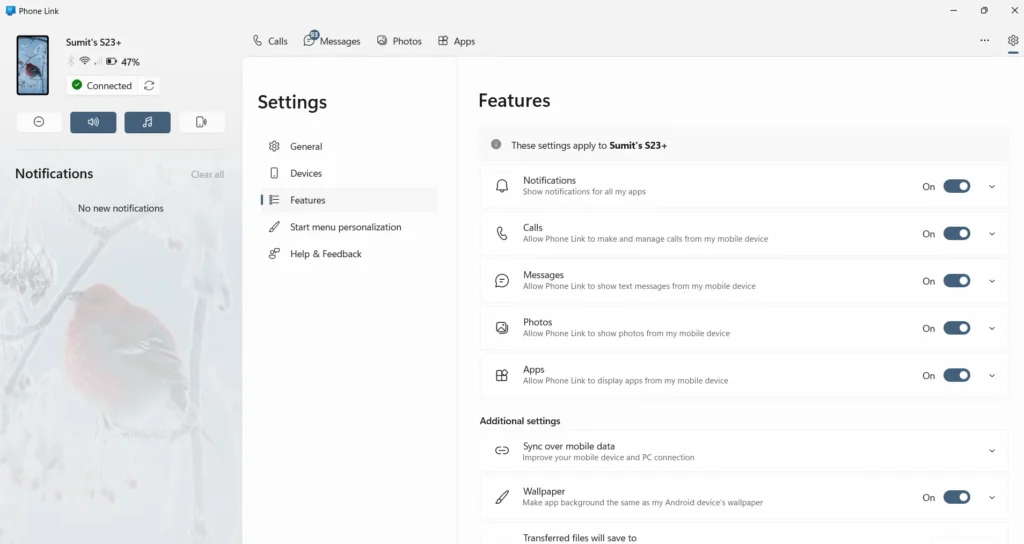
The following features are available for the Phone Link app. The ones marked with a star are exclusive to Samsung devices only:
- Photos: You can seamlessly access Photos from your phone, including all your albums.
- Calls: You can make or receive Calls from your Laptop courtesy of Bluetooth connection.
- Messages: Send or receive text messages courtesy of your phone, which is synced to your PC.
- Apps*: You can stream apps from your Samsung Phone so that you can use them.
- Hotspot: You can enable the Internet Hotspot on your Phone in the Phone Link app.
- Cross-device Copy and Paste: You can copy and paste text from your device to your phone and vice versa.
- Notifications: You can sync Notifications from your PC and phone, thereby eliminating the need to use your Phone very frequently.
- Support for using Mobile Data to stay connected.
- Show the Phone link in the Start Menu.
- Locate your Phone, make it silent, play audio and Locate using the Phone Link app.
Minimum Setup
The following is the Minimum Setup required for the Microsoft Phone Link App:
| Component | Requirement |
| Windows PC | Windows 10 May 2019 Update or newer, Bluetooth, same Wi-Fi as the phone |
| Android phone | Android 7.0+, “Link to Windows” companion app (pre-installed on most Samsung phones or free on Google Play) |
| iPhone | Bluetooth for calls/notifications (no app streaming) |
To start, sign in with the same Microsoft account on both ends, scan the QR code shown by the PC app, then grant notification, contact, photo, and call permissions when prompted.
Limits & Caveats
- iPhones only sync calls, messages (via iMessage forwarding) and notifications. There is no app streaming or file drag-and-drop.
- For some features, such as screen sharing, both devices must remain on the same local network; VPNs or metered links can block handoffs.
- Microsoft Phone link does not work with Work accounts.
Get Started
So, to download the Link to Windows app, aka Microsoft’s Phone Link, use these links:
Security & Privacy for Phone Link App in Windows
Traffic is transmitted over encrypted Bluetooth and Wi-Fi, with data stored in Microsoft’s account cloud instead of on third-party servers. You can revoke any permission at any time in the companion app or Windows Settings > Bluetooth & devices > Mobile devices for Microsoft’s Phone link app.
For more information, refer to this Microsoft support document for Phone Link App in Windows.