This article is a comprehensive article about Blue Screen of Death in Windows 10 or Windows 11, also known as BSOD in Windows.
Table of Contents
What is the Blue Screen of Death in Windows
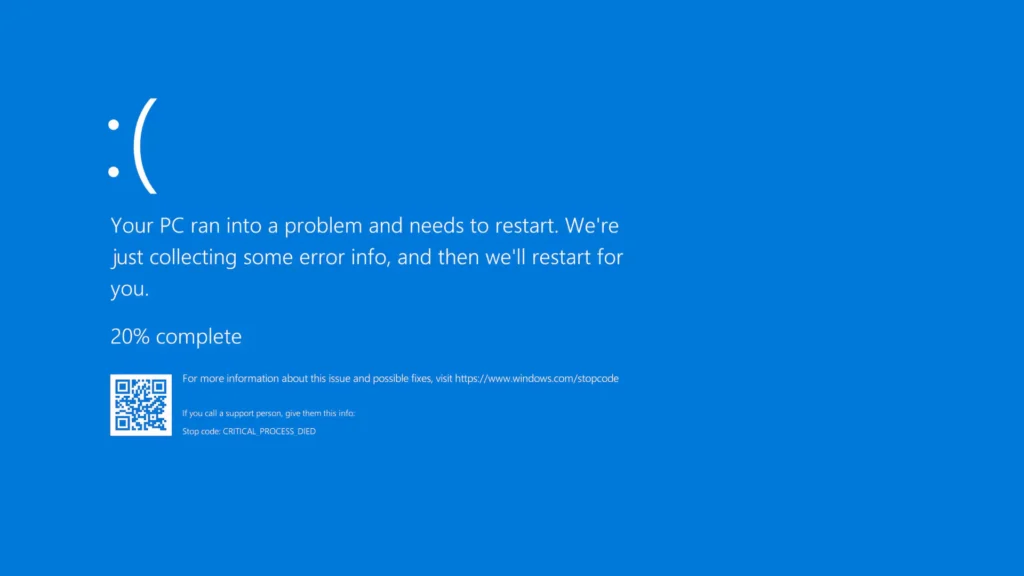
The Blue Screen of Death (BSOD) in Windows is an error screen that appears when the system encounters a problem it cannot recover from, such as faulty drivers, corrupted memory, overheating, or damaged system files. Instead of continuing and risking damage, Windows stops everything and displays a blue screen with an error code that points to the cause, like “MEMORY_MANAGEMENT” or “CRITICAL_PROCESS_DIED.” While a BSOD in Windows can look alarming, it is actually a protective step, and in many cases, a simple restart resolves it. However, if it happens often, updating drivers, checking hardware health, or running system repair tools is necessary to prevent further issues.
How to post Blue Screen of Death dumps if you are asked
If your PC has recently shown a BSOD in Windows, it often creates dump files that record details of the crash. These files are helpful for troubleshooting and can be shared using Onedrive or any other site when seeking technical help. To find and upload them, see below:
- Open File Explorer and go to C:\Windows\Minidump. Alternatively, press Windows + R, type C:\Windows\Minidump, and hit OK.
- Inside, you’ll see files usually named in the format DDMMYY-XXXX.dmp. Select all of them with Ctrl+A, copy using Ctrl+C, and then create a new folder on your desktop where you can paste them (Ctrl+V).
- If asked for administrator permission, click Continue.
- If the Minidump folder is missing or empty, check C:\Windows for a larger file called MEMORY.DMP. Compress it in ZIP to reduce its size.
- Additionally, the screenshot of System Summary can also be attached with the BSOD dumps.
When sharing, ensure that you do not upload more than six dump files and avoid sending files older than a month, as recent ones are most useful for diagnosing the Blue Screen of Death in Windows. Share the link of the file with the helper who asked you, using these steps.
Generic Troubleshooting for BSOD in Windows
Here are some general troubleshooting steps you can have a look, in case you are struggling with BSODs:
- Undo any recent Hardware changes like the addition of a Memory module, GPU, etc.
- Turn off overclocking or XMP profiles in BIOS for CPU, GPU or memory.
- Uninstall any latest updates if you believe a Windows update was the cause of Blue Screen of Death issues.
- Suppose the BSOD occurs while gaming. Consider testing your GPU in another computer if possible. This immediately indicates whether the problem lies with the GPU or not. Stress testing the GPU is also a good idea.
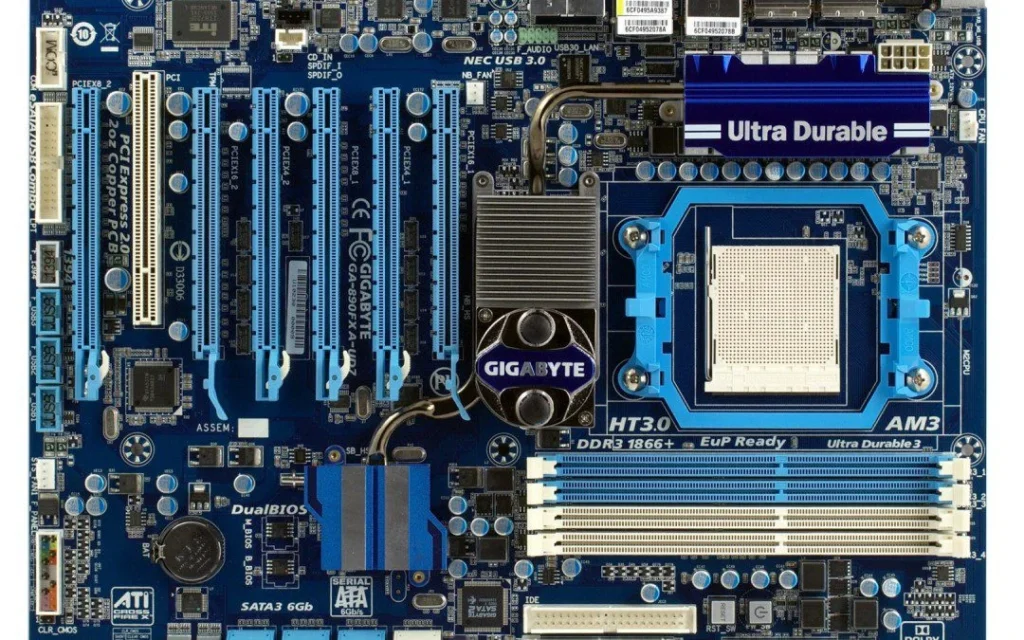
- Inspect the motherboard for Burnt capacitors or ICs.
- Test your RAM using Memtest86+ for eight passes.
- Do a clean Install or a Reset of Windows. If the Computer crashes with a BSOD, the problem lies with the Hardware.
Using WinDBG to find the root cause of the crash
Microsoft provides Windows Debugger, a tool to find what is causing the crash, using the same. Although intended for Developers, this tool is also helpful for end-users who have basic knowledge of troubleshooting.
- Download WinDBG using this link. Subsequently, open it.
- Drag the minidump file to the WinDBG Window.
- Enter the analyze -v command to analyse the crash dump, as seen below:
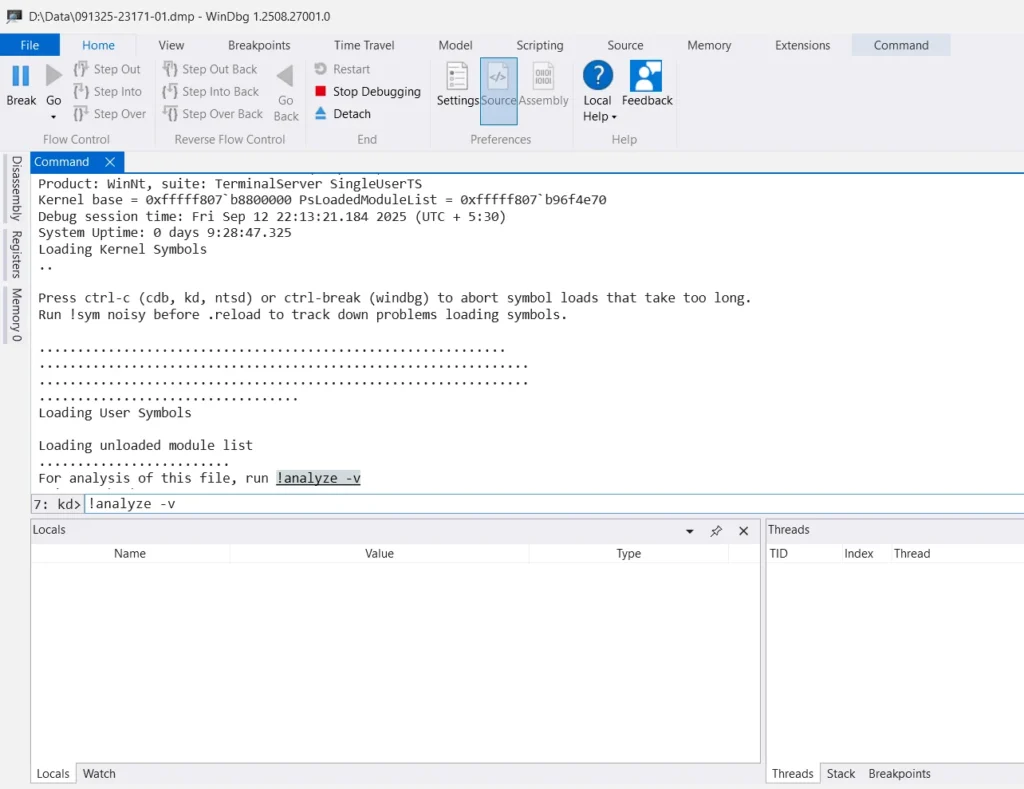
- In the crash dump, the Symbol_NAME, IMAGE_NAME, and PROCESS_NAME should tell what the issue might be related to. From a sample Dump file, here is the output:
FAULTING_THREAD:  ffff870cd614e040

DRVPOWERSTATE_SUBCODE:  4

HARDWARE_ID:  SWD\MSRRAS
SYMBOL_NAME:  raspppoe!RasPppoeCleanup+66

MODULE_NAME: raspppoe

IMAGE_NAME:  raspppoe.sys
DUMP_FILE_ATTRIBUTES: 0x21808
- As seen, RASSPPPOE.sys is causing the crash here. If you quickly Google search the system file, you would get to know what the culprit is behind it.
- If the module/driver name after the Blue Screen of Death in Windows is a Windows-provided Microsoft driver, typically it is not at fault. In that case, something else drove it into the crash.
- You can continue to troubleshoot with the expert for further help and track down the cause.
This article is a comprehensive guide for Troubleshooting BSOD in Windows 11.