Windows 11, the next release of Microsoft Windows, was released on October 5th, 2021. This article helps you troubleshoot errors that may occur during the Windows 11 upgrade, including tips to follow before the upgrade for maximum success.
Table of Contents
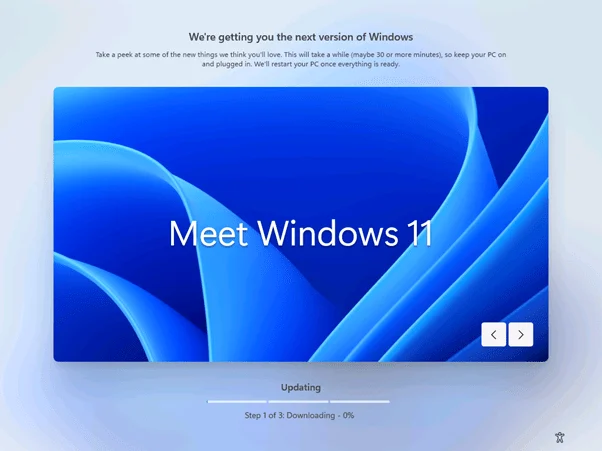
Windows Upgrade in Downlevel Phase.
Troubleshooting Windows 11 upgrade errors
If you believe your device is compatible with Windows 11, according to the computer manufacturer, for which the documentation is given below, see the following:
Dell computers tested for upgrade to Windows 11 | Dell India
Lenovo devices supported for Windows 11 – Lenovo Support IN
Surface and the future with Windows 11 | Microsoft Devices Blog
Try upgrading to Windows 11 using the Installation Media
If the upgrade through Windows 11 fails, the first thing you can do is use the Installation file provided by Microsoft for Windows 11. This method is beneficial if the qualifying OS, i.e., Windows 10 release, has issues. To download the ISO file, visit the Software Download Website.
Download the Windows 11 Setup files from the Microsoft Software Download website.
- Go to the ISO Download section. Select Windows 11 in the list.
- Choose the desired language.
- Click the link to the ISO to start the download.
- Open the drive and click on setup.exe, which should display a preparation screen.
- If you have trouble installing Windows updates, click **Change how Setup downloads updates and skip checking for updates.
- The next step should confirm that your files, apps. Settings are kept. It would also show you the edition of Windows it would install.
- When complete, you should see the login screen. Enter your PIN.
The Setup would give the final finishing touches, and you should see the desktop ultimately.

The revamped final phase in Windows 11, just before you reach the desktop
If the update fails as well, using the Installation file:
If the Windows 11 Upgrade fails, it will roll you back to the previous OS, i.e., Windows 10. After reaching the desktop, you would see the screen explaining why the update failed.
We couldn’t install Windows 11.
Error code 0xXXXXXXX-XXXXX
Installation failed during the ________ phase while attempting the _______ operation.
The error code provides a fairly accurate indication of what went wrong, therby telling you an indication of one of the Windows 11 upgrade errors. For example, if the error code was 80070002, it indicates a missing file. You can find the error code explanation on the error lookup tool.
❗Important
SetupDiag is a diagnostic tool that can obtain details about why a Windows 10 upgrade was unsuccessful. It can tell you the error code why the update failed and it saves the results to a file. After running the tool, look for Setupdiagresults.log in the same folder where Setupdiag.exe is present.
Log files related to the Windows 11 upgrade
Windows Setup generates certain logs during the upgrade process, which may also indicate what is wrong with the upgrade. henceforth helping you troubleshoot Windows 11 upgrade errors. The logs may span thousands of lines and can be challenging to read. Some of the logs that may be helpful during the upgrade are:
- C:$Windows.~BT\Sources\Panther: The file named Setupact.log records actions in the downlevel and SafeOS phases. As the log can be very large, the setup also creates a file named “Setuperr.log” that only has information about the errors encountered by the Setup to narrow the source of the problem.
- C:$Windows.~BT\Sources\Rollback: The file named Setupact.log records what happened after the update failed and Windows rolled back to its previous state, in this case, Windows 10. The starting portion of the file may explain what happened and why the update failed.
C:$Windows.~BT\Sources\Panther\UnattendGC: In this folder, Setupact.log records what happened during the OOBE phase. Helpful when the extended code is 4XXXX.
- Supplementary logs: Certain supplementary logs may be incident-specific. These can be found in: C:$Windows.~BT\Sources\Rollback. Examples include setupmem.Dump if the computer blue-screens or the device install log that logs driver migrations during the upgrade.
Error code 19000101 while upgrading to Windows 11
One of the most frequent error codes is C1900101, also known as a generic error, usually due to a device driver. Sometimes, the culprit is mentioned in the setup log files, and sometimes this error can be complicated to troubleshoot as it is impossible to know what is happening.
Standard Error code-specific troubleshooting for Windows 11 upgrade errors
The following are the most common generic errors. If your error code is not listed, perform the general troubleshooting steps below:
| Error Code | Troubleshooting |
|---|---|
| Error Code | Troubleshooting |
| C1900101-20017 | A driver has caused an illegal operation. Make sure all unnecessary devices are disconnected except the keyboard and mouse.Remove any 3rd party anti-virus.Make sure BIOS firmware is updated on the motherboard. |
| C1900101-40021 | The computer Blue screened during the upgrade, creating a crash dump. Usually caused by an older driver.Look for C:/$Windows.~bt\Sources\Rollback\Setupact.log which can tell which driver caused the Bugcheck. |
| C19000101-30018 | A driver migration failed due to stop responding or being incompatible with the new release.Look for device install log in __C:/$Windows.~bt\Sources\Rollback\setupapi\setupapi.dev.log__Search for the first driver, which is listed as Exit status: Failure |
| 80070002 – XXXXX | ERROR_FILE_NOT_FOUND.The failure is usually a problem of the qualifying OS, i.e., Windows 10. Run the System file checker tool before running the upgrade, and make sure to turn off updates in Windows 11 setup. |
| 0xC1900101 – 0x4000D | Usually, a Blue screen issue, caused by an incompatible driver.There would be a file named setupmem.dmp in C:/$Windows.~bt\Sources\Rollback, which you can interpret using WinDBG to find the problematic driver. |
| 8007001F-XXXXX | ERROR_GEN_FAILURE A device attached to the system is not functioning. Hence the upgrade was stopped. Remove the device and try again. |
| 0x800707E7-XXXXX | ERROR_PROFILE_DOES_NOT_MATCH_DEVICE Indicates an issue with the user profile. Try removing any redundant user profiles in the computer and try again. |
| 8007042B-XXXX | ERROR_PROCESS_ABORTEDGeneral failure where the Setup terminated unexpectedly. Analyse the log files, locate the problem, and try again. |
| 0xC1900209 | The PC does not support the requested configuration. If you have redirected Program files or User profiles to another drive using Registry, undo the change and then try again. |
| We are having trouble determining if this PC can run Windows 11 | Make sure your drivers are updated from the manufacturer’s website. Also, make sure the disk layout is correct, including the EFI partition is present. |
| The language or edition is not supported by this tool | Make sure you are using an ISO file of the same language which is installed before. Also, the ISO file is valid only for Home SL, Home, Pro, N, and KN editions. For Enterprise, you need to contact the system administrator of your organization. |
| C1900201/ We couldn’t update the system reserved partition | Increase the size of the Recovery partition and see this support documentation.“We couldn’t update system reserved partition” error installing Windows 10 (microsoft.com) |
| 0xc1900130 | This error code indicates an issue with Windows Recovery Environment. Try Rebuilding the Boot configuration data store using installation media. |
If the efforts above have not helped, you can try the generic steps below to troubleshoot Windows 11 Upgrade errors:
- Remove External Hardware: The first step you can do is to remove external devices, which include docks, legacy printers, etc. Drivers for that often cause a block and prevent the update from failing.
- Update your PC firmware: Often, an outdated BIOS firmware of your device would cause the update to fail. To update the BIOS firmware, visit the support page of your device’s manufacturer, locate the BIOS update, and follow the installation instructions. Make sure the power is not lost during the process. If you don’t know the support page for your device, search for ‘msinfo32’ in Windows and open the utility. Note the system model and system SKU. Paste the model into Google or Bing – the first or second result should be for the device.
- .Attempt the upgrade in a clean boot state: A clean boot is a state of Windows with minimal programs and services running. Try attempting the upgrade by putting the computer in a clean boot state first, and then trying. Turn off clean boot after the update finishes. See here for instructions.
- Perform a System File Checker scan and try to repair existing System files. See the article here.
- Run a disk check: Disk corruption can often cause an upgrade failure. Run a scan at boot and interpret the results.
- Uninstall anti-virus programs as they may interfere in the upgrade process.
- Ensure that 30GB of free space is available on the C drive.
- Reinstall the graphics drivers from the manufacturer and try again.
- Remove the unnecessary features in Windows you do not use, see this tutorial here. They can cause interference in the upgrade process.
- Temporarily disable Overclocking and XMP profiles for GPU, RAM, and motherboard.
- Rebuild the Boot Configuration Data Store using the Installation media. See here.
If nothing has helped, the last obvious step you can take is to reset the Windows 10 PC, download a fresh copy from the Cloud, and try again. You can also directly reinstall Windows 11 if you wish and if possible. See here for more details.
Software incompatibility with Windows 11
Some of the Software that is causing the upgrade to Windows 11 to fail are as follows (courtesy investigation of Windows Insider Preview Builds):
- PowerISO.
- Plex Media Server.
- FiiO USB Audio Driver
- My SQL server.
- Older Installations of Realtek Audio drivers.
It is strongly recommended that you remove these programs before attempting to upgrade. In the case of drivers, remove them before trying to upgrade, and then run Windows updates once the upgrade is complete, to find a new copy.
More Advanced information
You can always reach out to me on Twitter or ask a question regarding assistance to upgrade to Windows 11 and I will try to help with Windows 11 upgrade errors.
References:
SetupDiag – Windows Deployment | Microsoft Docs
Windows 11: FAQ (microsoft.com)
Repair Install Windows 11 using an ISO file (yourwindowsguide.com)
Recovery options in Windows 11 – Your Windows Guide
- How to create a Local account in Windows 11 (microsoft.com)
- How to Reset Windows 11 – Microsoft Community