This article discusses a known Outlook issue where Gmail is not working in Outlook. If you have been trying to add your Gmail account and it simply refuses to set up — or it did set up, but your emails are not syncing — you are not alone. Many users have run into this exact problem, as reported on various forums like Reddit and Microsoft Learn.
Table of Contents
What is Outlook Email Suite?
Microsoft Outlook is an email application that has been around for many years and is widely used by both everyday people and large businesses. It is part of the Microsoft Office suite and gives you a single place to manage your email, calendar, contacts, and tasks. One of the things people love about Outlook is that it does not lock you into using just a Microsoft email account — you can actually add other email accounts to it as well. This includes Gmail in Outlook Sync, which lets you read, send, and manage your Google emails without ever leaving the Outlook app. Think of it as a central hub for all your emails, no matter where they come from.
Gmail not working in Outlook is an ongoing issue
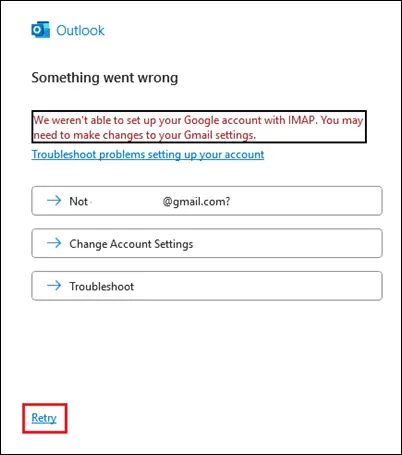
There have been plenty of reports about Gmail not syncing in Outlook i.e., emails cannot be sent or received. Users also complain that they cannot set it up when running it for the first time. The problem is mostly seen with Outlook 365, but isolated case of Outlook New also exist. The message shows up like this:
“we werent able to set up your google account with imap, you may need to make changes to your Gmail settings “
Fixing GMail not syncing in Outlook
There are some solutions available that might fix the GMail in Outlook sync error. Those are discussed below.
Microsoft Support documentation
Microsoft support has an ongoing bug with Outlook, which is described in the support document here:
Unable to add a Gmail account to classic Outlook – Microsoft Support
Microsoft support says that the Outlook sync with Gmail bug might happen when, during browser sign-in, you did not check the box for:
Select what Microsoft apps & services can access: “Read, compose, send, and permanently delete all your email from Gmail.”
This bug is fixed with the Current Channel Version 2412 Build 18324.20168. Once you retry, the popup will appear.
Clear Credentials Manager to setup Gmail in Outlook classic
If you still cannot set up a Gmail account in Outlook, clearing the credentials in the Credentials manager might help.
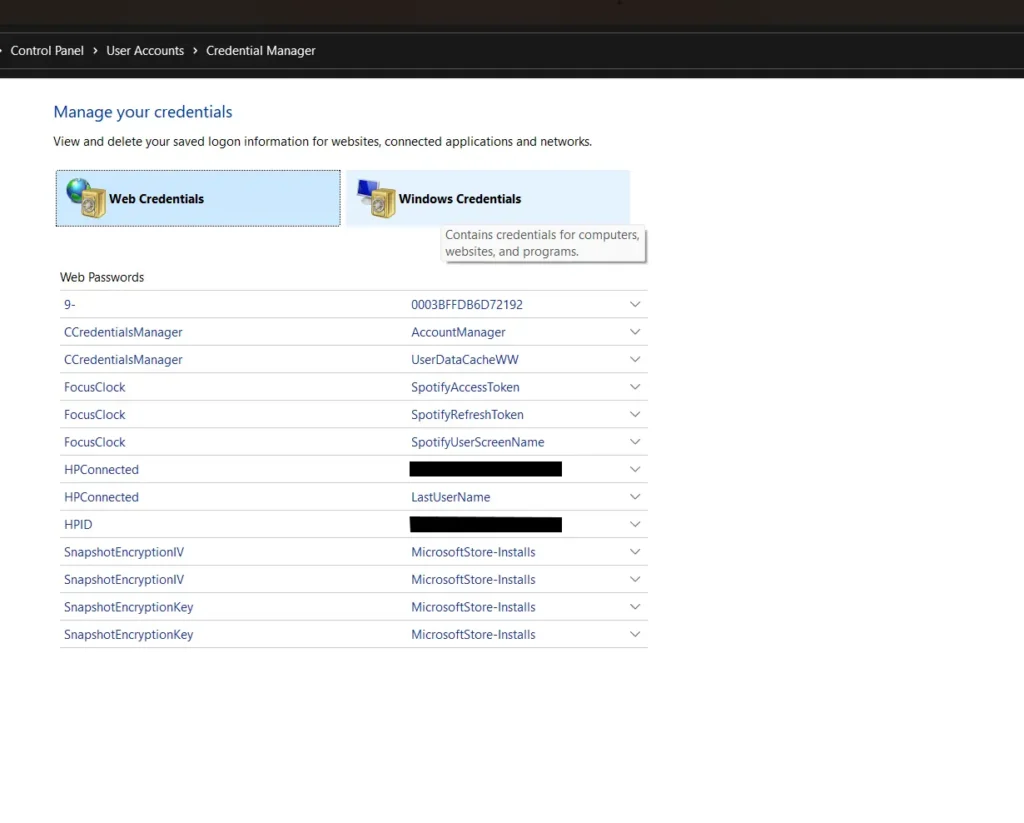
See the steps below to fix Gmail in Outlook classic during Setup:
- Press Windows + S, type Credential Manager, and open it.
- Click Windows Credentials.
- Scroll to Generic Credentials.
- Find entries starting with MicrosoftOffice16_Data:OAUTH2.
- Expand each entry.
- Hover over MicrosoftOffice16_Data:OAUTH2 to see the full name containing tp_google_imap_Oauth2 (these are Gmail credentials).
- Click Remove for each MicrosoftOffice16_Data:OAUTH2 entry.
- Remove both credentials for the affected Gmail account.
- Optional: To identify the correct Gmail account before deleting:
- Open Registry Editor.
- Paste this path in the address bar:
Computer\HKEY_CURRENT_USER\Software\Microsoft\Office\16.0\Common\Identity\Identities - Check the Identity subkeys.
- The number at the beginning of the identity key matches the number in the MicrosoftOffice16_Data credential.
- After removing the credentials:
- Open Outlook.
- Go to the affected profile.
- Click Sign in via browser in the Outlook notification bar.
- Sign in to your Gmail account again.
Remove access for Microsoft Apps & Services in Gmail (Fix Gmail in Outlook Sync)
- Close Outlook.
- Go to google.com and sign in to your Google account.
- Click your profile picture in the top-right corner.
- Select Manage your Google Account.
- From the left menu, click Security.
- Scroll to Your connections to third-party apps & services.
- Select Microsoft apps & services.
- Find Microsoft apps & services has some access to your Google Account.
- Click See details.
- Under Access you’ve given to Microsoft apps & services, click Remove all access. This should reset the Gmail in Outlook sync, and you can try again.
- Select Confirm.
These comprehensive steps can help you fix Gmail not working in Outlook classic.