This article shows how to do Repair install Windows 11 using the Installation Media. This procedure will keep everything and reinstall Windows to fix computer issues.
Table of Contents
What is a repair install?
Repair install Windows 11, called an in-place upgrade, allows you to reinstall Windows, keeping apps, files and settings. It can fix various issues, including Windows Update errors, store app issues that include downloads and updates, or unreliable windows like slowness or crashing. A repair install is highly successful in fixing these problems without the hassle of doing a reset that removes your existing applications.
Prerequisites for an In-Place Upgrade
For a repair install, you need to do the following three things:
- A Windows 11 ISO file, also known as installation media.
- A backup of your existing files, to be sure.
- A working Windows 11 installation that at least boots to the desktop. If your PC is stuck in a boot loop or reboots to safe mode, It won’t work.
Effects of Repair Install Windows 11
- Any Windows customisation, like custom fonts and custom icons, would be removed after doing an In-Place Upgrade.
- All Windows updates would be nice to re-apply, but they would be automatically installed before you reach the desktop.
How to repair install Windows 11 using an ISO file
- First of all, download a Windows 11 ISO file from the following link:
https://www.microsoft.com/en-in/software-download/Windows11 - Under Download ISO file, select Windows 11.
- Click Download and choose the Language in which Windows is installed.
- Click 64-bit Download to start the download.
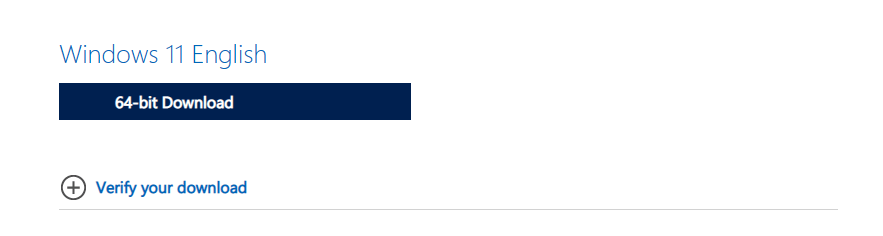
- When the file has completed downloading, open it, which should mount the installation file to a separate drive in the File Explorer.
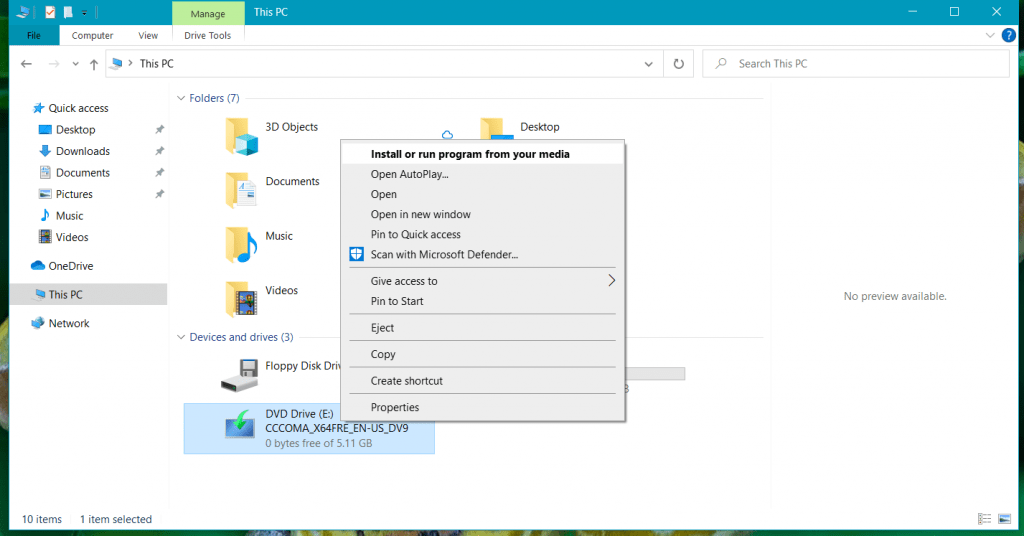
- Open the drive and click setup.exe, showing you a Preparing screen.
- If you have trouble installing Windows updates, click Change how setup downloads updates and skip checking for updates.
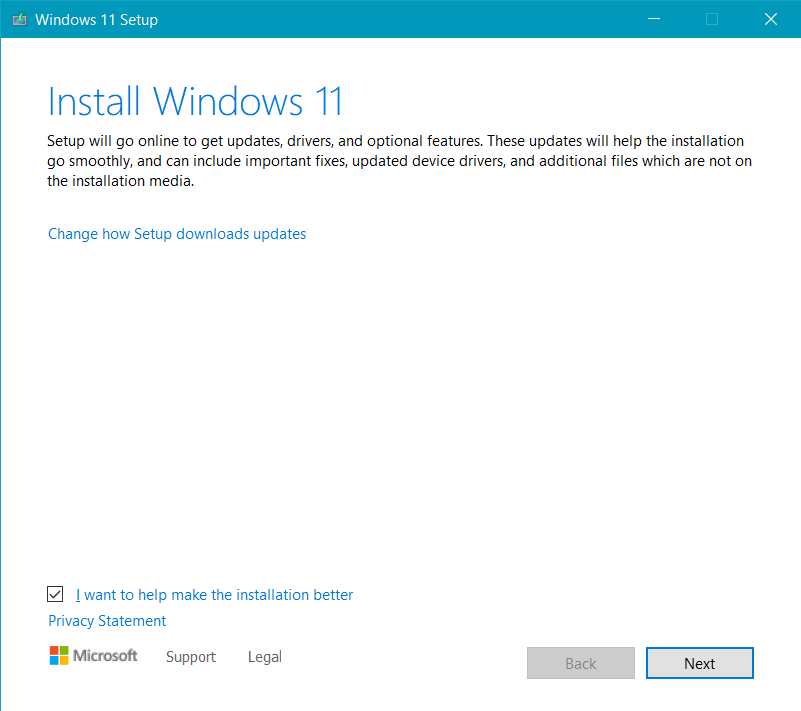
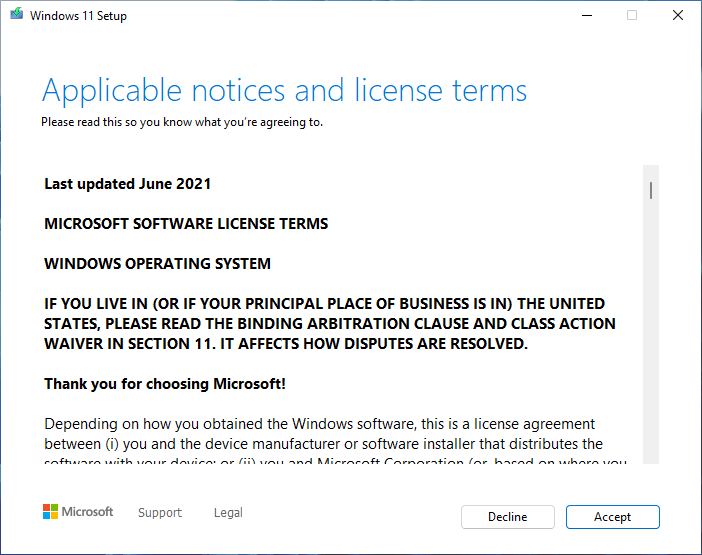
- Accept the license terms.
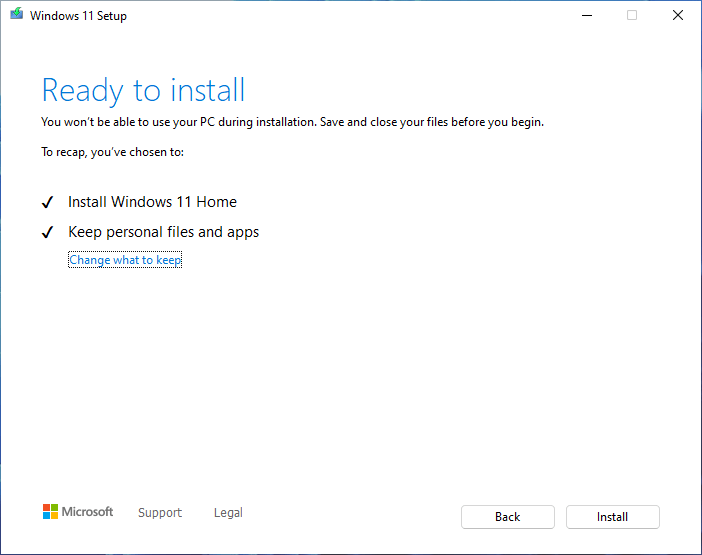
- The next step should be to confirm your files, and apps, and Settings are kept. It will also show you the edition of Windows it would install.
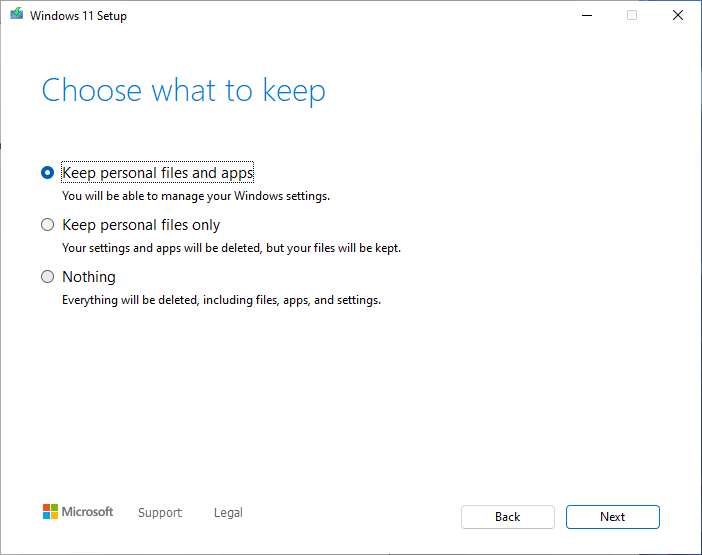
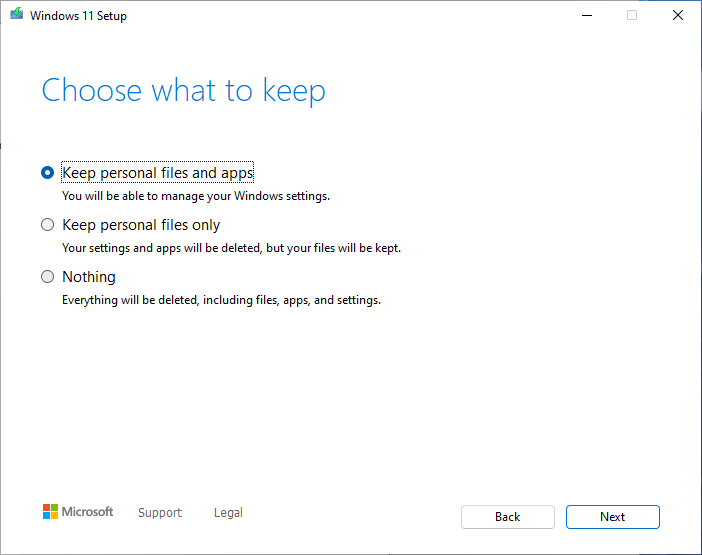
- If you want to remove apps and reinstall Windows, click Change what to keep and select the appropriate option. Click Next.
- You would see Windows starting the Installation in the downlevel phase, starting a repair install.
- After the restart, you would see the Windows configuration screen, aka the SafeOS phase.

- When complete, you should see the login screen. Enter your PIN.
- The setup would give the final finishing touches, and you should see the desktop ultimately.

To conclude, these steps can help you run a repair install of Windows 11. This is a better option than doing a clean install of Windows 11, which removes all the data on the drive.
Also, read:
https://yourwindowsguide.com/2021/10/install-windows-11-manually-or-offline.html



