The next version of Windows 10, known as the Windows 10 22H2 update, also referred to as the Windows 10 2022 update, is now available for installation on eligible devices. This article explains how to install Windows 10 22H2 update offline, either manually or using the enablement package if you are on Windows 10 21H2.
What is new in the Windows 10 22H2 update?
Teams across the Windows Organization have focused development of Windows 11, hence the Windows 10 22H2 update only contains a “scoped” set of features
The codebase like the previous Windows versions, i.e. Windows 10 21H2 releases remains the same for the 22H2 one as well.
Method 1: Install Windows 10 22H2 offline using the Media Creation Tool
The Media Creation Tool is by far the most dependable method to update to Windows 10 2022 update.
- When the download is finished, open the Media Creation Tool.
- Consequently, Accept the License terms.
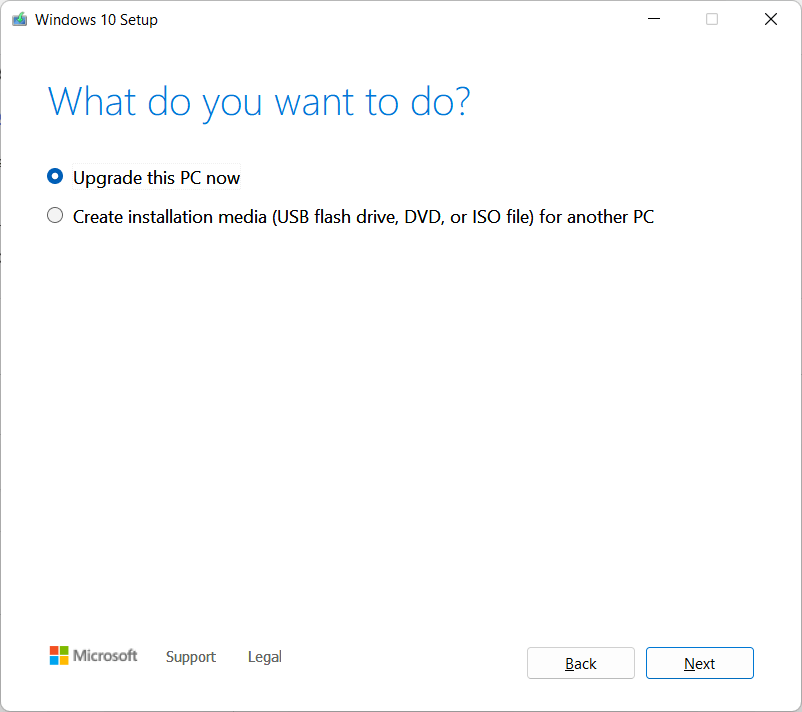
- Select the Upgrade this PC now option to start the update.
Likewise the previous updates, you can also download the ISO file and then update your computer using it. The steps are better explained in the article below related to Windows 10 21H1 update, I wrote before:
Install Windows 10 2022 update using the enablement package
As Windows 10 releases share the same codebase, you can use the enablement package KB5015684 to upgrade to Windows 10 2022 update from any previous release. The prerequisite is, the June 2022 monthly update must be installed before. Given below are the Direct download links for the enablement package, if you are on version 21H2:
KB5015684: Featured update to Windows 10, using an enablement package (microsoft.com)
Also read:
How to get the Windows 10 2022 Update | Windows Experience Blog
Install Windows 11 24H2 offline
In Conclusion, these steps can help you to install the Windows 10 22H2 update manually or offline.