A few days ago, I shared about Microsoft introducing AI-powered Bing, enabling helpful new scenarios and capabilities, also known as Copilot.
To use Microsoft’s new AI-powered Bing search engine, go to Bing.com/new in your internet browser and click the blue button that says “Join the waitlist.” The following article is valid if you are into the New Bing and are not on a waitlist.
Using AI-Powered Copilot at Bing.com
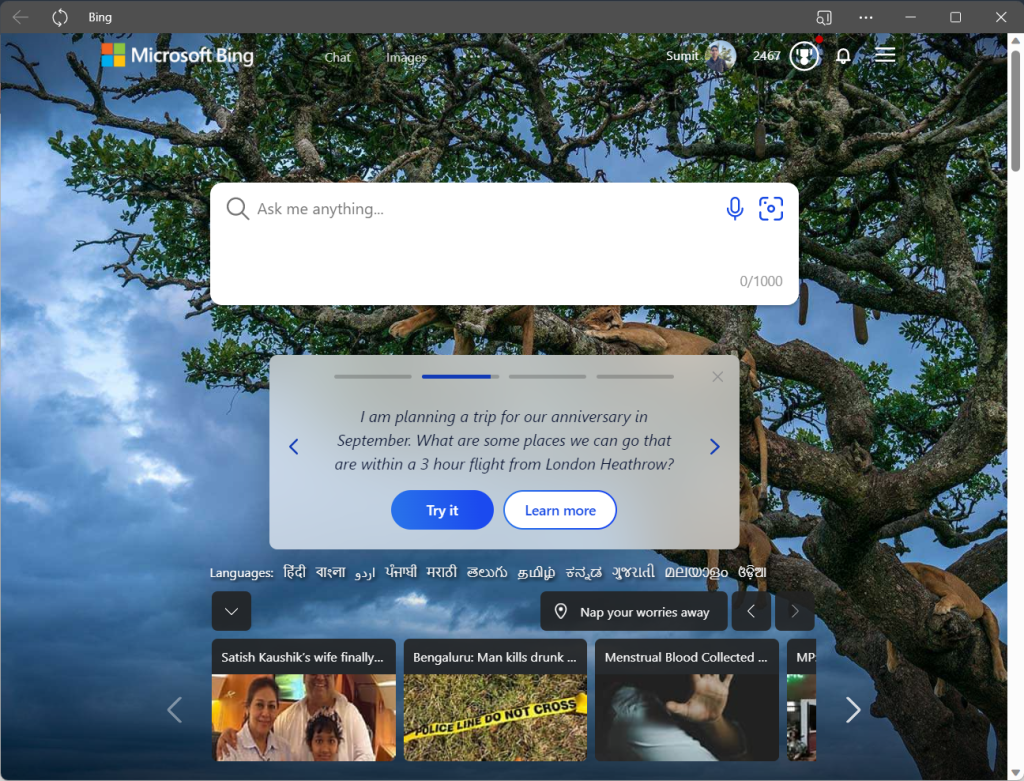
To use Bing with GPT, navigate to Bing in your web browser and type your question into the search box. Click “Chat” at the top of the Search Results, and you should get an answer right away. Moreover, You can also bookmark https://chat.bing.com if you want to go to the Chat Menu directly.
I have added Bing as an app, called PWA from Microsoft Edge(Open Bing.com, click 3 dots at the top right>Apps>Install this site as an app) to get a standalone app experience.
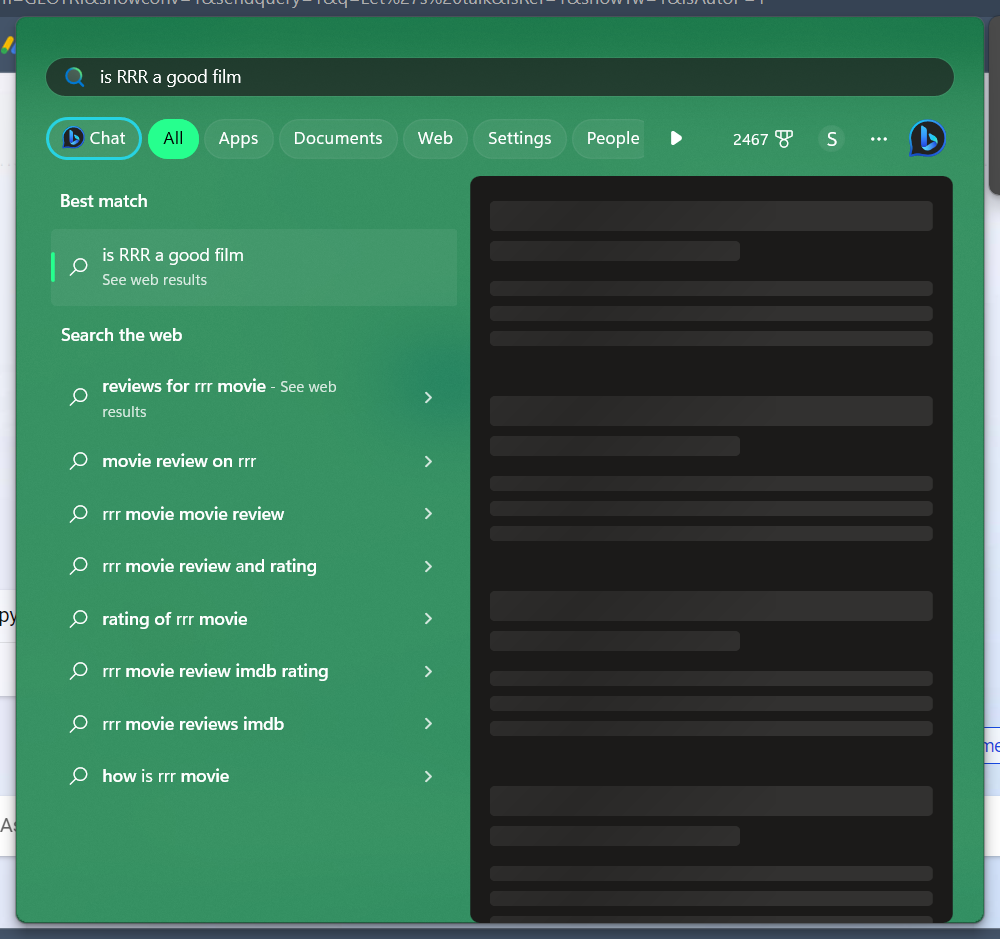
Use the New Copilot inside Windows using the Search app
To use Bing inside Windows, you can use the search bar at the centre. You can also use the Windows key + S keyboard shortcut to open the search bar. Once you have opened the search bar, type in your search query, and press the Chat Button to open the query of the answer:
Use Bing AI features in Microsoft Edge
Microsoft also has updated the latest Edge browser with AI-based features(currently in the Dev Channel at the time of writing), which includes Chat, Compose, and Insights. Simply start by clicking the “Bing” icon at the top right.
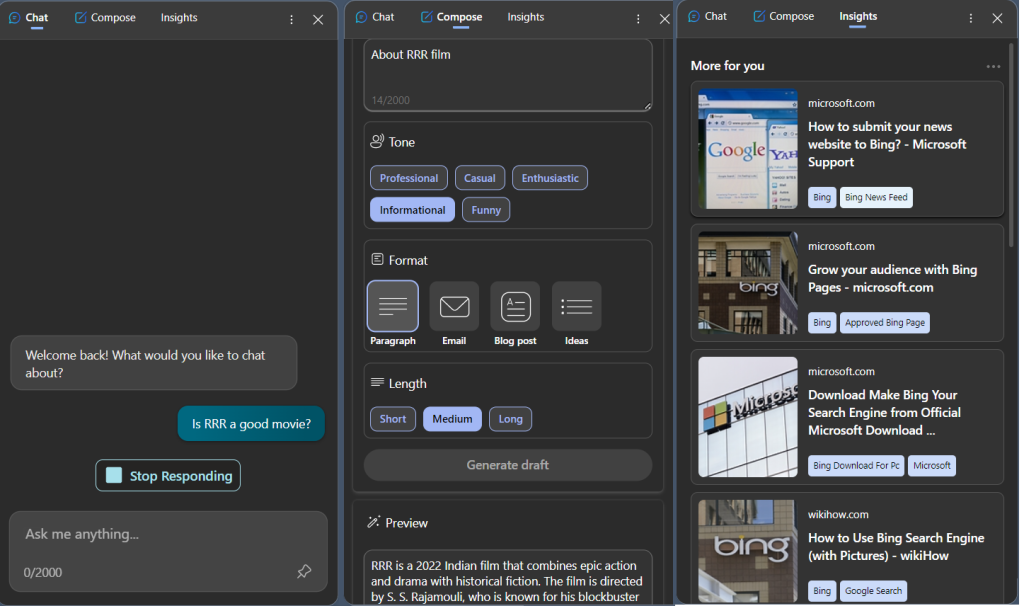
Chat: Chat includes the regular Chat feature, as discussed above in the sidebar.
Compose: You can use the Compose option to write blog posts, emails, social media posts, notes, and more. Just give some relevant information in the Write about txt box, choose the tone, Format and Length, and clicking the Generate Draft would generate a preview.
Insights: The Insights option gives you page insights and related articles to the tab, which can improve your workflow.
Use Bing AI features in Skype
Microsoft, after a week of launching AI-powered Bing, also launched the New Copilot as a bot in Teams and Skype.
Get social with the new Bing in Skype | Skype Blog
Just add Bing from the Search results, and start chatting with the same. You can also add Bing to your Skype groups, which does the work well of summarizing content, getting suggestions regarding a topic being discussed and so on.
Another advantage of using Skype inside Bing is, your chats are saved, unlike at Bing.com, which is not supported currently. Microsoft claims though, that the saving option is the first priority.
Later in the future, Microsoft is planning to integrate AI into other prominent products, like Microsoft 365.