Since Microsoft entered the AI Domain, it has consistently added AI features to its products, with one of the recent announcements being Windows Copilot. Windows Copilot was initially introduced with Windows 11 22H2. Later, Microsoft decided to ship it to Windows 10 as well, which is currently in preview and will be released soon to the Windows 10 Retail Builds. As usual, many people will like the Copilot feature on Windows, while others will not, due to various factors, such as ongoing uncertainty about AI ethics. This article describes how to uninstall Copilot in Windows using a Registry method, if desired.
Table of Contents

Registry edit to remove Windows copilot
To disable the Windows Copilot, you can use the following command that adds a registry value to turn it off. Here are the complete steps:
- Please press the Windows key + R to open the Run dialog box.
- Type “cmd” without quotes, and press Ctrl+Shift+Enter to run Command Prompt as administrator, aka elevated.
- In the Window that opens, enter the following Command:
reg add "HKEY_LOCAL_MACHINE\SOFTWARE\Policies\Microsoft\Windows\WindowsCopilot" /v TurnOffWindowsCopilot /t REG_DWORD /d 1 /fRestart the computer for changes to take effect, i.e., Copilot.
If you want to revert the changes, use this command in the elevated Command Prompt:
reg delete "HKEY_LOCAL_MACHINE\SOFTWARE\Policies\Microsoft\Windows\WindowsCopilot" /v TurnOffWindowsCopilot /t REG_DWORD /d 1 /fHow to Uninstall Copilot in Windows
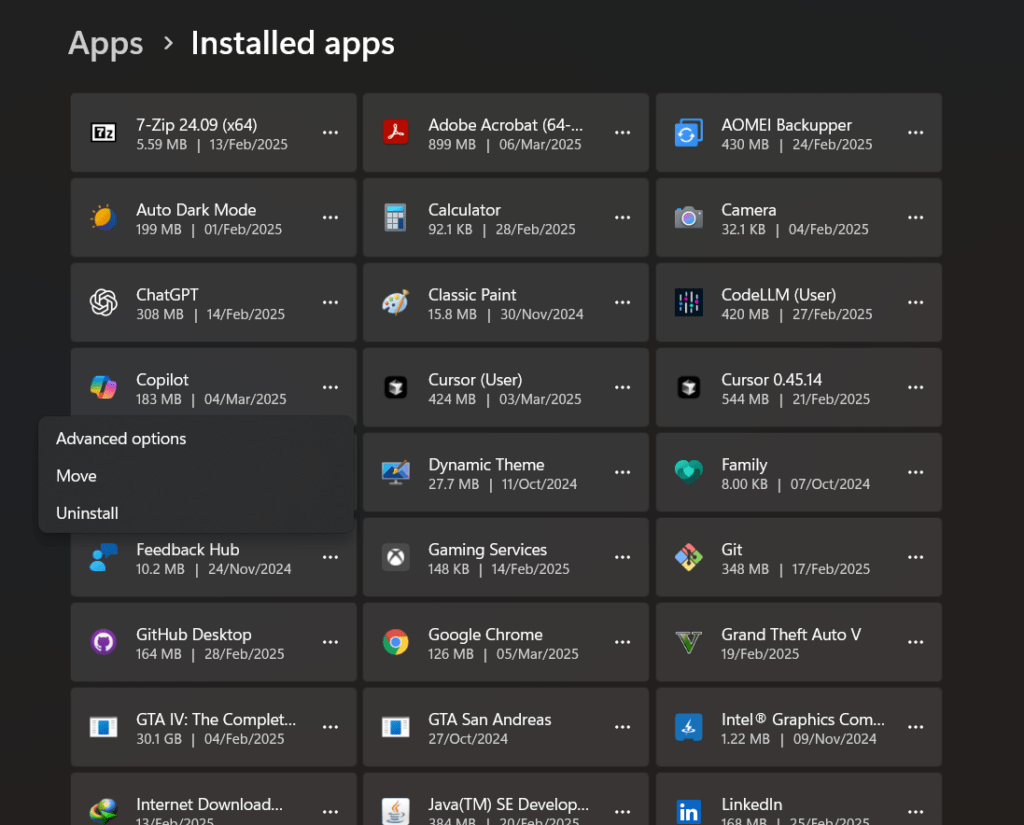
Uninstalling the Copilot app is also possible. See the steps below for that:
- Go to the Settings App using the Win+I keys.
- Go to Apps > Installed Apps.
- Navigate to Copilot > Select three dots > Choose Uninstall.
- Confirm the uninstall.
To summarise, these steps will guide you through the process to remove Windows Copilot. Do you like the feature? Let us know in the comments. Additionally, Copilot in Microsoft Office can be disabled using these steps.