This guide explains how to run the System File Checker aka SFC and the DISM command to repair corrupted files in your Windows installation.
Run the System File Checker tool in Windows
Follow the steps to run the System File Checker Tool aka SFC in Windows.
- Press the “Windows Key” to open the Start menu.
- Type “cmd” without quotes in the search box.
- On the left pane, right-click on the “cmd” option and select “Run as Administrator”.
- Execute this command:
sfc /scannow
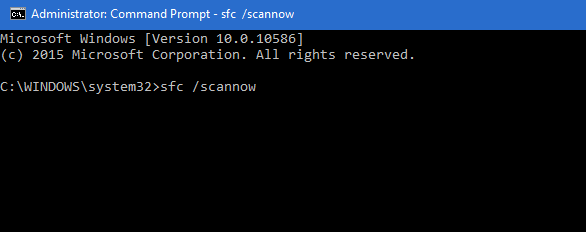
Afterward, note the output of the SFC tool. You would get the output something like:
- Windows did not find any integrity violations (a good thing): No corruptions found
- Windows Resource Protection found corrupt files and repaired them (a good thing): Corrupt files found but repaired
- Windows Resource Protection found corrupt files but was unable to fix some (or all) of them (not a good thing)-Corrupt files found but not repaired
For corrupt files that cannot be repaired, you need to run the DISM tool. See below:
Run the Deployment Image Servicing and Management tool(DISM.exe) after SFC
- Open Command Prompt as indicated above.
- In the Administrator: Command Prompt window, type the following commands. Press Enter key after each command:
DISM.exe /Online /Cleanup-image /Scanhealth
DISM.exe /Online /Cleanup-image /Restorehealth
(There is a space between every switch indicated)
- To close the Administrator Command Prompt window, type ‘Exit’ and then press Enter.
If the DISM tool is unable to repair corrupt files
If the message after running /RestoreHealth switch throws an error saying “The source files couldn’t be found” then it requires an Installation media to corrupt the files. You should do the following steps if you have one*:
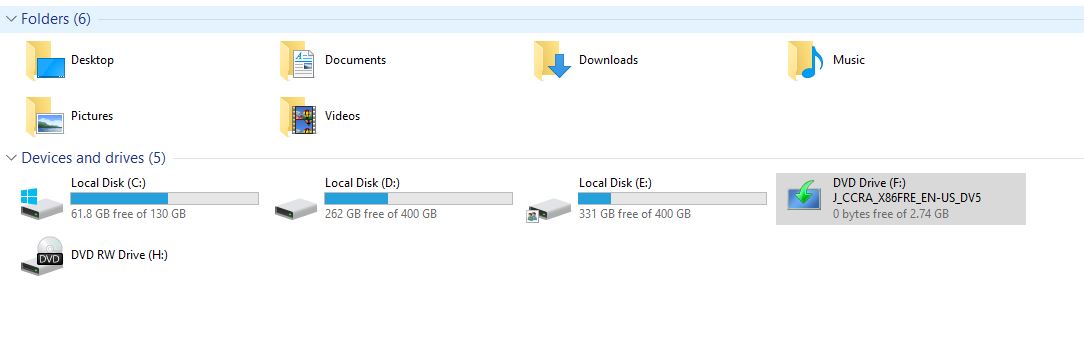
- Double-click the ISO file to mount it as a virtual drive. Note the letter of the virtual drive. It would have the same label and Image as F: in the following image:

- Now enter the following command, replacing X as the drive letter on which your ISO is mounted:
Dism /Online /Cleanup-Image /RestoreHealth /Source:wim:X:sourcesinstall.wim:1 /limitaccess
It might take hours to finish, depending on the level of corruption. These steps can help you fix corrupted files using the SFC and DISM tools.
*You can download the Installation media from Microsoft website.