With the recent release of Minecraft version 1.16.200, there are a number of reports from Minecraft for Windows 10 users where Minecraft is stuck at the Red screen at Startup and not showing any menu. Hence, Minecraft cannot be played. The Red Screen is of Nether. This article discusses some fixes for the Red Screen. Additionally, you can also check the display troubleshooting here.
Fix Minecraft Red Screen at Startup
To fix Minecraft Stuck at the Red Screen at startup, try the fixes below and see if that helps:
- Update the Display driver for Integrated and External GPUs.
- If you have an external GPU disabled, try to enable it in Device Manager.
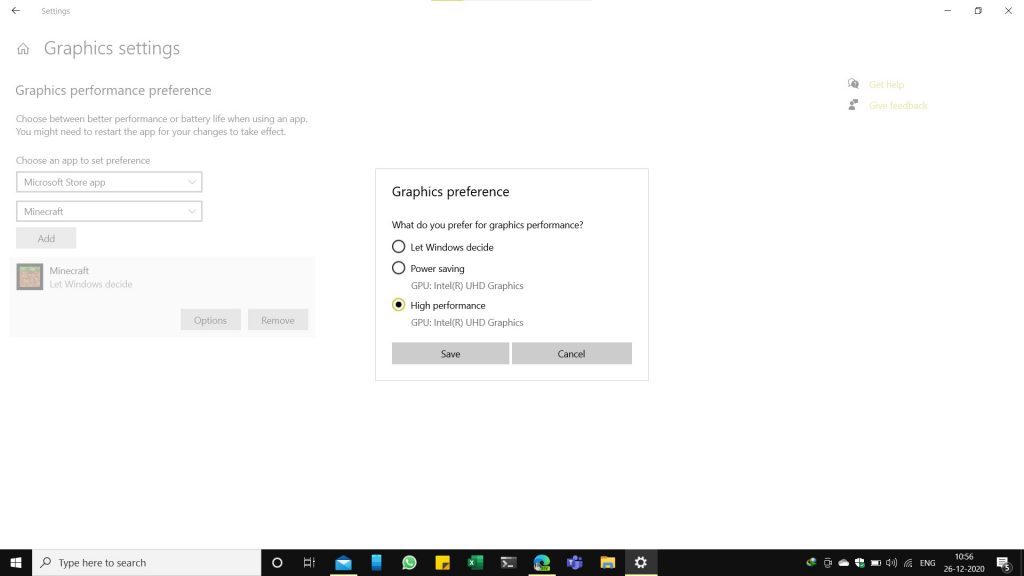
- In the Graphics Settings, enable High-Performance mode for Minecraft.
Cause of Minecraft Red Screen at Startup
The cause of this issue is unclear. Recently, Minecraft removed Support for older GPUs with DirectX 10.0 or earlier, so likely the changes they made broke Minecraft for a number of devices. From the Bug report at the Minecraft forums, this issue is related to Direct3D DDI 11.2.
Potential solutions
There are a number of potential solutions that may help to fix Minecraft Red Screen at Startup, discussed below:
- Update the Graphics drivers and optional updates: The first and foremost step you can do is update the display drivers. For this, you need to go to the manufacturer’s website of the GPU. If you have a laptop, it is recommended to go to the Laptop manufacturer website as they may have made customizations to the Graphics Processor. The easiest option is to check for Windows updates, which contains all the drivers. Also, check the Optional updates section for drivers. I am listing some pages for reference:
- The other option that has been suggested is, if you have a GPU disabled, either Internal or External, it may be causing the issue. In that case, see if enabling the same help. If you do not remember doing that, this does not apply to you.
- Right-click Start>Device Manager.
- Expand Display.
- Right-click the Graphics device and choose Enable.
- Change the App mode to High performance: For a number of people, changing Graphics Settings for Minecraft has helped. The fix is as under:
- Open Settings from the Start Menu.
- Go to System>Display>Graphics Settings.
- Under Choose an App to Set Preference, select Microsoft Store App.
- Select Minecraft from the list. Click Add.
- Click Options and Choose High Performance, click Save and Restart your computer.
These steps can help you fix Minecraft stuck at Red screen at Startup. If the steps have not helped, you will have to wait for Minecraft developers to fix the issue.