Often, issues such as unexpected Shell behavior and multiple displays can be attributed to Windows 11 Display issues. Windows requires a Display driver for various functions, including background and foreground tasks (likewise, the sleep feature requires a working display driver). This article discusses the steps for troubleshooting Display issues in Windows 10 and Windows 11 on your computer.
Table of Contents
Roll back the display driver to the previous version to resolve Windows 11 display issues
Display issues in Windows 10 can often be caused by a new driver, either pushed by the OEM or a Windows update. Removing the latest driver and rolling back to the older version would help in that case.
To roll back the Display driver to the previous version, see the steps below:
- Right-click the Start button and select Device Manager.
- Expand the Display option.
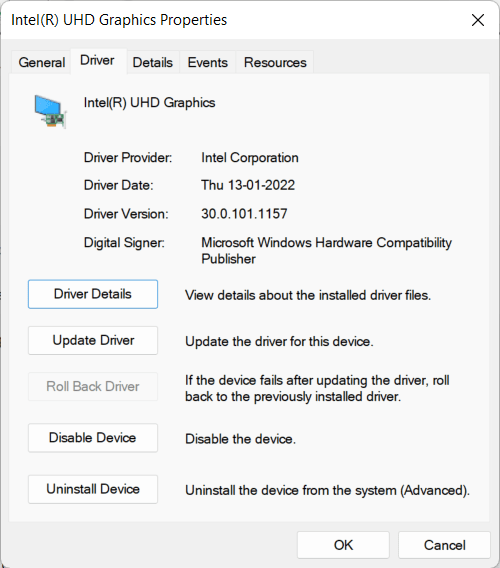
- Right-click your display device, something like Intel HD graphics and choose Properties.
- On the Driver tab, click Roll Back driver. Click yes if prompted.
- Click OK.
- Confirm if your problem is resolved.
Uninstall the display driver to resolve display issues in Windows 10
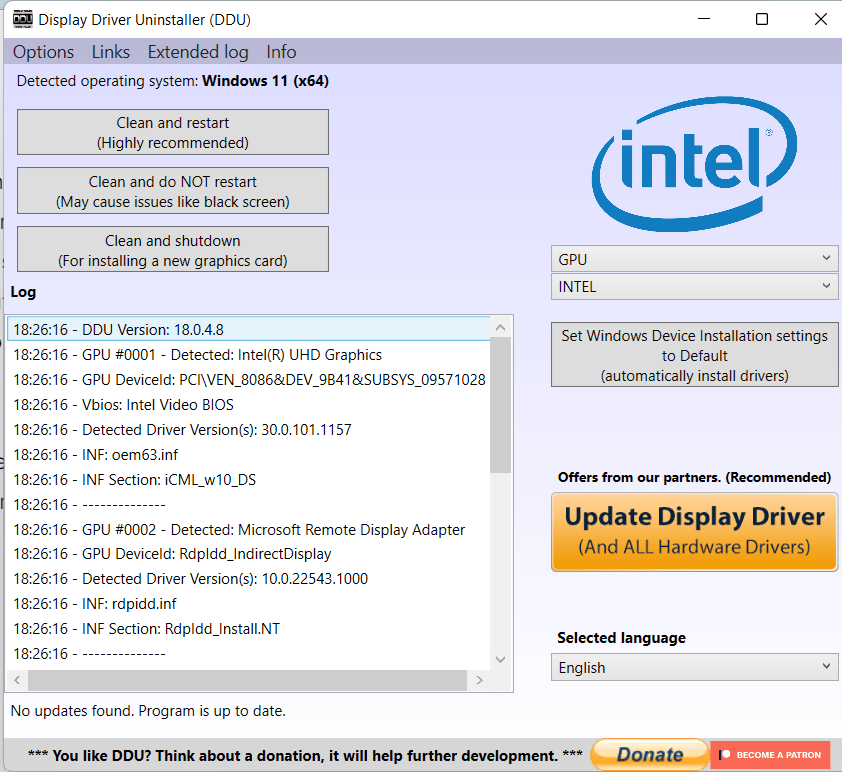
If rolling back the display driver has not resolved the issue, the next step you can take is to completely uninstall the display driver. To do this, you can use a program called Display Driver Uninstaller (DDU). This tool effectively removes the current driver from your computer, including any remaining registry entries. The advantage of using DDU is that it ensures a clean uninstall, eliminating all traces of the driver.
- Please download DDU from this link.
- Extract the ZIP file and Open the DDU (ver).exe file.
- Extract the folder contents when prompted.
- Run the file.
- Click Close on Preferences.
- On the right pane, select GPU. If you have Audio issues or multiple displays, select Audio.
- Select the GPU, i.e., Intel/AMD/Nvidia. If you have multiple GPUs in a laptop, remove one by one.
Straightaway, select the Clean and Restart button. This step would remove the driver and restart your computer, which can fix Windows 11 display issues.
Eventually, after Windows restarts, check for Windows updates, or download the display driver from the computer manufacturer and see if the display driver issues resolve.
Download Intel Drivers and Software
AMD Drivers and Support for Radeon, Radeon Pro, FirePro, APU, CPU, Ryzen, desktops, laptops
Afterward, please check if your issue has been resolved.
Try using an older version of the display driver.
You could use an older version if DDU does not resolve display issues in Windows 10 or Windows 11. Most manufacturers provide older versions of the display driver. To install an older version of the driver, see below:
- Use DDU to remove the driver’s traces.
- Pause Windows updates so that it does not install the latest version of the driver.
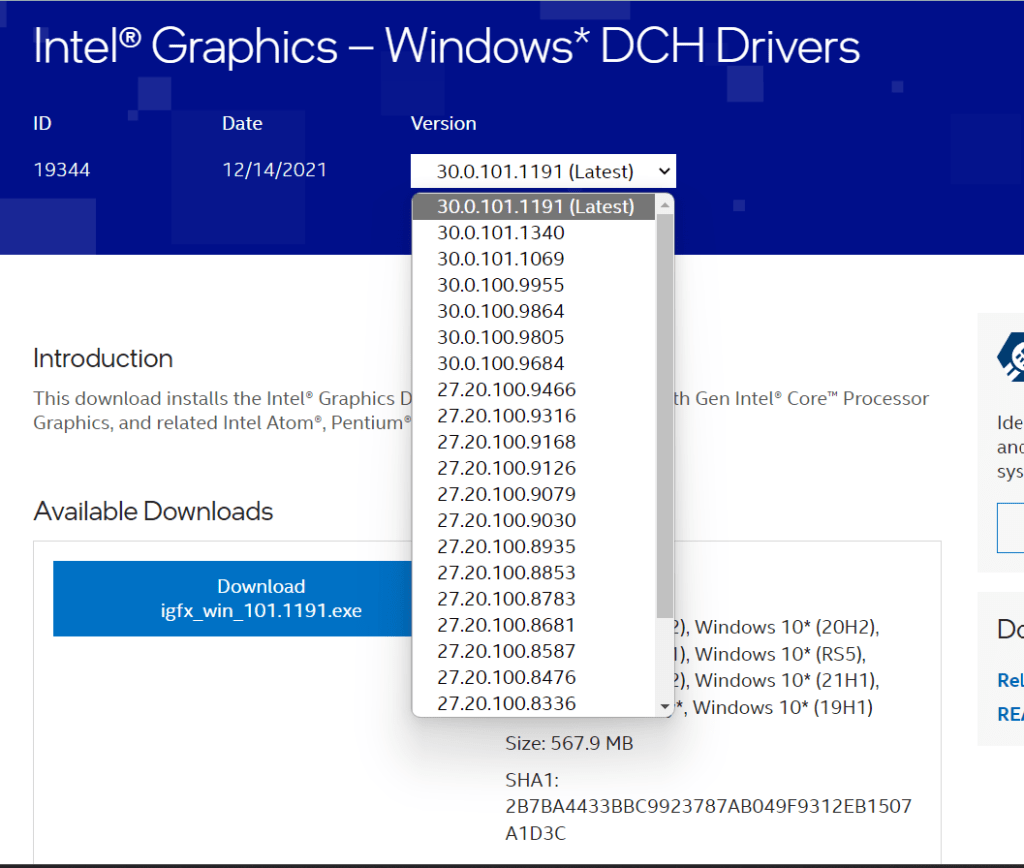
- Visit the manufacturer’s website and download the older version. Intel, for example, provides it as shown in the screenshot.
- Afterwards, install the older copy of the driver.
Afterwards, see if your display issue in Windows is resolved.
Miscellaneous troubleshooting steps:
- Disable GPU overclocking if enabled in the BIOS.
- If there is a hardware acceleration option in BIOS, try disabling it.
- Additionally, make sure the BIOS firmware is fully updated.
- If you have a specific app having problems, you can set a particular GPU in Settings>Display>Graphics Settings.
- Try lowering the refresh rate in Settings.
- Lastly, try to isolate the problem in a clean boot or Safe mode.
To conclude, these steps can help you troubleshoot the Display issues in Windows.
Also check: