This article will explore various options in case you have accidentally deleted and want to recover deleted partitions.
Table of Contents
What is a Disk Partition in Windows
When you install Windows or set up a new hard drive, the system organizes your storage into sections called disk partitions. These partitions function like separate compartments, enabling you to manage files, install multiple operating systems, or create backups more efficiently. Whether it’s your main C: drive or a hidden recovery partition, each plays a unique role in how Windows operates. But what happens if one gets deleted by mistake? Understanding disk partitions is the first step toward learning how to recover deleted partitions and safeguard your data from accidental loss.
Various options to Recover Deleted Partitions in Windows 11
There are various software programs that can help you recover the partitions. Some of them are listed below, including both free and paid options.
Stellar Data Recovery Professional
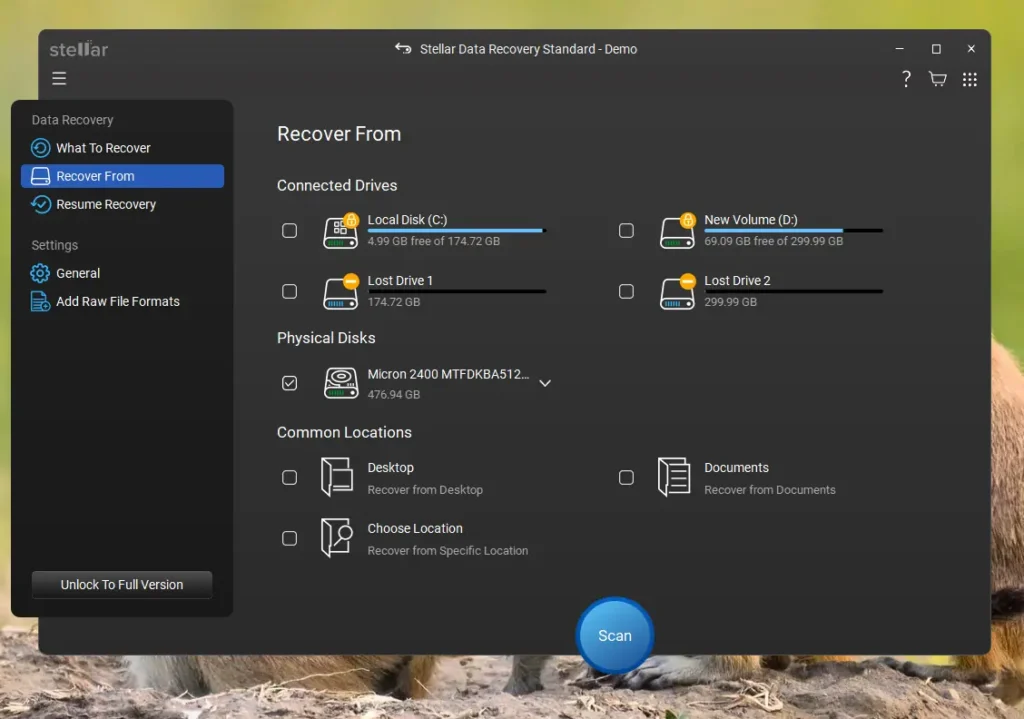
If you’ve accidentally deleted a partition or lost access due to a system crash, Stellar Data Recovery professional offers a reliable and user-friendly solution to recover deleted partitions on Windows. Designed for both tech-savvy users and beginners, this software can restore data from formatted, corrupted, or even unbootable drives. With features like “Can’t Find Drive” and “Raw Recovery,” Stellar digs deep to locate missing partitions and retrieve your files—whether they’re documents, photos, or videos. Its intuitive interface and fast scan engine make it one of the easiest ways to recover deleted partitions without needing command-line expertise
Pricing
Stellar Data Recovery offers three pricing tiers to suit different recovery needs. The Standard edition, priced at $59.99, helps users recover deleted data, photos, videos, emails, and more. For those requiring advanced features such as partition recovery and system crash restoration, the Professional edition is available for $89.99. The Premium edition, costing $99.99, includes all Professional features and adds the ability to repair corrupted photos and videos.
Usage
- On the ‘Select What to Recover’ screen, choose the file types you want to recover and click ‘Next.’
- Under ‘Connected Drives,’ click ‘Can’t Find Drive’ and then click ‘Scan.’
- In the ‘Select Hard Drive to Search Lost Partition’ window, choose the drive with the lost or deleted partition(s) and click ‘Search.’
- The software will display all missing or deleted partitions.
- If the desired partition isn’t listed, click the ‘Click Here’ link beside ‘Extensive Partition Search’ to perform a deeper scan.
- All found partitions will appear in the ‘Select Partition to Recover Data’ window.
- Select the desired partition and click ‘Scan.’
- After scanning, choose the files you want to recover and click ‘Recover.’
- Click ‘Browse’ to select a location to save the recovered files, then click “Start saving”.
Download Stellar Data Recovery Professional from here:
Professional Data Recovery Software – Recover, Clone & Monitor hard drive
Testdisk
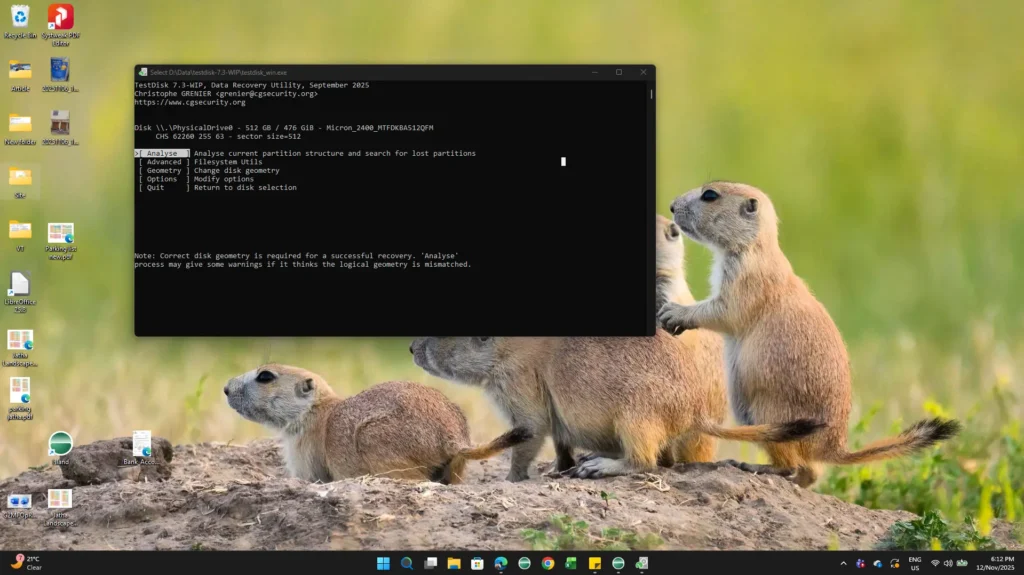
TestDisk is a powerful open-source utility designed to recover deleted partitions and repair corrupted disk structures. While it’s highly effective, especially for advanced users and IT professionals, TestDisk operates entirely through a command-line interface. This can make it intimidating and difficult to use for the average Windows user who’s unfamiliar with text-based navigation. Recovering deleted partitions with TestDisk often requires precise input and a good understanding of disk geometry, which may not be ideal for those looking for a more user-friendly, graphical solution.
Download: TestDisk Download – CGSecurity
- Run the TestDisk executable. You will need administrator or root privileges.
- Select [Create] to create a new log file and press Enter.
- Use the arrow keys to select the disk that contains the lost partition and press Enter to [Proceed].
- TestDisk will auto-detect the partition table type. Confirm the correct type (usually [Intel] for MBR or [EFI GPT] for GPT disks) and press [Enter].
- Select the [Analyse] option from the main menu and press [Enter] to check the current partition structure.
- On the analysis screen, select [Quick Search] and press [Enter] to begin searching for missing partitions.
- TestDisk will display the partitions it finds. Highlight a found partition and press P to list its files and verify it is the correct one. Press Q to return to the list.
- If your partition is still missing, select the [Deeper Search] option and press [Enter].
- Once you have identified your lost partition, ensure its attributes are correct (e.g., P for Primary, L for Logical). If it is marked D (Deleted), use the left/right arrow keys to change its status.
- When all partitions are listed correctly, navigate to the [Write] option and press [Enter].
- Confirm by pressing Y to write the new partition table structure to the disk.
- Select [Quit] repeatedly to exit TestDisk, and then reboot your computer.
EaseUS Data Recovery Pro
EaseUS Data Recovery Professional is a specialised tool to recover deleted partitions, alongside designed to find and restore data from drive partitions that have disappeared, been deleted, or have become ‘RAW’ and inaccessible. It works by running a deep, sector-by-sector scan across your entire hard drive, bypassing the operating system, to locate the “ghost” or “footprints” of the old partition structure. Once it identifies the lost section, it can often reconstruct its file system, allowing you to view a preview of your missing files—such as documents, photos, and videos—and then recover them to a safe location.
Download: EaseUS Data Recovery Wizard Professional | Reliable Data Recovery Tool
Pricing
EaseUS Data Recovery Wizard Professional is sold using a subscription-based model. You can typically choose from a monthly plan (around $69.95) for short-term, one-time recovery needs, or an annual plan (around $99.95) which is more cost-effective if you anticipate needing it multiple times. They also offer a lifetime license (around $149.95) for a one-time payment, which includes all future upgrades and is the best value if you want long-term access to the software. Prices can vary based on promotions or bundles.
These are some of the data software that can help to recover deleted partitions in Windows.



