This article helps you troubleshoot app crashes in Windows 11, including crashes and hangs of installed apps from the Microsoft Store.
Check for updates:
The first and foremost step that can be tried is Updates. Ensure all the apps in the Microsoft Store are updated and Windows is entirely up to date.
Microsoft Store: Open Microsoft Store>Click Library at the left>Click Get updates. Install all the available updates.
Windows Update: Go to Settings>Windows Update>Check for updates.
Repair the App
The next step you can try is to repair the App.
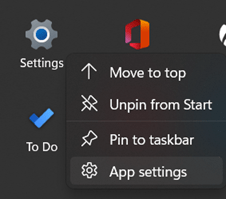
- Right-click the Problematic App and choose App Settings, and clicking the option would open a Window.
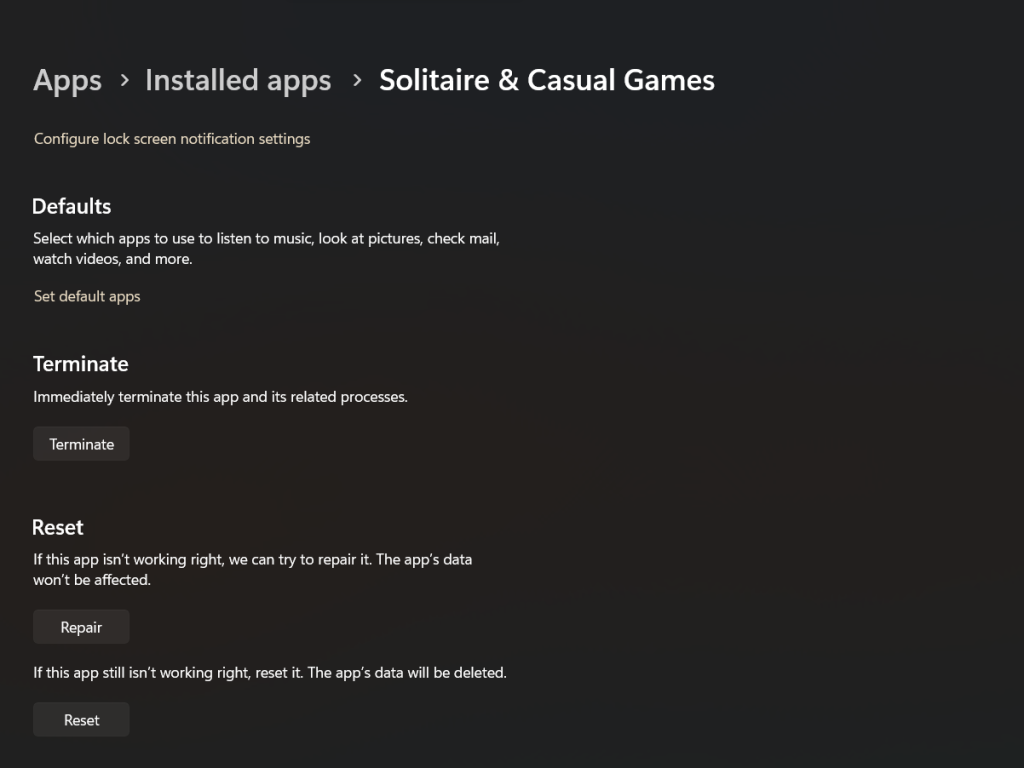
- After that, in the new Window that opens, click Repair. Windows would try to Repair the App.
Reset the App to prevent app crashing in Windows 11
If repairing has not helped, you can try the next step to reset the App. In the same Settings Window, click Reset.
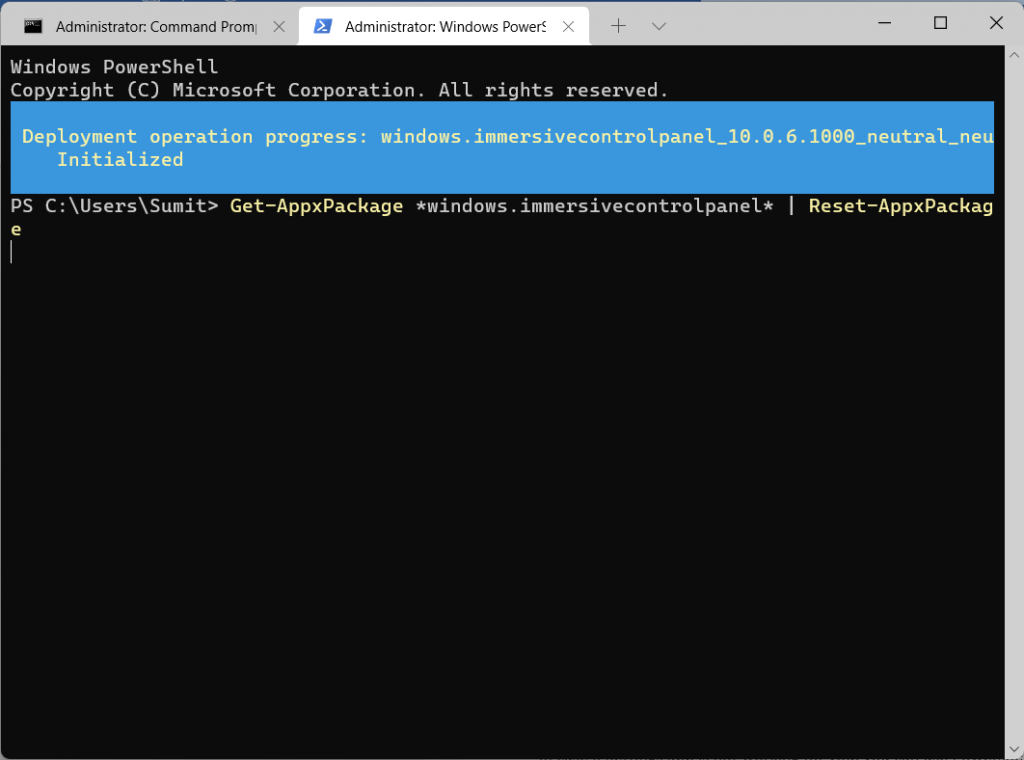
If the Settings App is not working for you, you can use the Powershell command to Reset the Settings App.
- Right-click Start>Windows Terminal(Admin). Choose Windows Powershell(admin).
- Execute the following command:
- Get-AppxPackage *windows.immersivecontrolpanel* | Reset-AppxPackage
- When done, restart the computer and check. You can also reset the other apps using the Powershell command by finding the name of the App first.
Try a clean boot
A clean boot may help isolate a problem if a 3rd party application causes it. Put your computer in a clean boot state, and see if the application works. See this article for more details.
Make sure the drivers are updated
Sometimes, older drivers may have incompatibility with newer versions of Windows, resulting in app crashes in Windows 11. Make sure all the drivers, especially the display driver, are up-to-date. You can also try reinstalling the display driver.
Reset or a Repair Install
The last resort to fix this problem is a Repair Install, which keeps everything and reinstalls Windows, or a Reset which removes applications. Both of the options are discussed in separate articles below:
Repair Install Windows 11 using an ISO file – Your Windows Guide
How to Reset Windows 11 – Microsoft Community
These steps can help you troubleshoot App crashes in Windows 11.


