With the introduction of Windows 10 last summer, Microsoft offered a free upgrade to devices running Windows 7 and 8 for one year. The goal was straightforward: they aimed to have Windows 10 installed on one billion devices.
As the deadline for the free upgrade approaches—less than 50 days remaining—anyone interested in switching to Windows 10 should consider upgrading now. Unfortunately, some users are currently unsure about making the change.
I want to share a method that allows you to get Windows 10 for free even after the free upgrade offer ends. This method is completely legal, but it does require some effort on your part.
The key point is that when you upgrade to Windows 10, your existing license becomes a dual license for both Windows 10 and Windows 7/8. You can choose to install either one after performing a clean installation. Windows 10 is activated through digital entitlement, while the previous version is activated using a license key. Therefore, you need to upgrade to Windows 10 first and then restore your earlier version of Windows.
So here are the steps:


So here are the steps:
Create a system image of your existing OS before upgrading to Windows 10
A system image is an exact copy of your system running at the time when it is created and beautiful way of restoring your windows whenever you want.A system image carries all your data of the drives+also preserves activation.
To create a system Image in Windows:
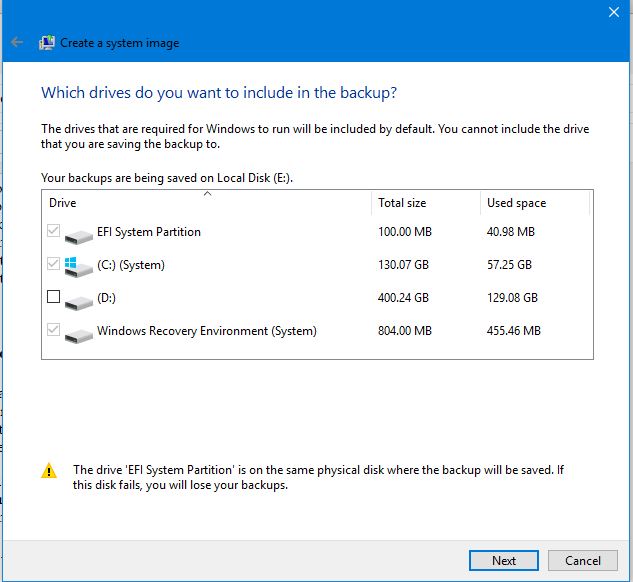

- Open the Control Panel and then navigate to Backup and Restore.
- Click Create system Image on the left pane.
- Select the drive where the Image is to be saved.It can either be the same Hard drive or an external drive:
- Now click on next.
- Now windows would automatically select the drives for the image.Click on Next:
- Click on start Backup.
Upgrade to windows 10
When the backup is finished,the next step is to upgrade to Windows 10.For this,Download the media creation tool and select upgrade to Windows 10,as shown:
Then select upgrade This PC.


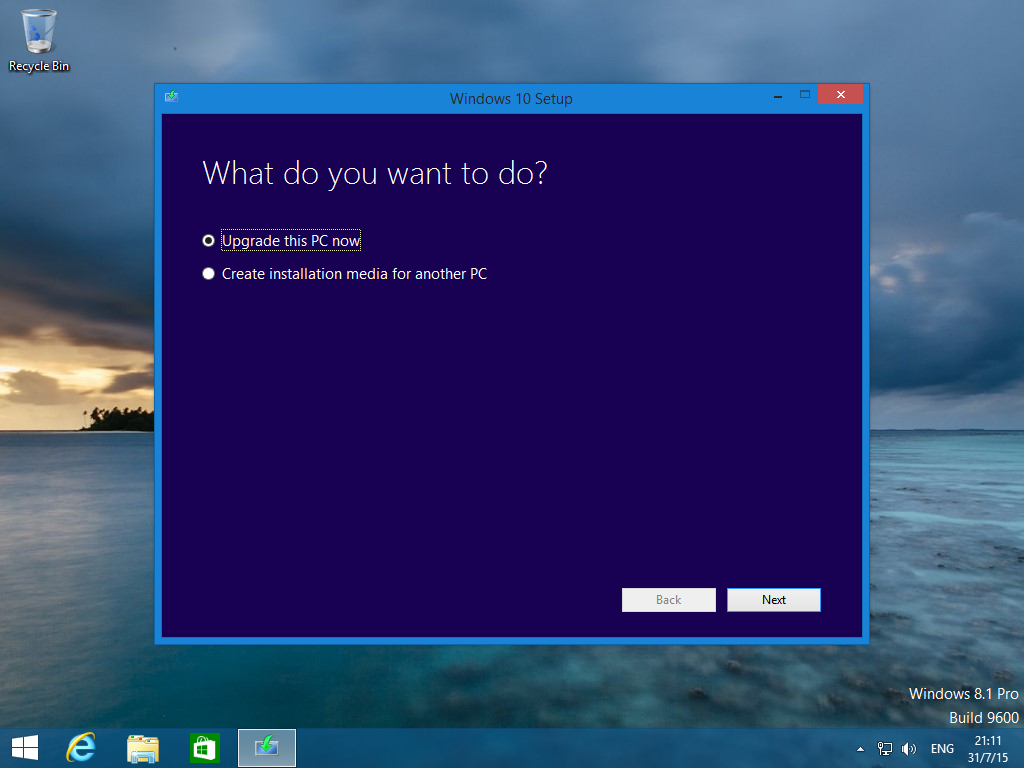
When you have finished the upgrade,confirm that you have digital entitlement in Activation.For that go to Settings>Update and security>Activation and see.

Rollback to Earlier version of Windows
To get your Earlier version of Windows back,Either do a rollback or restore the system Image we created Earlier.
Rollback using the built in facility provided: you want to use Windows 10’s built in feature to rollback,use the following steps:
- Navigate to Settings app
- Open Update and security
- On the left pane,click recovery.
- Click Get started under Go back to Windows 7/8
The built in rollback feature is somewhat less reliable and people often face problems afterwards in the earlier Windows version.
Restore the system Image:To restore the system Image we created Earlier,use the following guide:
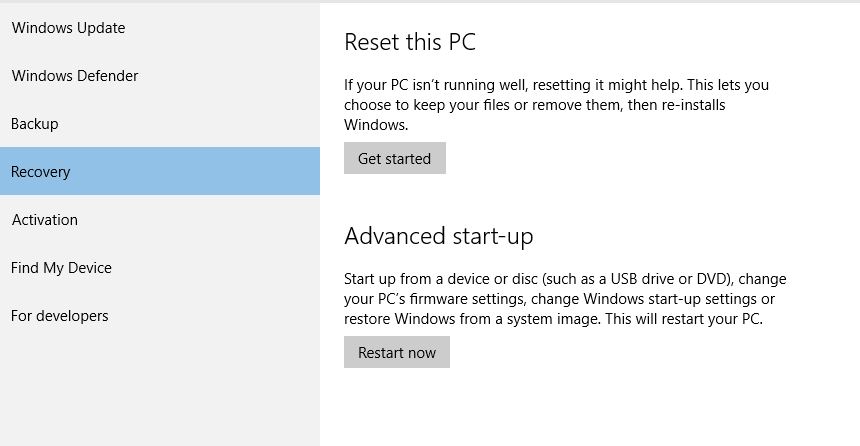
- Open the recovery tab from settings as explained above.
- Under Advanced startup,click Restart now.

- Then a blue screen would open somewhat like this:
- Click on troubleshoot and then Click Adanced options>System Image recovery

- Then select the system image and restore.
- Your old Windows would be restored.


That’s it.You can successfully upgrade to windows 10 in future for free.
Queries?Post in comments……….
