If your PC is having BSODs while gaming or using your Windows computer, the suspect might be the Graphics Processing Unit, also known as the GPU. To isolate if the GPU has a defect, you might have been recommended a test. Information related to stress test GPU is shared in this article.

What is a GPU?
A GPU, or Graphics Processing Unit, is a specialised chip in your laptop /desktop that handles all the visual tasks. Examples include pictures, videos, games, and even Windows desktop elements. It makes the elements faster and smoother than the main processor (CPU) alone. Without a GPU, everything from browsing the web to playing modern games would feel much slower and less visually impressive; in daily use, it’s what makes your computer’s display vivid, fluid, and responsive, whether you’re gaming, working, or watching movies. Sometimes if you are having issues like a Blue screen, you might be recommended Stress test GPU.
Furmark – the best Tool to stress test GPU
Furmark is a program that pushes your graphics card to its limits by drawing complex furry images, helping you test how well and how stably your GPU works. If your computer is crashing with a blue screen (BSOD), experts often suggest using Furmark to check if the graphics card is the problem i.e. a video card stress test is failed. If your GPU overheats, doesn’t get enough power, has loose power cables, isn’t installed correctly, or has driver issues, it will usually fail the Furmark test, meaning the test can help you spot these kinds of hardware or software problems with your graphics card.
Download and run Furmark for video card stress Test
- First of all, download Furmark. It can be downloaded from the MajorGeeks website. Download the Portable version since this is a one-time use program.
- Next, please extract the ZIP and run the Program.
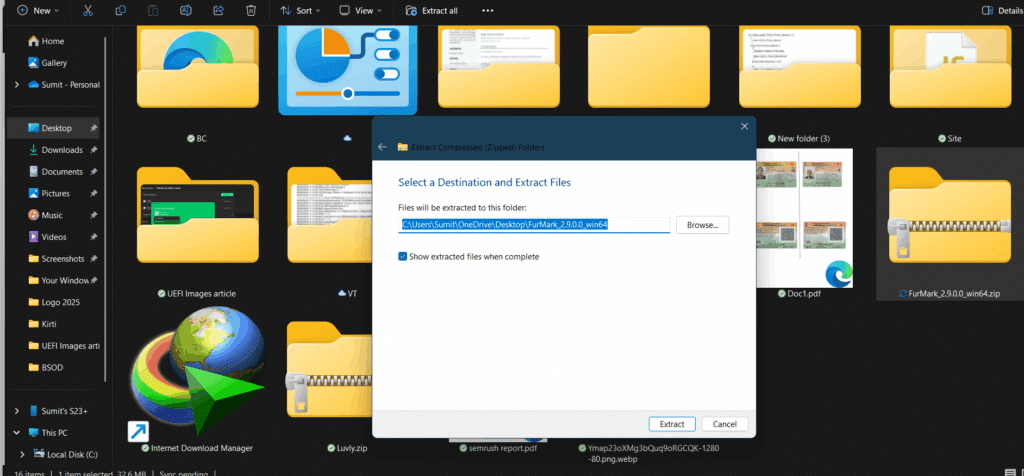
- Run the Furmark_GUI named file from Windows.
- Select the appropriate Resolution and GPU – typically is already pre-set, and you do not need to change anything.
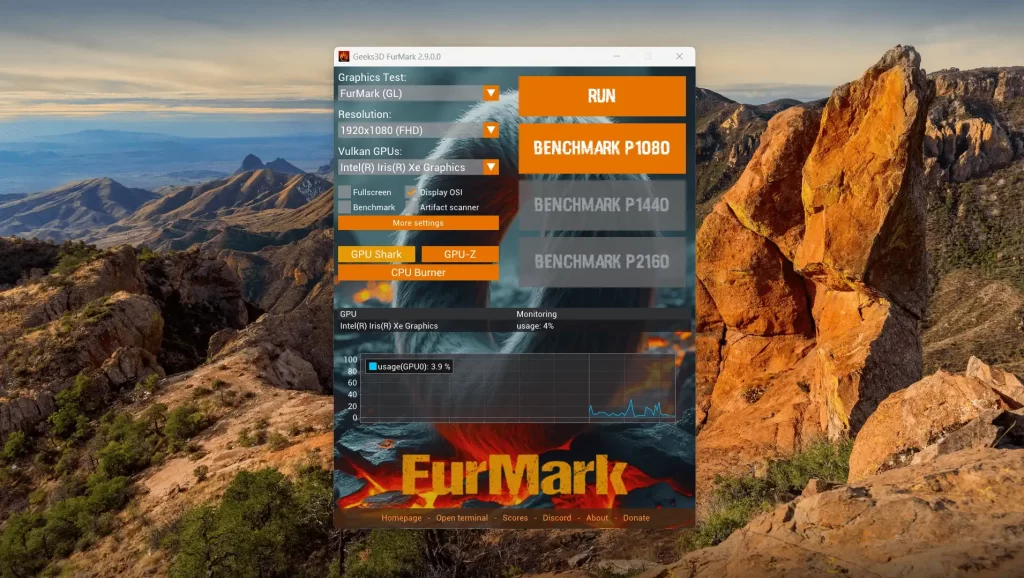
- Click Run. Concurrently, a full-screen Window would appear.
- Let the test run for a while.
- During the test, the GPU would be pushed to the limits using the graphics. If you encounter any artefacts or the computer shuts down or a Blue screen of death occurs, the GPU likely has an issue i.e. it failed the stress test.
Further troubleshooting for GPU issues
If the computer works with the GPU stress test, it might mean you need to troubleshoot it further. A well-known workaround is to try your GPU on another computer, and watch for a few days. This would confirm if the issue is with the GPU or any other component. Additionally, if the PC crashes with a specific game only, rather than doing a stress test on the GPU, I recommend checking with the game developer.
You can also, as an additional step, try to turn off overclocking on RAM, GPU, CPU, etc, which can help many times.
As a last step, checking for BIOS updates, also known as UEFI on modern systems, can also help in addition to stress test GPU. Refer to this article for more information.
You may also want to contact us for further troubleshooting or ask a question on Microsoft QA.



