This article is a continuation of our BIOS series at Your Windows Guide – the other article in this series is mentioned here, which is about updating firmware on the PC. This article explains how to enter BIOS on a computer running Windows OS on a Desktop or laptop.
What is BIOS /UEFI firmware in a computer?
The Basic Input/Output System (BIOS) and its modern successor, Unified Extensible Firmware Interface (UEFI), serve as the bridge between your computer’s hardware and operating system. When you power on your computer, BIOS or UEFI performs essential startup tasks like checking hardware components, initialising system settings, and loading the operating system from your storage drive. UEFI has largely replaced traditional BIOS in modern computers, offering faster boot times, support for larger hard drives, enhanced security features, and a more user-friendly graphical interface for system configuration.
There are two ways to enter BIOS Settings, which are given below.
How to enter BIOS on a computer [The easier way]
This method is for somewhat modern devices that support UEFI instead of BIOS. Consider UEFI is an update to Legacy BIOS technology. Additionally, UEFI is mandatory with Windows 11 devices, whereas with Windows 10 it is optional. The easiest way to access BIOS is by using the Windows Recovery environment. To open WinRE, you may use the following method.

- Open the Settings app by pressing the Win + I keys.
- Navigate to System > Recovery if you are running Windows 11. Concurrently, use Update and Security > Recovery option for Windows 10.
- Click the “Restart Now” button next to Advanced Startup.
- Choose the Troubleshoot option.
- Select Advanced options and choose UEFI Firmware Settings. Refer to the Image below:
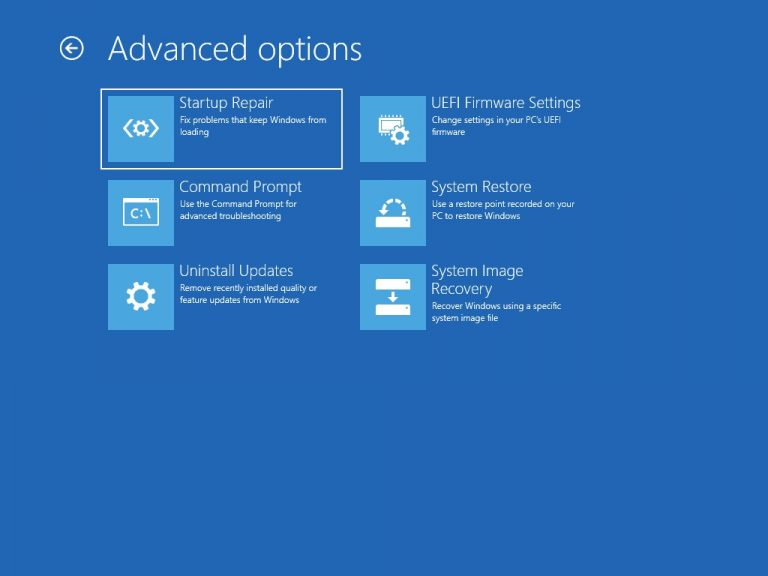
- After this, the computer should boot to the BIOS menu. Additionally, you might have to press another key like F10 in order to enter BIOS.
Use the BIOS-specific key set by the manufacturer
How to Enter BIOS Using the Manufacturer-Specific Key
The traditional method to enter BIOS also exists outside of Windows. For this method, you need to press a specific key immediately after pressing the Power button. The table below helps you with the particular key for entering the firmware Settings.
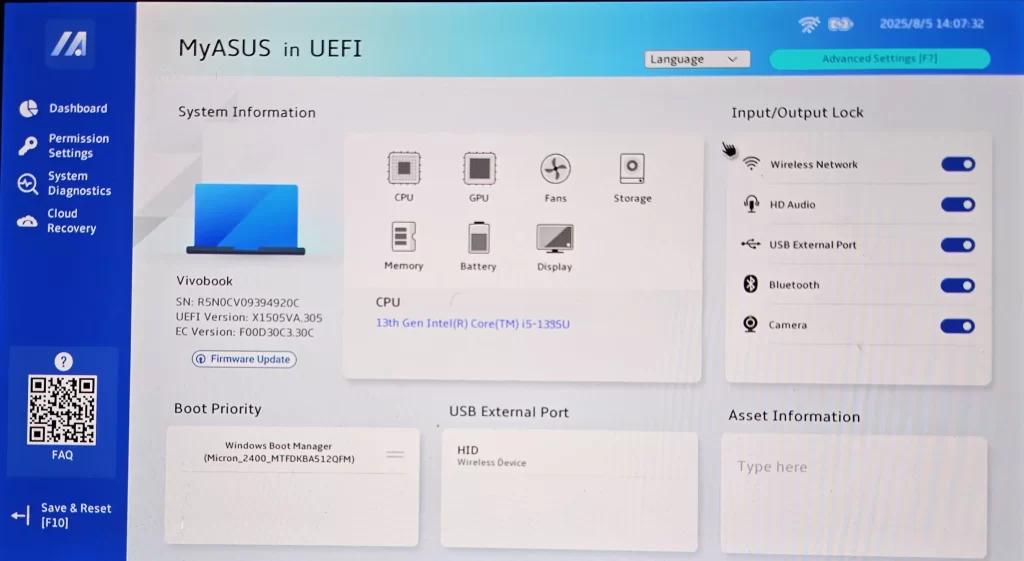
As soon as you press the respective key or key combination, the BIOS Settings will appear, showing you how to enter BIOS.



