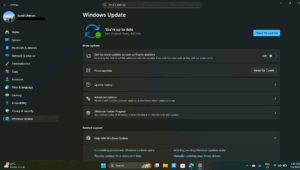
Registration for Microsoft’s ESU program for Windows 10 has begun. As usual, some users hit issues signing up for the Extended Security updates, since Microsoft’s largest operating system user base is quite large. This article covers an issue where the ESU ‘Something went wrong’ error appears when signing up. If you cannot see the enrollment option, see this article instead.
Table of Contents
Windows 10 ESU error – how to solve Something went wrong error
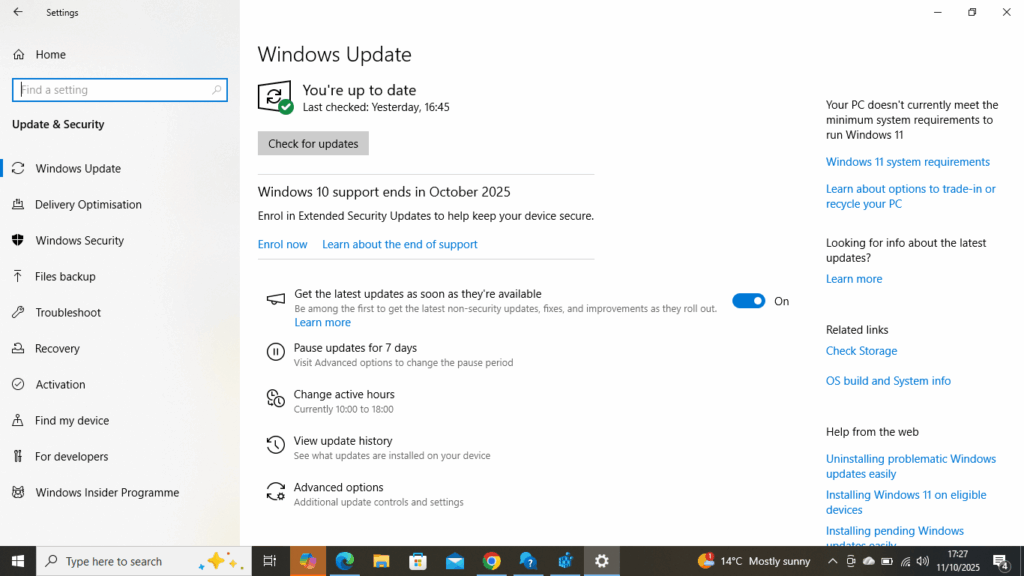
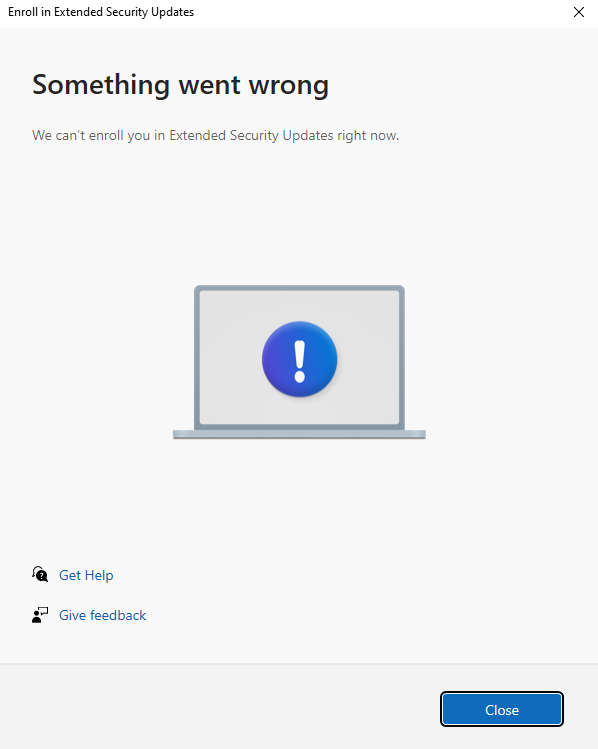
Let us first discuss the problem symptoms. Once you see an option in Windows Update and click Enrol Now, you will be prompted to sign in. Once you sign in, you might hit this error, which shows ESU Something went wrong.
The solutions for this Windows 10 ESU error are given below:
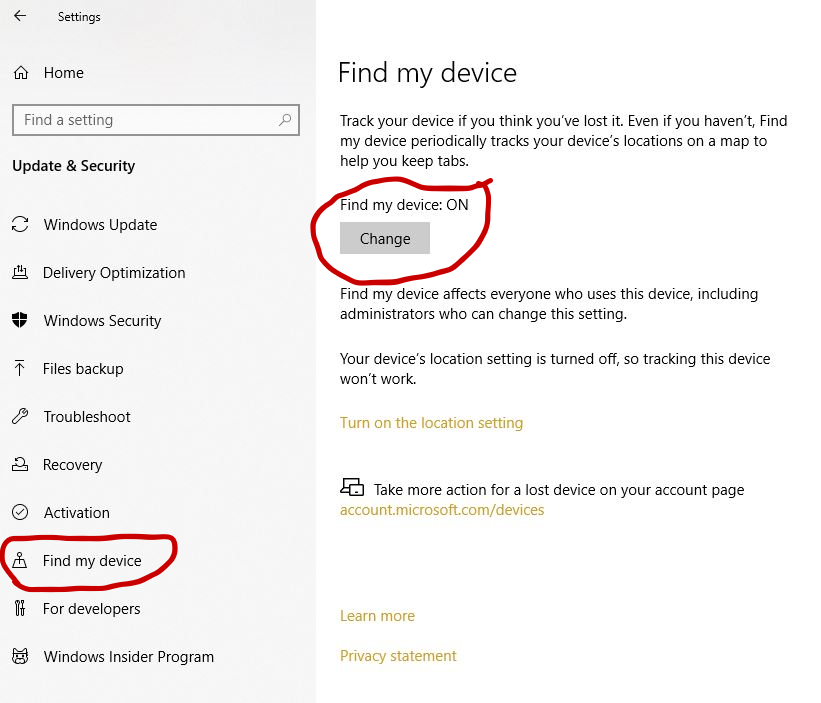
Turn on Find my device
A simple fix reported on the Microsoft Community is to turn off Find my device in Windows 10. For that,
- Open Settings.
- Go to Update & Security.
- Select Find my device from the left pane.
- Click Change under Find my device is off.
- Toggle the switch to On.
Disable the Block Microsoft Accounts GPO
If you have made changes in the group Policy, the Microsoft accounts blocking GPO can also trigger this issue. To disable the Group Policy, a command undoes it which fixes the ESU Something went wrong error.
In an elevated command prompt Window(Right-click Start >Windows Terminal(admin), execute this command:
reg add "HKEY_LOCAL_MACHINE\SOFTWARE\Microsoft\Windows\CurrentVersion\Policies\System" /v "NoConnectedUser" /t REG_DWORD /d 0 /f && shutdown /r /t 0Restart and then check again.
Work Account involvement for ESU “Something went wrong” error
You must also ensure that you do not have any Work or School account on the PC, since the corporate account would override the ESU enrollment for Personal. For that, go to Settings > Accounts > Access Work or School and make sure your account is not listed there.
Additionally, you can check using this command:
dsregcmd /statusIf the computer is domain joined. You must leave the domain before you can proceed with end consumer ESU enrollment.
If this post helped you, consider supporting:

Special thanks to abbodi86 for the Input to this thread.