System File Checker and DISM are two utilities in Windows that allow users to scan for corruption in Windows system files and repair or replace corrupted files. This article describes how to use the SFC scannow command and the DISM Command to scan your system files and correct missing or corrupted system files. If a Windows file is missing or is corrupted, Windows may behave unexpectedly. For example, some Windows functions may not work, or Windows may crash in the worst-case scenario.


Opening Command Prompt
As SFC requires scanning of system files, Administrative privileges are needed in the command prompt, better known as an elevated command prompt. To open it, Press the Windows key + X simultaneously and select either Windows Terminal (Admin) or Windows PowerShell (Admin).
Run SFC Scannow and DISM in Windows 10 and Windows 11
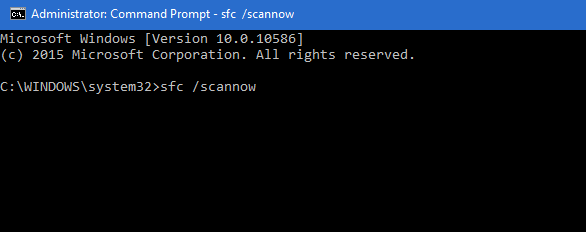
It might take time depending on speed of your system.
STEP 3: Analyzing the results of SFC SCANNOW and DISM
When you have finished, the result will display one of three:
- Windows did not find any integrity violations (a good thing)-No corruptions found
- Windows Resource Protection found corrupt files and repaired them (a good thing)-Corrupt files found but repaired
- Windows Resource Protection found corrupt files but was unable to fix some (or all) of them (not a good thing)-Corrupt files found but not repaired
Fixing the corrupted files using the DISM tool
To fix the corrupted files mentioned in the third item, you have two options:
- Use the DISM utility, which requires installation media, to repair the files.
- Perform a repair installation, as indicated here.
Concurrently, to try to fix the corrupted files using the DISM, see the steps below:
- Open the Elevated Command Prompt again.
- Use the following command:
dism.exe /online /cleanup-image /restorehealth
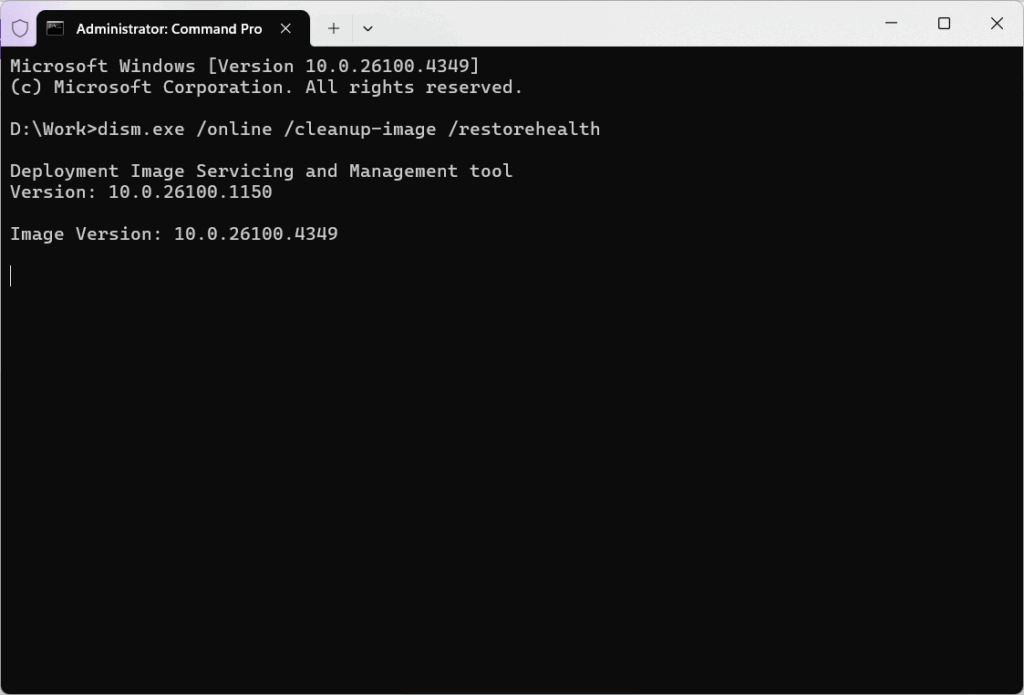
To view the details of the System File Checker process:
We can see which files were found corrupted using the file SFC generates.We can get the good copy of the file from any computer and replace the file in our system.
- Open an elevated command prompt as described above.
- At the command prompt, type the following command, and then press ENTER:
findstr /c:"[SR]" %windir%LogsCBSCBS.log >"%userprofile%Desktopsfc.txt"
Note The Sfc.txt file contains details from every time that the System File Checker tool has been run on the computer. The file includes information about files that were not repaired by the System File Checker tool.
- Now see the entry somewhat like this: Cannot repair member file XXXXX,the source file is also corrupted.

