Intel Unison app allows you to sync iPhone and Android with your Intel-based Windows 11 PCs.
Microsoft’s Phone Link is an excellent app that helps you see photos, sync Notifications, send Messages, and call on Your PC. It is a perfect app for enjoying a cross-device experience on Windows. The only limitation with the Phone link app is it only works with Windows, not iOS.
Now, Intel has developed a new app called Intel Unison, which allows syncing your Phone, including iOS, to your Windows device.
System Requirements:
Intel Unison app requires the following specifications:
- Windows 11 22H2 and later.
- An Intel-based PC – 10th gen or later.
- Android v9/iOS 15+.
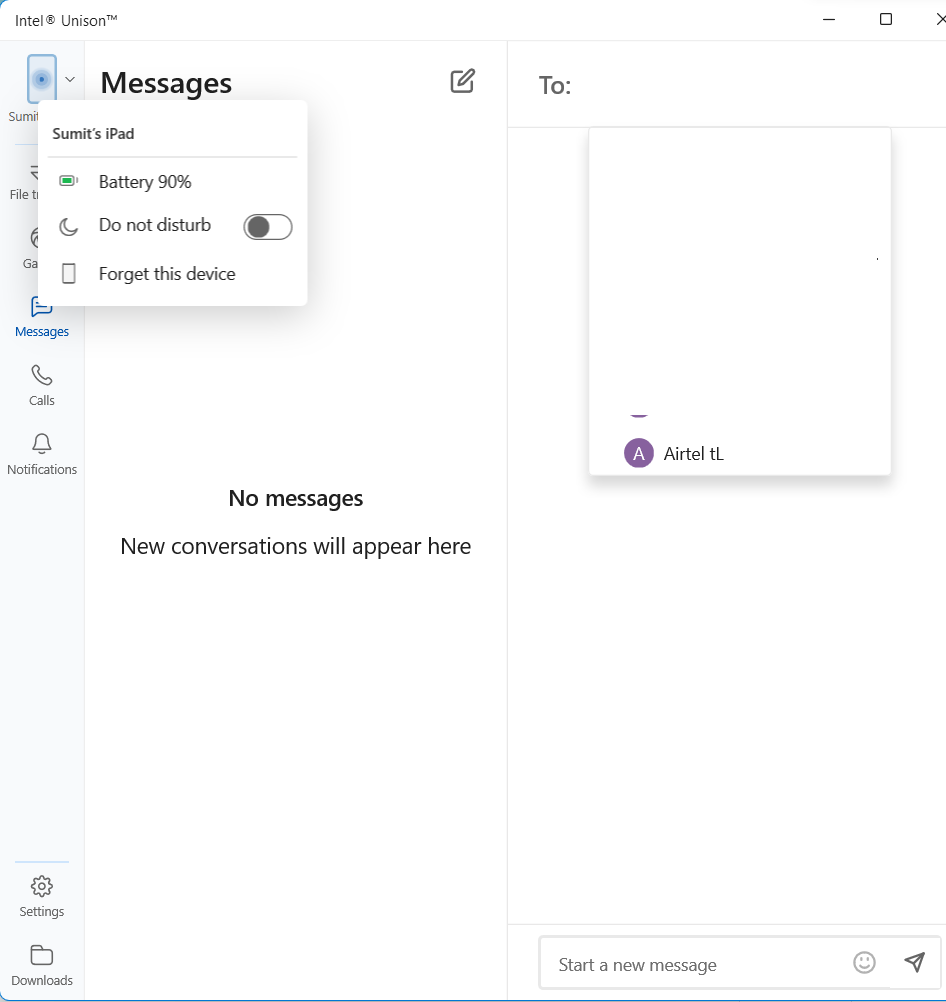
Setting up the Intel Unison App
You can download the Intel Unison app from the Microsoft Store – use the following link:
https://apps.microsoft.com/store/detail/9PP9GZM2GN26?hl=en-us&gl=US
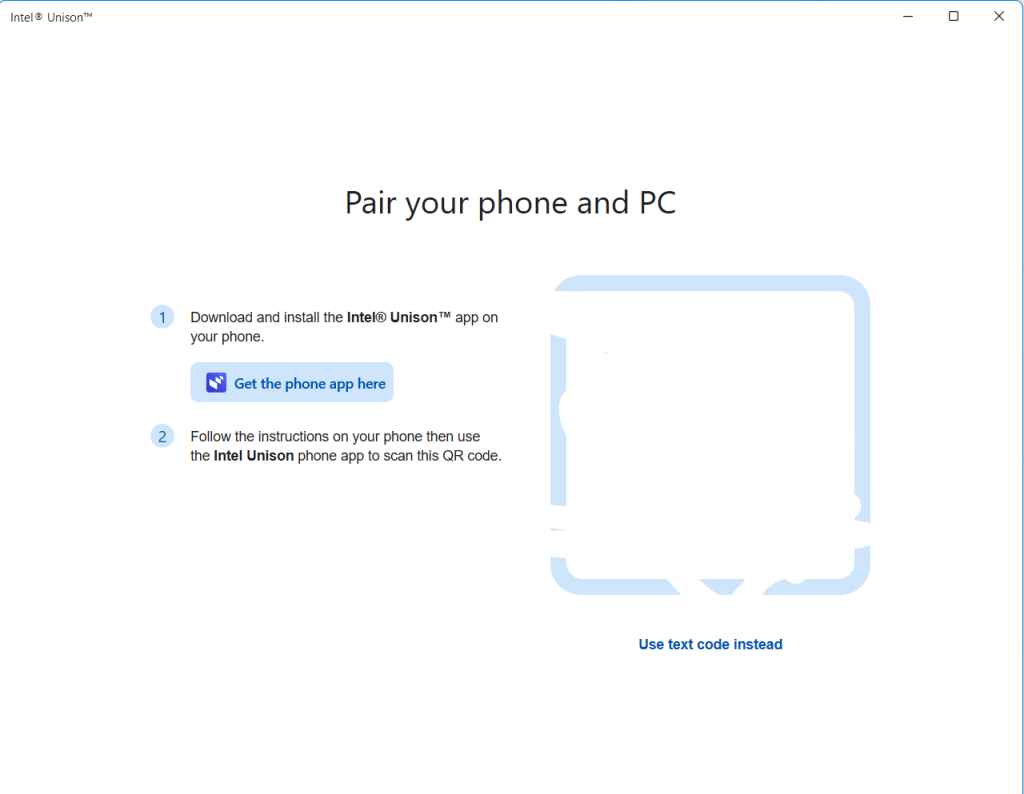
- When you open it, you will see a QR Code. You would also see the links of Intel Unison on the App Store and Play Store. Both are given below:
- Download the appropriate version on your Phone and open it.
- Scan the QR code from your Phone using the app and ensure the characters at both ends are correct. Allow the Camera access if needed.
- You should see a successful pairing message.
- The app should show a successful connection message.
The next step is to grant permissions for Photos, calls etc. To do this, see the steps below:
- In your Phone, in the Unison app, click Permissions.
- For each contact, Photos, Bluetooth and Local Network, turn on the slider. Similarly, if you have an Android Phone, enable all the Permissions. In another scenario, you might be asked for the permissions on the screen itself when you open the app.
- Open the Photos option on your PC, and you should start seeing Photos.
- For calls: When you open the calls section on your PC, you should see a Bluetooth pairing message. Do that, and you should also be able to use the Calls feature.
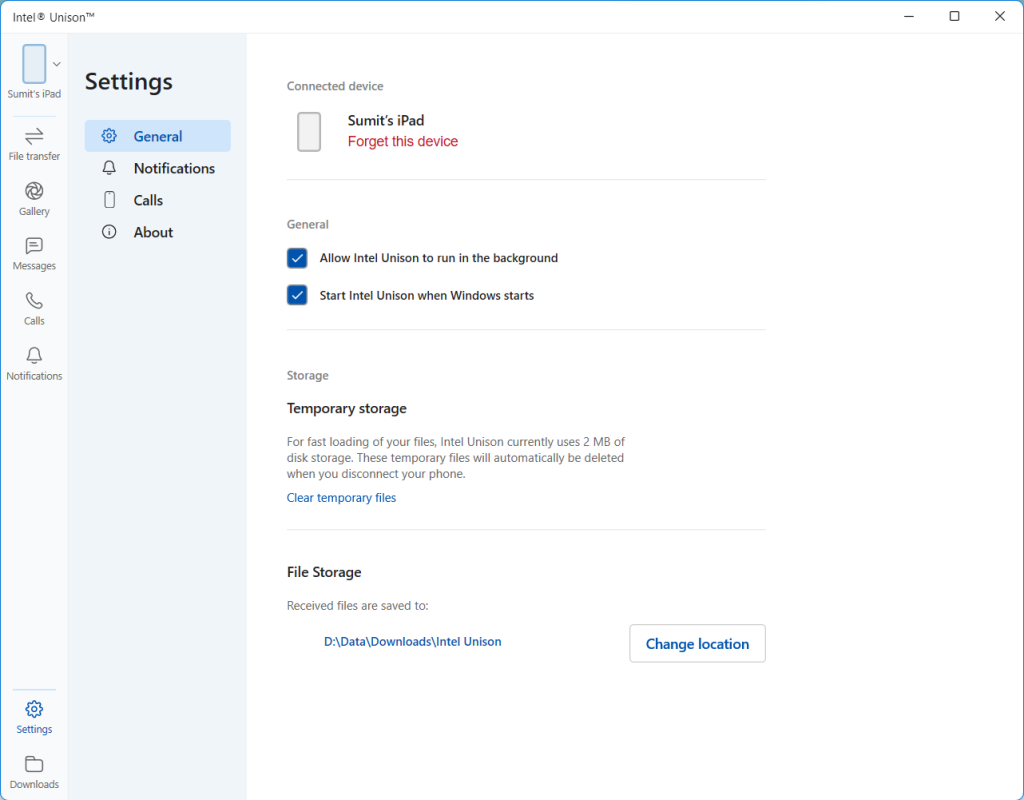
Additional notes
Some additional notes about Intel Unison, including some limitations, are under:
- Your iMessage History would not be synced to the app. However, you can send/receive iMessages from the app.
- Most Unison app functionality is based on Bluetooth Technology, unlike Phone Link. It is expected to support WiFi direct in the future.
- Currently, you can pair only one Phone at a time with Intel unison.
To conclude, this app is a pretty good alternative to Microsoft’s Phone Link app. It can also be set up on iPhones, which is a big plus.
Additionally, see:
Intel® Unison™ – Seamlessly Link Phones and Devices to Your PC