This article details the Driver Verifier (verifier.exe) and how to use it.
Table of Contents
About Driver Verifier
Driver Verifier is a utility built into the operating system (Vista, Windows 7, Windows 8, Windows 10, and Windows 11) that often identifies the driver (s) underlying the cause of BSODs or crashes. It stresses the drivers, so that the one which is the weakest, which is likely causing the crash to your system.
More details
Most of the time, Driver Verifier will crash and inform you of the driver’s name, but sometimes it will crash without providing the driver’s name. Sometimes it will crash before you can log in to Windows. In that case, you need to use the Windows Recovery environment to rescue your system. More details later in the article.
Also, it should never run in safe mode because many drivers do not load in safe mode, which would straightaway defeat the purpose of troubleshooting the Blue Screen of Death issue.
Run Driver Verifier in Windows 11
To run it, see the steps below:
- Type verifier.exe in the Run dialog box or Windows search. This would open Driver Verifier Manager.
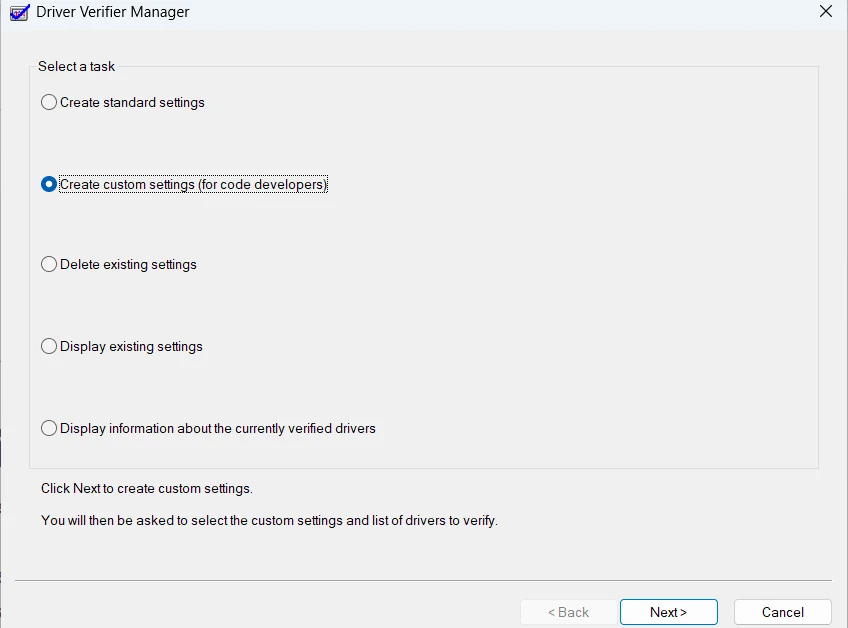
- Select the option titled “Create custom settings (for code developers)” and click “Next”.
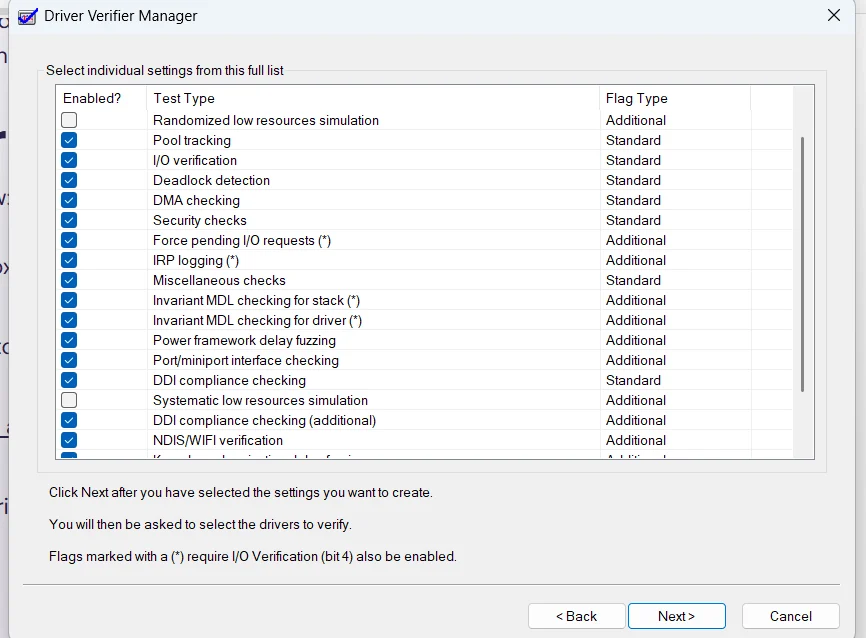
- Except for DDI compliance checking and randomised low-resource simulation, check everything.
- On the next screen, select “Select driver names from a list” and click “Next”.
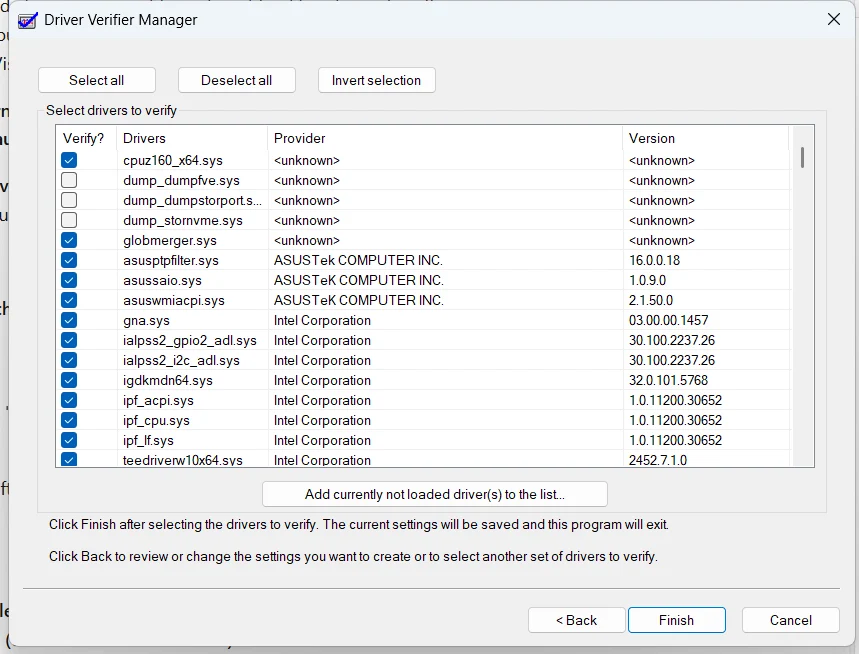
- Sort the items by Provider. Subsequently, select all drivers NOT provided by Microsoft and click “Next”. Feel free to uncheck the dump creator drivers, as seen in this screenshot.
- Select Finish.
Now the Driver Verifier is running on your machine. When it crashes, a dump file will be generated, with a Blue screen which would say – DRIVER_VERIFIER_DETECTED_VIOLATION (XXXXXX.sys) or DRIVER_VERIFIER_DMA_VIOLATION, where the sys Driver file tells you what is the offending driver. Or you can submit for BSOD analysis as well at the QA forum.
Verifier must be run for at most 48 hours. If no Blue Screen of Death happens, the cause of it is likely not a 3rd party driver.
Turn off verifier.exe if the computer is in a reboot loop
If your computer is in a reboot loop after running the tool, you can do the following:
- Open the Windows Recovery environment. You can do so by restarting the PC three times during boot, which will open it straight away.
- Select Command Prompt from the Recovery options.
- Execute Verifier /reset command to reset the Settings.
- Once you restart, the computer should be normal.
Lastly, If you hit any freezing issues, feel free to look at this article.