This article serves as a handy guide if you want to show Battery percentage in Windows 11 Taskbar.
Table of Contents
Significance of Battery in Windows 11 Taskbar
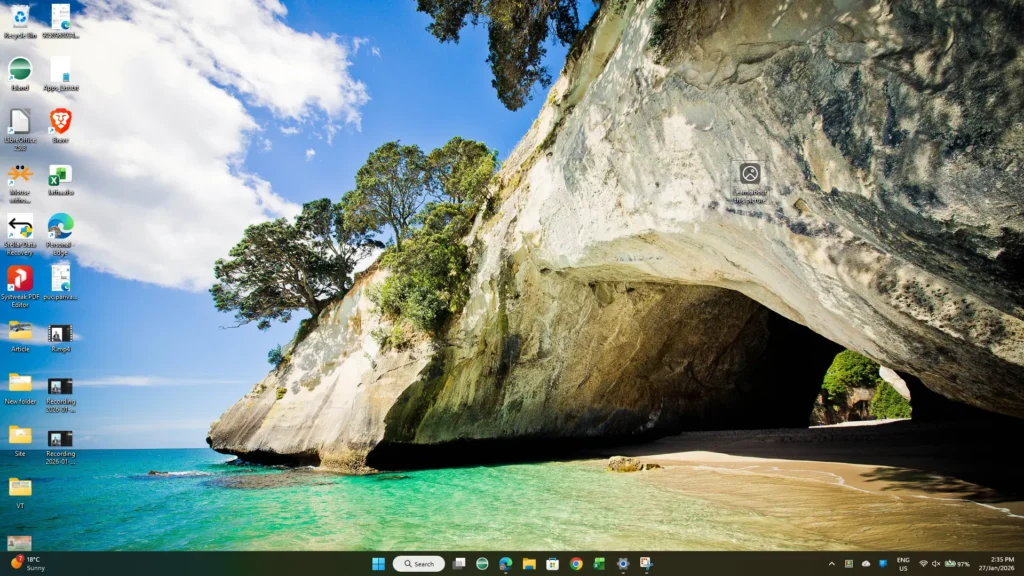
Showing the battery percentage on the Windows 11 taskbar may seem like a small detail, but it makes daily use much easier and stress-free. When you display Battery percentage on the taskbar, you get a clear, precise view of how much power is left, instead of guessing from an icon. This helps you plan your work better, avoid sudden shutdowns, and decide when to plug in your charger—especially during meetings, travel, or long work sessions. For laptop users, this simple setting improves control, saves time, and adds real convenience to everyday Windows 11 usage.
How to Show Battery Percentage in Windows 11
To display the Battery Percentage on the Taskbar, simply follow these steps:
- Press Windows key + I to open the Settings app.
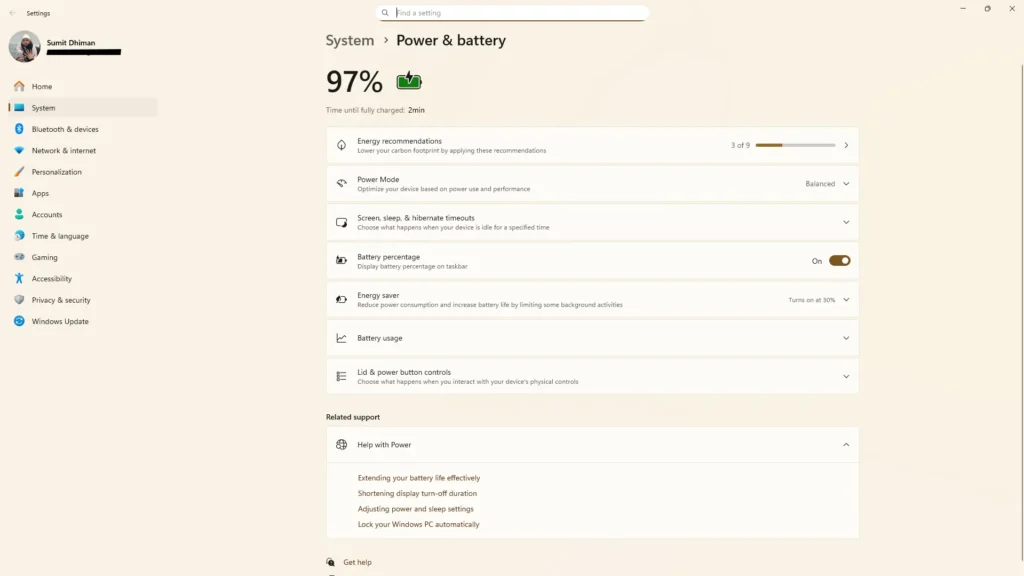
- Go to System > Power and Battery Settings.
- Enable Battery Percentage slider.
- Close the Settings app.
- The Battery percentage should now be visible.
Requirements to Display Battery Percentage on the taskbar
To have this feature, the computer must be on Windows 11, version 25H2 and with the January 2026 Patch Installed. If you are seeking help to install Windows 11 version 25H2, you can check out the following article: