Microsoft released the new Microsoft Edge last year. The newest version of Edge is based on the Chromium engine. Although Edge is a particularly good browser, there are some annoyances with Edge. One of the main annoyances with Edge is you have limited options to import passwords. This article discusses how to Import a CSV file containing passwords in Microsoft Edge.
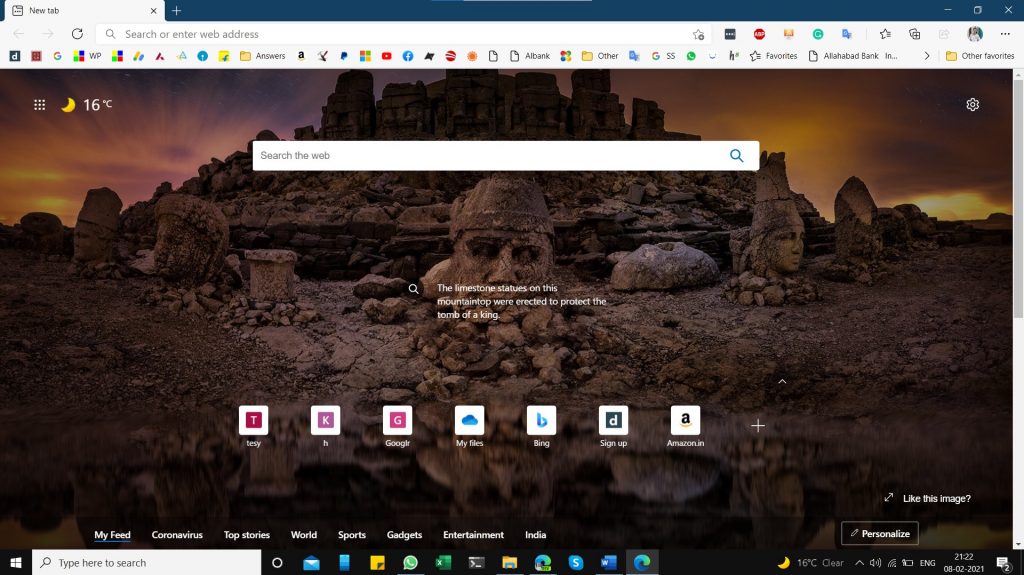
How to Import passwords to Microsoft edge from CSV file
To Import the passwords using a CSV file in Microsoft Edge, follow the steps below.
- Download Microsoft Authenticator app on your Mobile phone.
- Import the CSV file in Microsoft Authenticator App.
- The Passwords would sync over to Microsoft Edge.
Applies To: Microsoft Edge, Microsoft Authenticator
Requirements:
There are some requirements to Import Passwords in Microsoft Edge using CSV file:
- A phone with an Android/iOS Operating System.
- CSV file containing passwords.
- Sync enabled in Microsoft Edge.
How to Import Passwords from CSV file
A recent update by the Microsoft Authenticator app team now makes the Authenticator App more of a password manager, that supports autofill to the sites and adds support for Importing too. You can import from a wide variety of apps using a CSV file. These passwords in the Authenticator app are then synced to your Microsoft Account, which is synced back to Microsoft Edge. Detailed steps below:
- Download the Microsoft Edge Authenticator app from the Store. Links below:
- Set up your Account in Microsoft Authenticator which you use in Microsoft Edge. Detailed steps here.
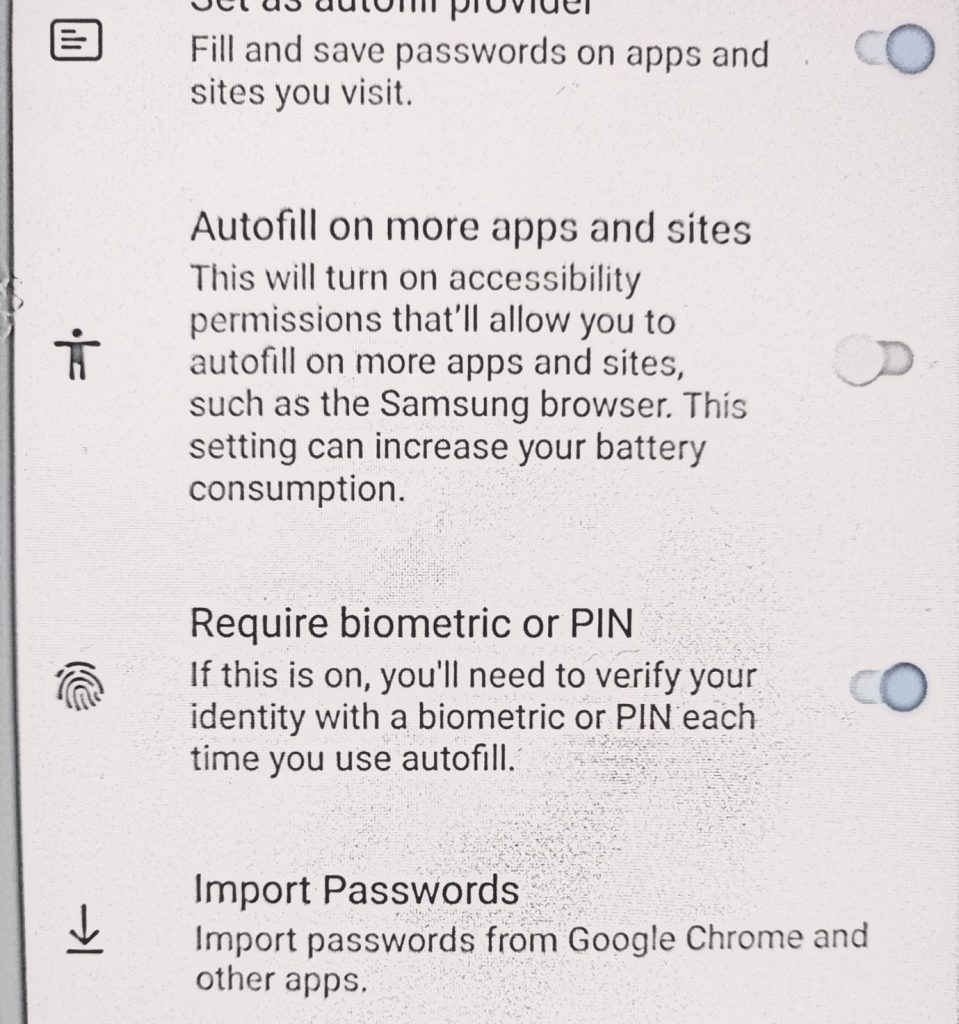
- When finished, in the Authenticator, click Settings.
- Scroll to Import Passwords at the bottom.

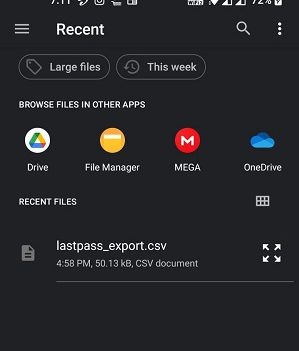
- Select the CSV file.

- The passwords would be imported and shown on the Home Screen.
- Open Microsoft Edge on your computer.
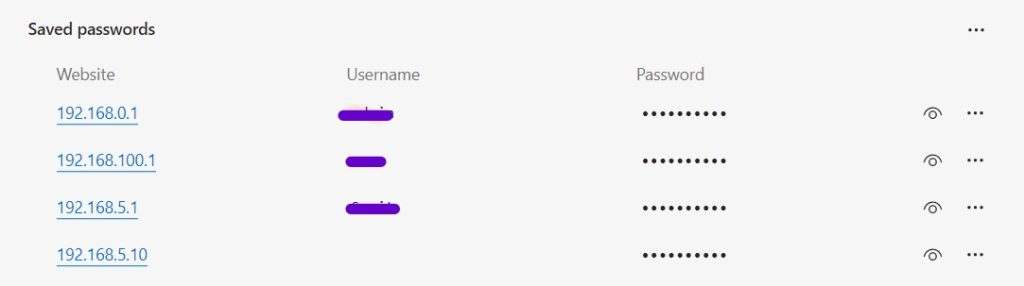
- Open Settings>Passwords.
- You would see your passwords.
Things to Remember and troubleshooting.
- Android 6+ and iOS 5.70 are the minimum OS requirements.
- Microsoft Authenticator app is available in other Stores in China too. However, there are some limitations as Google Play services in China don’t work.
- If the CSV file import failed, you need to use a template from Microsoft in order to make it work. Usually, files from Lastpass, Bitwarden, Roboform, and browsers work. If you use something else, See the following steps:
- Download the CSV template file.
- Fill in your credentials manually. The first row must contain a header with three columns: URL, username, and password.
- Each row must contain a value under URL and passwords
These steps can help you import passwords using a CSV file. Do you like Microsoft Authenticator’s new features? Let us know…