Microsoft Update Catalog is a service from Microsoft that provides a listing of software updates released by Microsoft Corporation. It includes updates of Device drivers, security updates, and hotfixes for products like Windows and Microsoft Office, among others. As in Windows, we aren’t allowed to save the Installer for offline use. It is a method for downloading Windows updates for later use. As a result, this is extremely helpful for the computers not connected to a network.
STEPS TO DOWNLOAD UPDATES VIA MICROSOFT UPDATE CATALOG
To download MSU Packages for Windows update, see the steps below:
- Navigate to the Windows Update Catalog website first.
- Concurrently, it might prompt you to install an add-on. Click on Install to trigger the Installation as shown at the bottom:
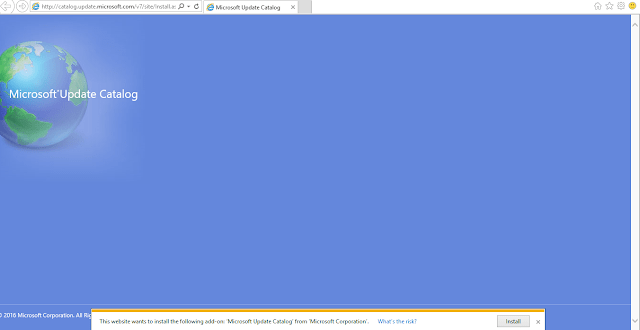
- Next, Click Yes when prompted by the User Account Control dialog. Furthermore, after the Installation finishes, the page will change to something like this:
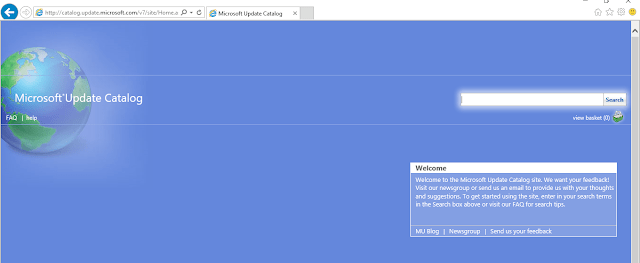
- The next step is to get the update. The search bar allows searching for updates according to any of the terms, such as the KB number. For driver updates, we can give the driver manufacturer, the driver model, and the driver version. For each update, Microsoft has assigned a unique KB number. The best way is to input the KB number in the search bar.
- I am assuming that KB3135782 needs to be updated, and I have entered the same in the search bar. After pressing Enter, the search results are here:
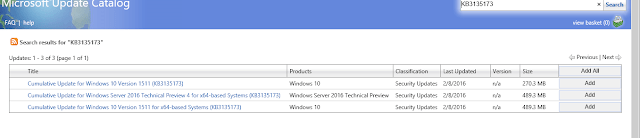
- The next step is to download the update. First, I need to add the update to the basket. Please think of the basket as a cart where I can add multiple items to it (updates in this case). To add to the basket, click Add present against the list item at the extreme right.
- Once the updated shopping is complete, we need to download it to my computer. To start the download, click on ‘View Basket’ (top right of the page).

- When you reach the basket, click on the download button to specify the path of the folder where you wish to download the update.
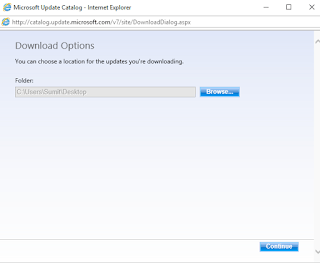
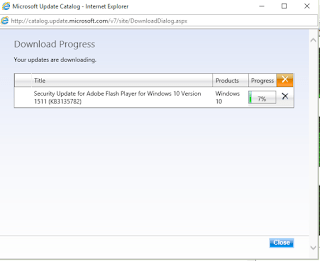
- Click “Continue,” and you will be greeted with a progress window that displays the status of the updates being downloaded.
That’s it. Any tips are welcome!

