The next update to Windows 11, Windows 11 22H2, is now available to the general public. Concurrently, you can update to the same manually. This article is for you if you have already installed it and have issues, and you want to go to the previous version of Windows 11.
Uninstall Windows 11 22H2 update
To roll back to the previous version, see the steps below.
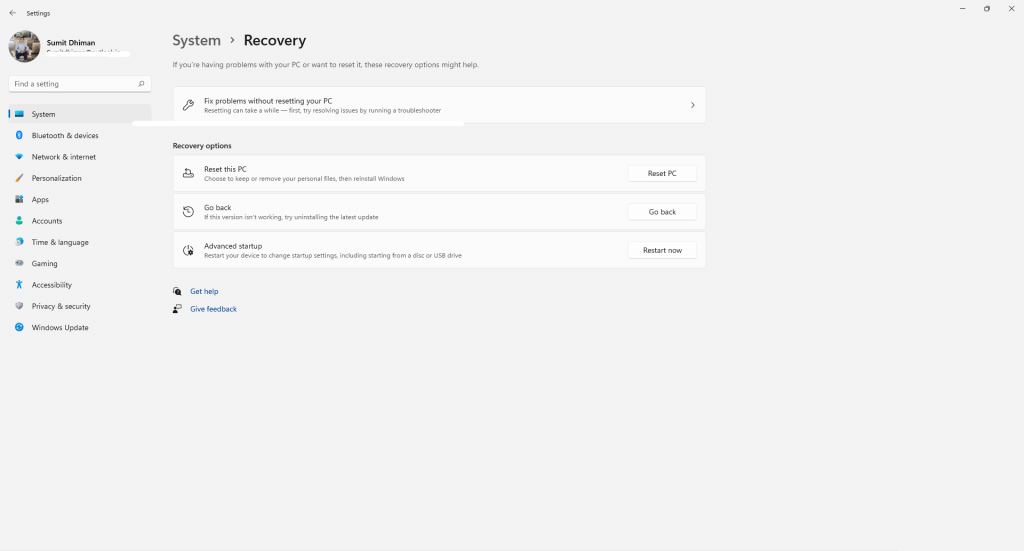
- Press the Win+I keys to open the Settings.
- Open System>Recovery options.
- Next, click “Go back to the previous version of Windows.”
- Windows would ask you questions about what you did not like or had issues with.
- Next, wait for the process to complete.
Uninstall Windows 11 2022 update if the PC does not start
Additionally, if you cannot start the computer, or it is stuck, you can open the Windows Recovery environment from where you can uninstall Windows 11 2022 update.
How to start Windows Recovery Environment (WinRE) in Windows 10/11 – Your Forum Mentee
When the boot screen is shown, restart your computer twice, either using the Restart button on the computer or pressing and holding the power button for 5 seconds. Consequently, you would see a screen indicating your PC did not start correctly.
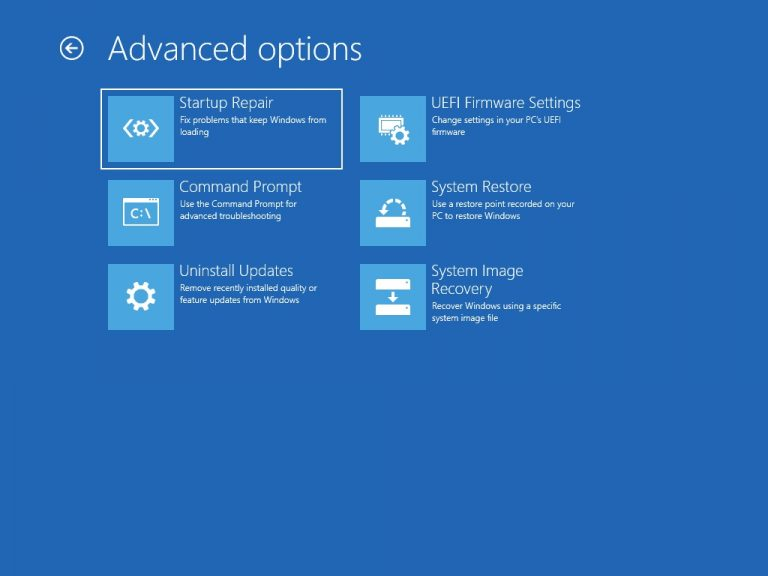
Click the Advanced Options button, and you will be in the Windows Recovery environment.
From there, select Uninstall updates, then select the “Uninstall latest feature update” option.
Let the process of uninstalling complete.
To conclude, these steps can help you to uninstall Windows 11 22H2.
Also check: