If you are looking for how to uninstall Microsoft Office from your PC, you are in the right place. This article is a comprehensive guide on how to uninstall Microsoft Office, covering Microsoft Office 2016, 2019, 2021, and Microsoft 365, on a Windows computer.
Table of Contents
What is Microsoft Office?
Microsoft Office is a suite of productivity applications developed by Microsoft. It includes popular tools like Word, Excel, PowerPoint, Outlook, OneNote, and more. These apps help you create documents, spreadsheets, and presentations and manage emails, all in one place. Microsoft Office is available in different versions, such as Office 2016, Office 2019, Office 2021, and Microsoft 365 (formerly Office 365). Whether you use it for work, school, or personal tasks, Microsoft Office is one of the most widely used software suites on Windows computers.
How to uninstall Microsoft Office – various methods
There are several ways to remove Microsoft Office, also known as Microsoft 365 Copilot. I would start with the most efficient one, and then move on to the easiest one.
Remove Microsoft 365 Using the Microsoft Support and Recovery Assistant
Microsoft offers a free tool called the Microsoft Support and Recovery Assistant (SaRA). This tool is designed to fix Office installation problems and can also help you fully uninstall Office when other methods fail.
Here is how to use it:
- Go to https://aka.ms/SaRA-officeUninstallFromPC to open the Get Help App.
- When the tool opens, select Yes, and then click Next.
- Choose the option to uninstall Microsoft 365, then follow the steps.
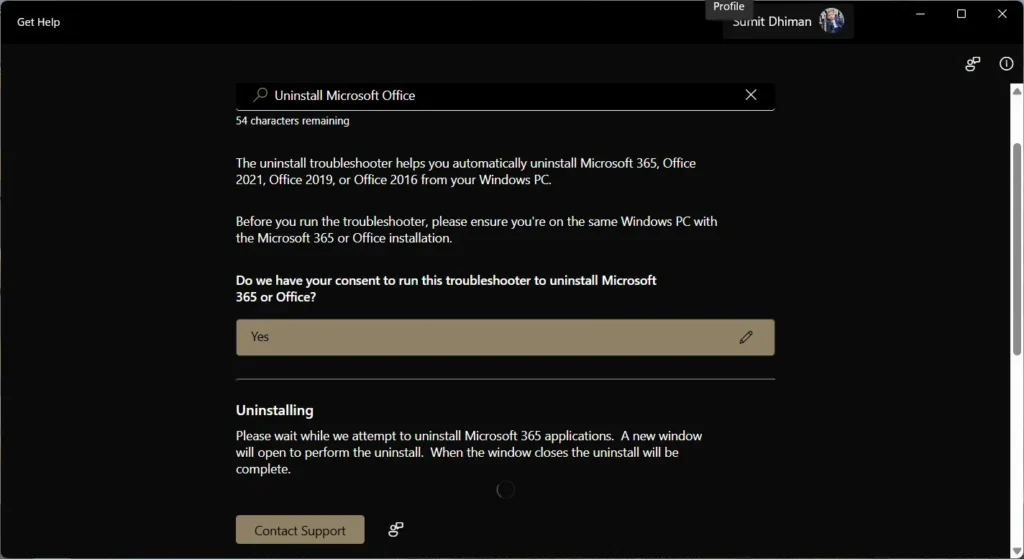
- The tool will automatically detect your Office version and remove Microsoft 365 completely using a PowerShell window. It may take 10 to 15 minutes.

- Once done, restart your PC.
- The SaRA tool is very helpful when Office does not uninstall properly. It removes all Office files and registry key.
Method 2: Uninstall Office using the Settings app
If you prefer the old-school method, you can also uninstall Office using the Control Panel. This method works well with older versions of Windows and Office. However, it does not remove any leftovers like the Registry keys. Here is how to do it:
- Right-click the Start button and choose Apps and Features.
- Scroll through the list to find Microsoft Office.
- Right-click on it and select Uninstall.
- Follow the prompts to complete the uninstallation.
- Restart your computer once the process is complete.
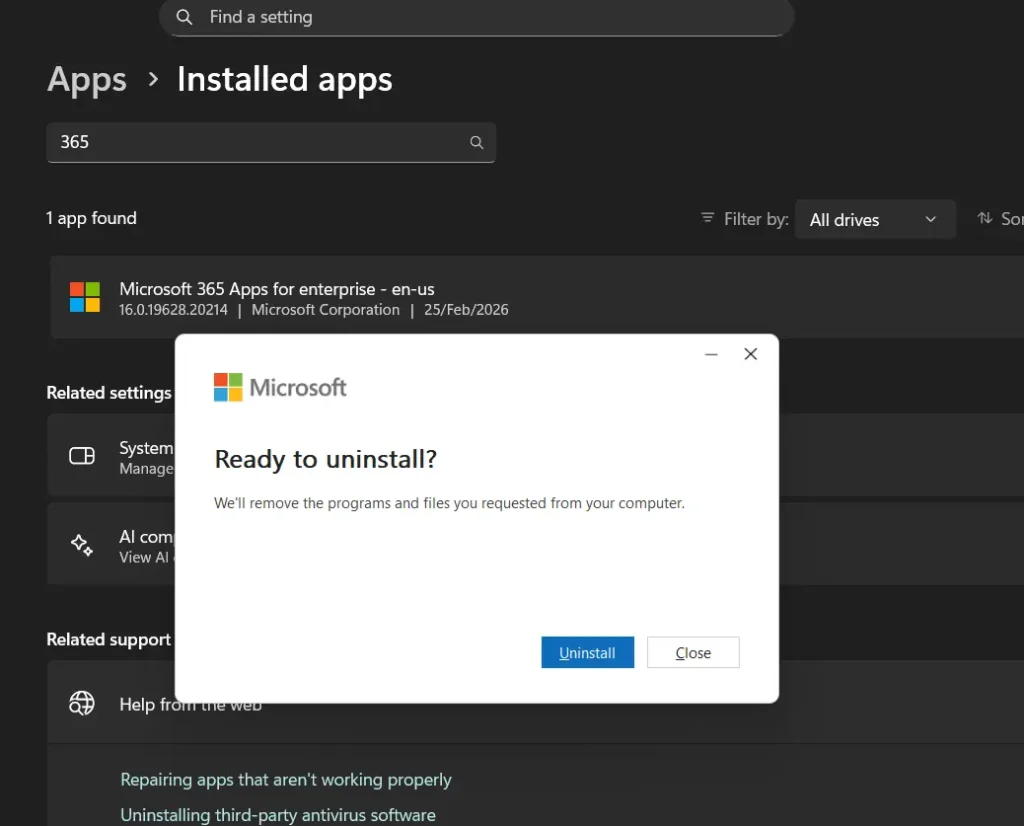
This method is straightforward and works for all major Office versions. You would need to uninstall Office repeatedly for each version.
Frequently Asked Questions (FAQ) about Microsoft 365 uninstall
Some FAQs related to Microsoft Office Uninstall / Reinstall are below:
Would uninstalling make me lose files?
When you uninstall Office, your documents, spreadsheets, and other files are not deleted. They stay on your computer. However, you will need to install a compatible app to open them after the uninstall.
Will uninstalling Office cancel my Microsoft 365 subscription?
No. Uninstalling Office does not cancel your Microsoft 365 subscription. Your subscription remains active. You can sign in to your Microsoft account and reinstall Office on the same device or a new device.
Can I reinstall Office after uninstalling it?
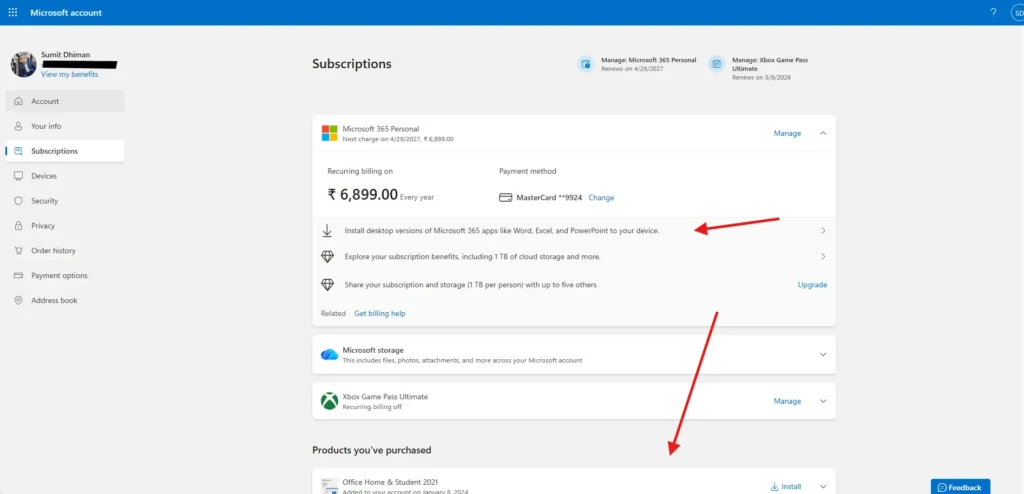
You can reinstall Microsoft Office from the https://account.microsoft.com/services page by selecting the relevant option.
We hope this guide helped you successfully Uninstall Office from your Windows PC.