Windows Update is a crucial part of the Windows operating system that helps you control Windows Update by checking for updates related to device drivers, the core OS, security patches, and more. This process ensures that your system runs smoothly and securely. Updates and upgrades are all managed through Windows Update, which automatically checks for and installs newer updates at specified times.
Installing these updates is essential, as they provide increased stability to your operating system and address various security issues. In the past, older operating systems offered more flexibility, allowing users to manually check for updates and confirm the downloads and installations.
However, in Windows 10, Microsoft has streamlined this process by removing the option for manual checks. Now, Windows Update automatically searches for and downloads updates as soon as they become available. While this can simplify things, it sometimes leads to inconveniences, such as the installation of problematic drivers or unexpected restarts while you’re in the middle of important tasks, which can result in lost work.
Fortunately, there are some workarounds in Windows 10 to help you manage these issues more effectively:

Set your Network connection as metered:
Internet service providers can charge by the amount of data used (the amount of data sent and received by your PC). That’s called a metered Internet connection.
When your Internet connection is set as metered, Windows will ask you before downloading updates. It will also show the approximate data required to download the update.
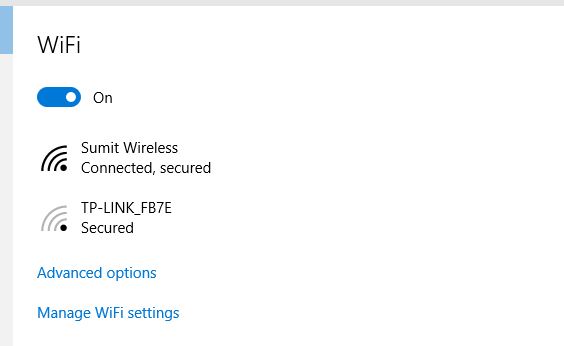
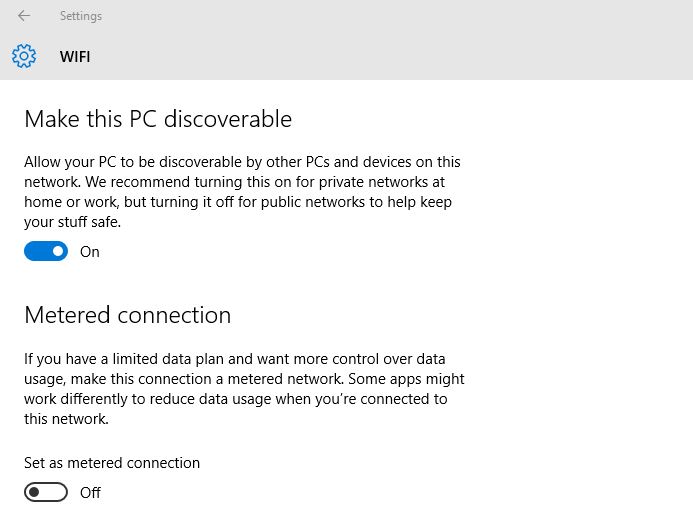
To set Wi-Fi connection as metered:
- Open the settings app and then navigate to Netork and Internet.
- Now under Wifi Settings click Advanced Options.

- Then set the Slider to ON for metered connections.

To set Ethernet as metered connection:
Setting an Ethernet connection as metered requires a registry Edit.This is covered here:
Hide Updates using Troubleshooter tool:
Microsoft has released an official troubleshooter tool to hide windows updates.This is quite handy to hide unwanted windows updates.
When you run the tool,click hide updates and it would show a list of available updates.Tick the updates to hide that ones.To un-hide,run the tool again and click “un-hide updates” at the first prompt.
Use Registry Edit to set the update settings to Check for download and Install manually(Windows 10 Pro Edition only)
Now an Advanced method.Using registry edit we can set the windows update settings to Check for updates but confirm before the download.Follow the steps:
-
- Open Run dialog box using Windows key+R.Type in regedit and press OK.
- Now on the left hand side navigate to the following key:HKEY_LOCAL_MACHINESOFTWAREPoliciesMicrosoftWindows
- Create a new key under Windows and name it WindowsUpdate
- Create a new key under Windows update and set the name as AU.The final would look like this:

- Now right Click AU and select new DWORD and name it AUOptions and set its value to 2 (to notify to download and notify to Install).Alternatively change the value according to this table:

3 to auto download and notify for install,
4 to auto download and schedule the install and
5 To allow local admin to choose setting.
This method works only in Pro Editions,not the home one.
Completely disable the windows update service
To completely turn off the windows update service,you need to disable Windows update service.Follow the steps:

- iPress Windows key+R to open Run dialog box.
- Type in Services.msc and on the right hand side right click Windows update service.
- Navigate to Properties and set startup type to disabled
- Now windows would never check for updates.
An error code of 80070422 would be displayed.
Powershell method(manual Installation)
The last method is Powershell method.In this the selective updates can be installed.For this first of all set your connection as metered connection so that windows doesn’t automatically download the updates using the above methods.
Then proceed as following article:
That’s it.Let me know if there are any other methods………
