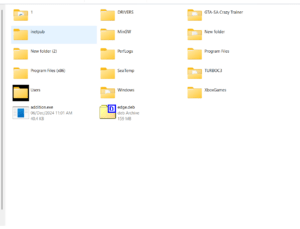
In the community forums, users frequently complain that Windows 10 and Windows 11 fail to save the positions of desktop icons. This is a significant issue, particularly with multiple monitors, as arranging them requires considerable effort. Ideally, if the desktop auto-arrange feature is disabled, the icons should not change their positions; however, in specific scenarios or you can say bugs, this issue persists. This article will help you with this issue—how to lock icons on the Desktop in Windows.
Table of Contents
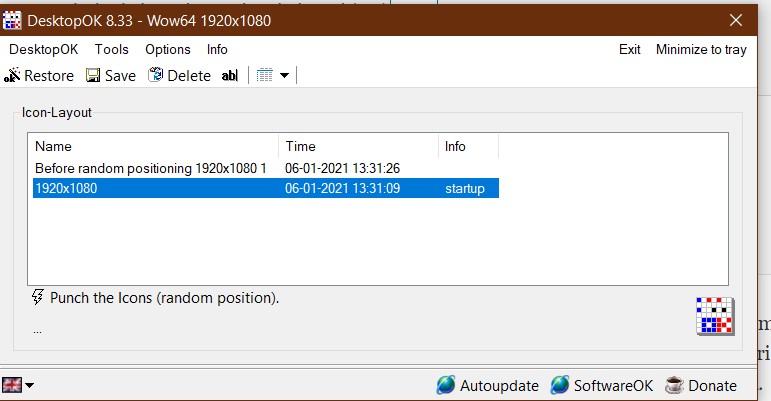
How to Lock icons on the desktop in Windows 11 using DesktopOK
Using DesktopOK is very easy. If the icons are misplaced at every startup, a script restores them using a single click. The steps in detail are as follows:
- Rearrange the desktop icons as desired.
- Open DesktopOK and click Save to save a backup of the current alignment.
- After a restart, if your icons are misplaced, select the backup from Windows and choose Restore.
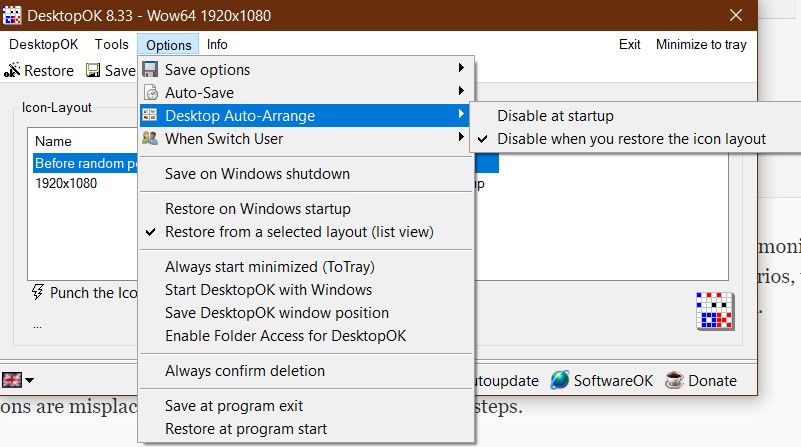
- Under Options, you can configure additional settings for the Software, such as running at startup and disabling auto-arrange.
- This ensures the desktop icons remained locked.
Download
DesktopOK is available as both a Portable and an Installer Program from their website. You can download it from the link below, which you can use to lock icons on the Desktop.
Additionally, if you have issues with Windows Shell in Windows 11, you can see this guide.
To conclude, this article helps you lock Desktop icons in Windows 10 and Windows 11.