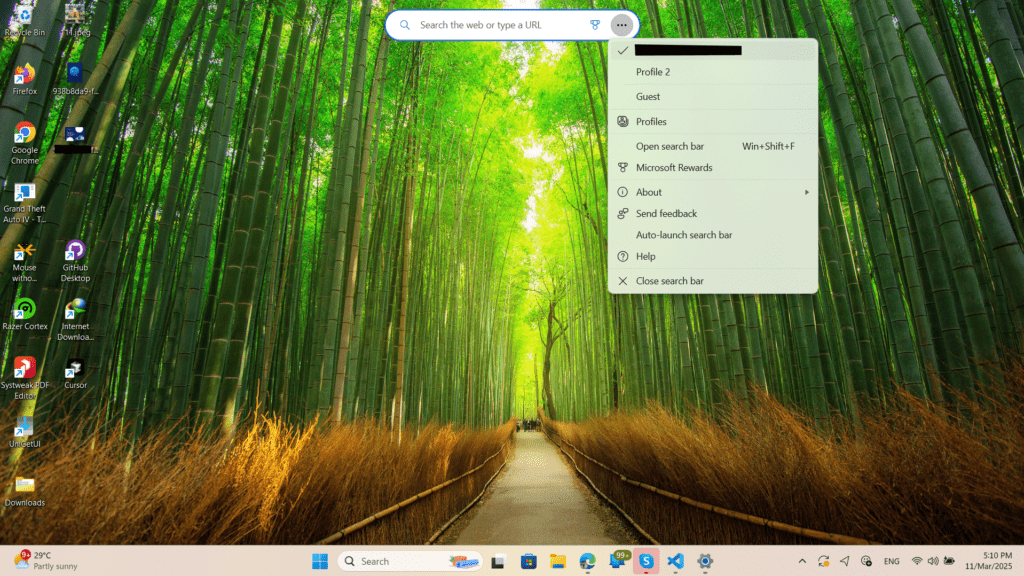
Microsoft Edge version 133 introduced a new desktop widget labelled “Search the web or type a URL,” which appears as a toolbar directly on your desktop. This article guides you the steps to hide Search the web Toolbar on a Desktop powered by Microsoft Edge.
Purpose of the Search Toolbar
This toolbar is actually an Edge Widget designed to provide quick and convenient access to web searches and URLs directly from your desktop. Additionally, the menu with the Widget also has other few options given below:
- Profile Switcher
- Opening a Full Search bar using Win+Shift+F
- Get your Microsoft Rewards account information
- Changing the Startup settings like “Auto-launch” search the web toolbar.
However, some users prefer a cleaner desktop environment without additional widgets like these.
How to Hide the Search the Web toolbar on the Desktop in Windows
To disable this Search the web toolbar on desktop, click on the three dots located at the right end of the Toolbar and select “Close Search bar.”
This helpful guide would benefit users who love a cleaner desktop without Widgets like “Search the web” powered by Microsoft Edge. All credits to this forum post.