This article gives you the steps on how to Uninstall Windows 11 25H2 update, the latest update released recently to Windows 11.
Table of Contents
About the Windows 11 25H2 update
Microsoft has officially rolled out the Windows 11 2025 Update, version 25H2, marking a significant step forward in streamlined delivery and security innovation. Built on the same servicing branch as version 24H2, this update arrives as an enablement package, ensuring a fast and reliable installation experience for eligible devices. It introduces AI-assisted secure coding and enhanced vulnerability detection as part of Microsoft’s Secure Future Initiative, while also trimming legacy components like PowerShell 2.0 and WMIC for a leaner footprint. Commercial users gain access to Wi-Fi 7 support and new app management capabilities via Intune and Group Policy. With support timelines reset—24 months for Home and Pro, and 36 months for Enterprise and Education—version 25H2 reinforces Microsoft’s commitment to continuous innovation and robust security.
How to Uninstall Windows 11 25H2 update
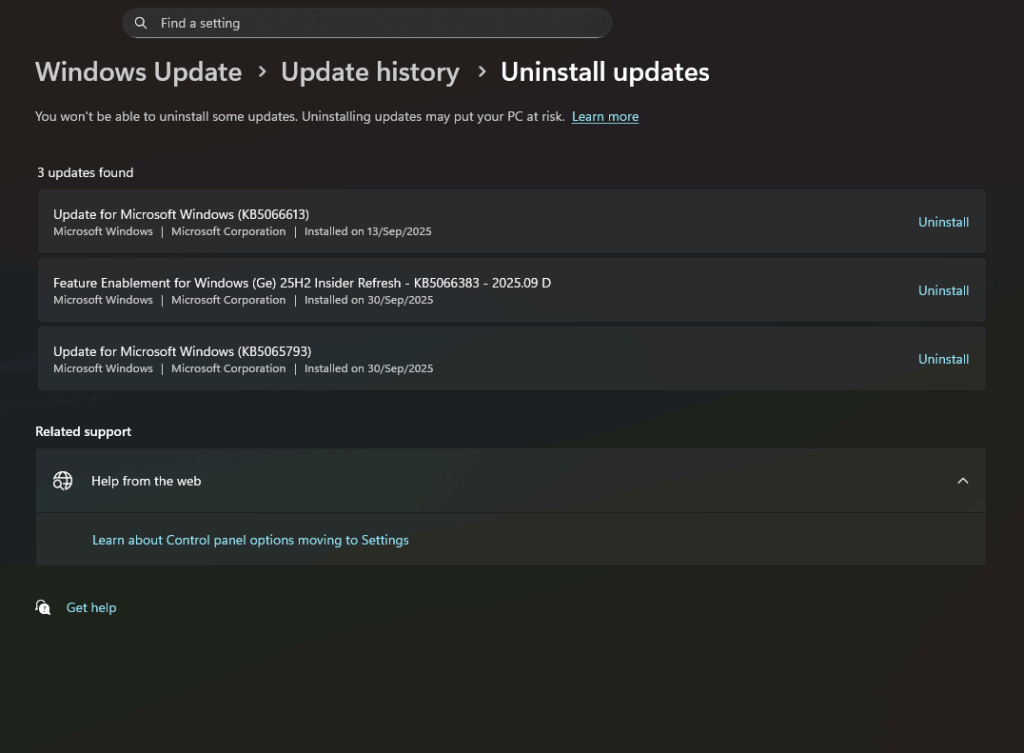
Since the update is an enablement package, instead of uninstalling the feature update, you must remove the enablement package in order to revert to the older version, i.e. Windows 11 24H2 update. An enablement package, as the name suggests, enables the locked features in the codebase build, together with extending the release date of the Operating System. The steps are below:
- Open the Settings App.
- Go to Windows Update> Update History.
- Scroll down to Uninstall updates.
- Look for “Feature Enablement for Windows 25H2” and click the “Uninstall” button.
- Press Yes when prompted.
- Let the computer restart.
- The uninstallation of Windows 11 25H2 should be complete.
Uninstall if you upgraded using the Media Creation Tool
If you have updated to Windows 11 25H2 using the Media creation tool, you would need to follow the Complete Walkthrough: Uninstall Windows 11 24H2 guide in order to remove Windows 11 2025 update.
- Press Win + I on your keyboard to open the Windows Settings.
- Click on System > Recovery from the menu on the right.
- Under the “Recovery options” section, click the Go back button.
- Click Next, then select No, thanks when prompted.
- Click the Go back to earlier build button to start the rollback process.
These easy methods would help you uninstall Windows 11 25H2 update.