This article helps you resolve Office error 0x800704cf if you are having issues with your Office apps or with signing in to OneDrive on Windows 11 with the latest updates.
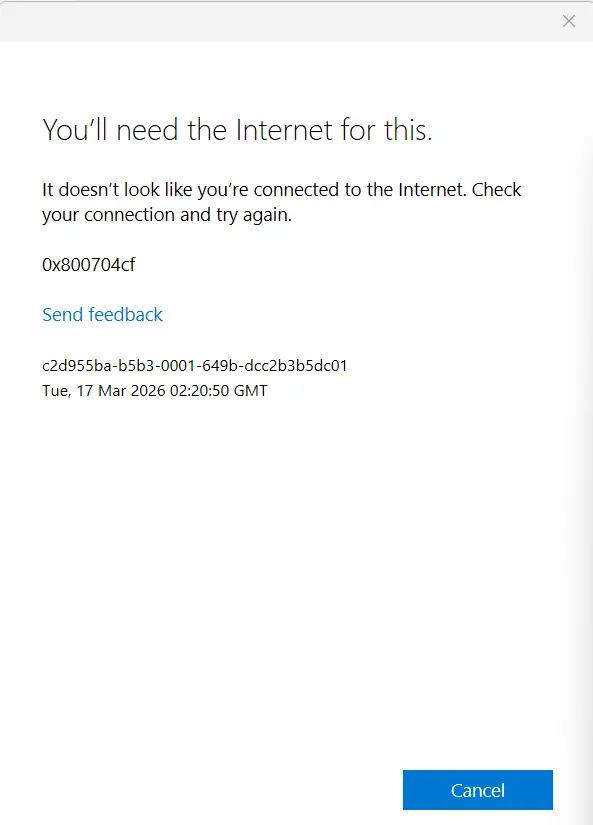
Table of Contents
What is OneDrive error 800704cf?
The error code is observed among a large number of users after installing the latest March Updates for Windows 11, according to many reports on Reddit and Microsoft Learn.
Fixing 0x800704cf error in Windows
A wide variety of solutions are available for correcting this issue. Those are listed below:
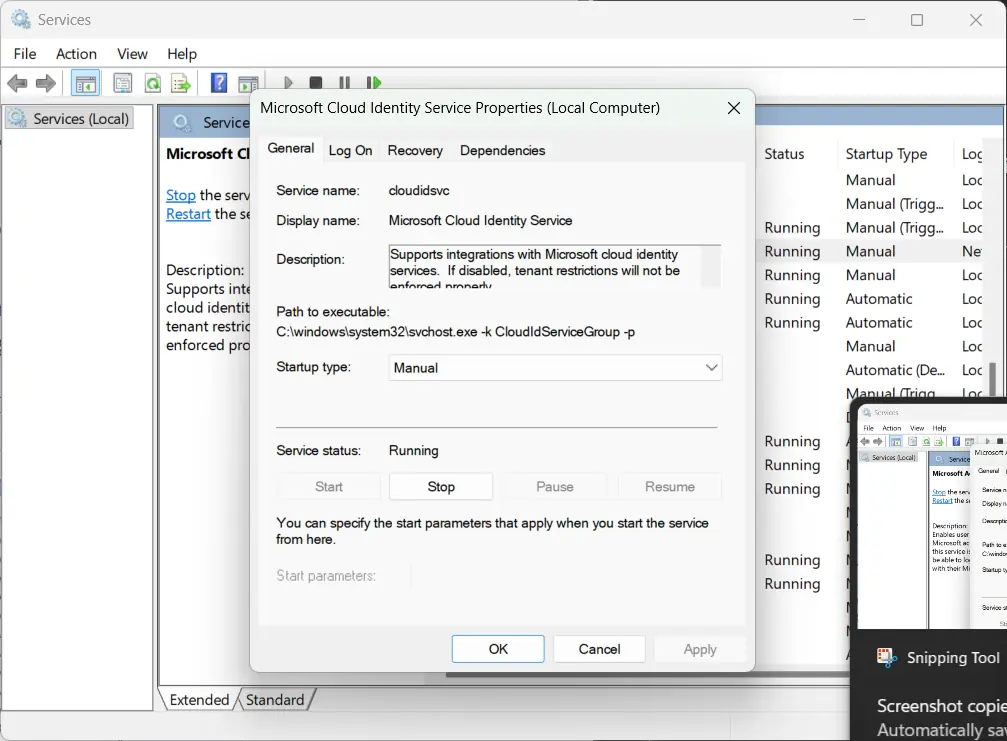
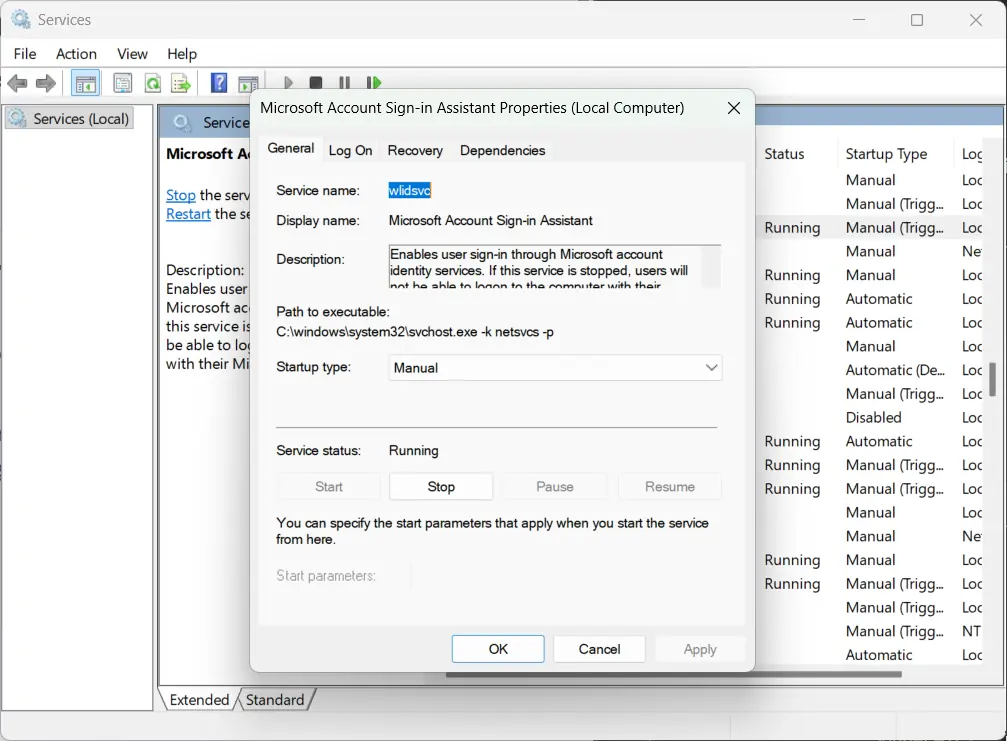
Turn on the necessary services to solve Office error 0x800704cf
One of the quickest fixes for this error is restarting two Windows services. Here’s how:
- Press
Windows key + Rto open the Run dialog box. - Type
services.mscand hit Enter to open the Services window. - Scroll down and find “Microsoft Account Sign-in Assistant.” Right-click on it and select Restart.
- Next, locate “Microsoft Cloud Identity Service.” Right-click on it and select Restart.
- Open any Office app — Word, Excel, PowerPoint, or any other — and try signing in again. The 0x800704cf sign in error should be gone.
Uninstall Windows 11 March Update
Some people have successfully resolved the sign in error after uninstalling the Windows 11 March 2026 update, since the root cause of the error is the same. Detailed steps for it are given below:
Miscellaneous Troubleshooting Steps to solve 800704cf error
Some additional troubleshooting steps can be tried below – the success rate of these steps is low.
- Reset Network: go to Settings > Network and Internet > Reset Network.
- Deleted Office Identity registry key (HKCU\Software\Microsoft\Office\16.0\Common\Identity) and Restart.
- A Repair install using these steps, however, is not recommended, as the issue is on Microsoft’s server end.
To summarize, these steps can help you resolve the OneDrive error 800704cf, which may also appear in Microsoft Office apps.



