This article discusses the Computer freezing issue in Windows. This is primarily a hardware error. What happens most commonly is the computer stops responding and locks up in such a way that you have to restart the computer. I would discuss how to resolve the second one in detail. The first one would be covered in a later article.
Symptoms
The Symptom of this issue is that you are working on your computer, and all of a sudden, the PC stops responding. Depending on the intensity of the problem, the freeze or lockup can occur frequently.
Remedy
There can be several reasons why a computer freezing in Windows. Most of the time, hardware is involved. Let us discuss them one by one:
Undo any recent hardware changes
From a new RAM Stick to a graphics card installed recently, a newer hardware most commonly can cause Computer freezing. If you have recently installed or connected hardware, try disconnecting/removing it and check. New hardware can be defective as well. Skip this if you haven’t added new hardware.
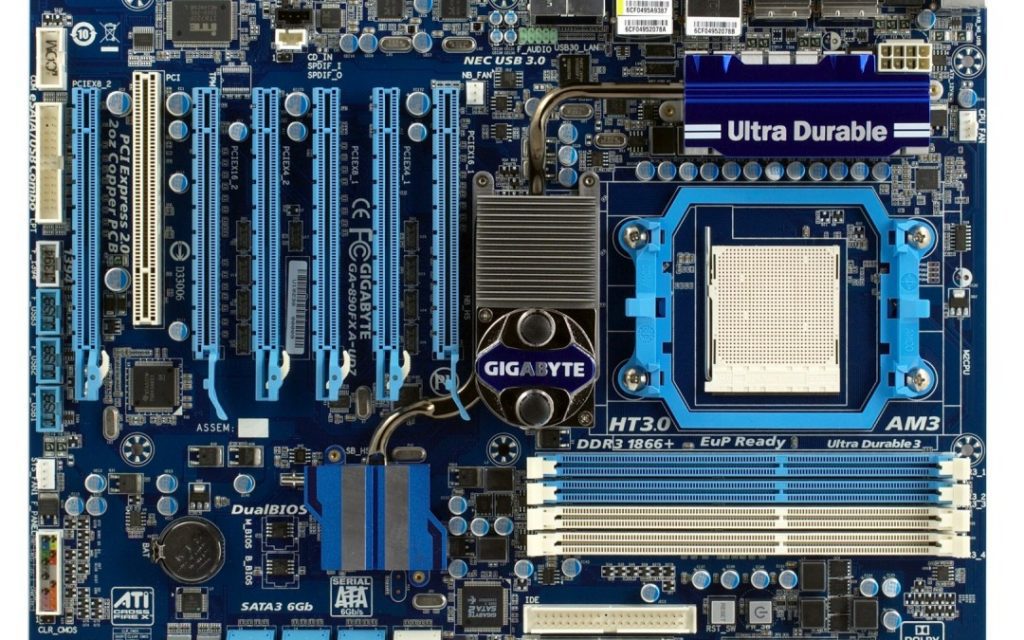
Physically inspect the motherboard and reseat everything
If the computer freezes or locks up suddenly, you can try physically inspecting the motherboard for a burnt IC or a leaking capacitor. Not commonly possible for laptops as it requires technical skills, but can be definitely for a PC. Running a hardware diagnostic on the motherboard is our recommended course of action in a laptop.
Overheating
Overheating is usually a cause if you are doing a resource-hungry work and the computer freezes or unexpected reboots show up then. In that case, regularly monitor the temperatures and see if they are not going above 60C in normal use and 80 under extensive. If that is the case, you might have to clear out the dust, clean the fan, and check. A noisy fan is also a symptom of this. Use HWinfo or SpeedFan to get temperature values. For PCs, you can consider removing the case and then using the PC to check.

[PC only] Power Supply Fault
Most commonly, unexpected reboots and computer freezes are caused by a faulty power supply unit. Either the PSU is defective or unable to supply adequate voltage. A standard gaming PC can require up to 700W of power from the PSU. Technically, there is no way to check for a power supply defect; the only way to do so is with a voltmeter or by testing it on another computer. Hwinfo can provide +3V, 5V, and +12V values, so if these values are not present, it is likely that the PSU has a problem.
[Advanced]
You can get help from Tech support forums or us for troubleshooting, as well as for computer freezes. Shoot us the link of the logs or ask a question at Microsoft Answers.
Alternatively, you can also show this to your nearest Technician as a last resort if nothing else helps.
Miscellaneous.
The following miscellaneous things can also be used while troubleshooting:
- Undo any driver updates recently, especially the Chipset.
- Check for BIOS updates.
- Check for faulty memory using Memory Test.


