Windows Update is an essential component of Windows. By Windows updates on,e can get:
- New drivers for the hardware devices installed in the computer
- Security patches.
- Known bugs fixed.
- Significant updates and upgrades.
Sometimes Windows updates do not work as you want them to. Most common issues include failure with an error code and reverting to the updates after installation (see here). This article discusses how to reset Windows update completely using a reset script. Generally, resetting Windows updates fixes errors in Windows updates.
The script does the following things:
- Removes the older Windows update Folders, where the updates are downloaded. Newer ones are created automatically.
- Re-registers the Windows update Files.
- Resets your network connection and BITS service.
Instructions for running the Windows update Reset Script in Windows 10/11
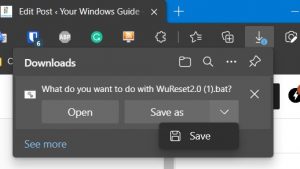
- Download the Script onto your computer(Link at the end)
- Select Keep if prompted.

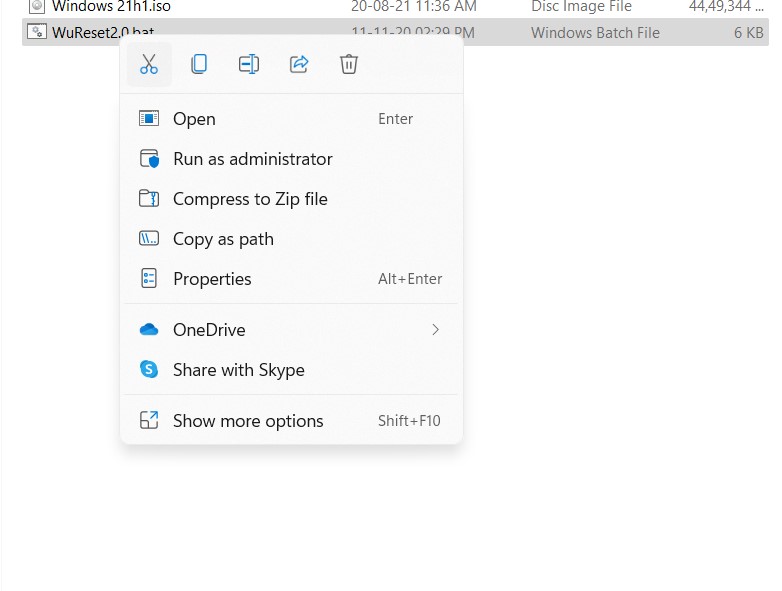
- Go to the Downloads folder in your user’s folder and locate the file.
- Right-click the WuReset2.0 named file and select Run as administrator.

- If Windows SmartScreen blocks it, click Run anyway. Windows blocks untrusted BAT files by design.
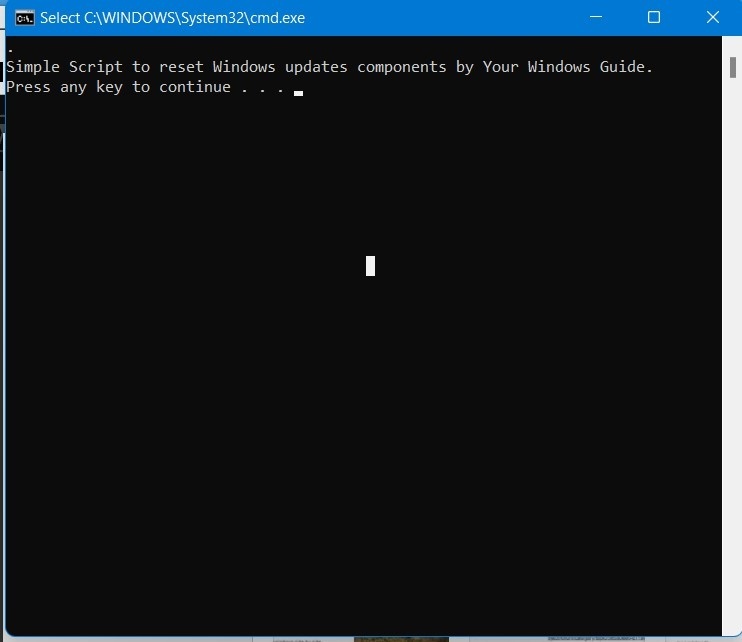
- Let it finish.

- Restart your computer, check for the updates again, and see if your problem is resolved.
Download the Windows update Reset Script
Disclaimer: This script would erase the Update History.
Is the script safe?
Yes, the script is absolutely safe to use.
Also, read:
[FIX] Windows update says undoing changes after/before restart


